
Interactive Widgets
Most widgets only show something. An interactive widget also lets you do something: some of its tiles can be pressed on the Home Screen, and each press goes to your own system, which carries it out and publishes the new state back.
The Switchboard template is the first interactive template, and this guide uses it as the example. Everything here applies to any template with pressable tiles.
Actions
Section titled “Actions”A pressable tile is an action in the widget’s content. Every action has
an id, which is what your system receives when the tile is pressed, and a
kind:
- A button does something once: start a scene, run a script, open the
garage. It has an optional
activeflag, a highlight that only you set, for example on the scene that is running now. - A toggle has two states: a light, a fountain, a fan. Its
onvalue says whether the thing is on right now, and you own it: a press asks for a change, and your next update says whether it happened.
The template’s section on the Widget Templates page lists the exact fields.
How a press travels
Section titled “How a press travels”- You publish the widget’s content with
PATCH /widget/{slug}: the actions, and for each toggle whether it is on. - Someone presses a tile. The phone sends the press to Aivi, and the tile shows that it is waiting.
- Aivi delivers a
widget.action.v1event to your event stream or your webhook. Receiving Events covers the envelope and both ways to receive it. - Your system carries the press out, for example turns the porch light on.
- Your system publishes the new state: the porch light’s toggle with
"on": true. The phone that sent the press is still waiting for it and fills the tile in at once; every other phone that shows the widget updates too.
The phone never decides on its own that something is on. The last step is what makes a tile trustworthy: it only looks on when your system says so.
What a tile shows
Section titled “What a tile shows”A tile always shows what you published, plus a clear sign when a press is
on its way. A filled tile means on: a toggle that is on, or a button you
published as "active": true. Everything else is a neutral tile.
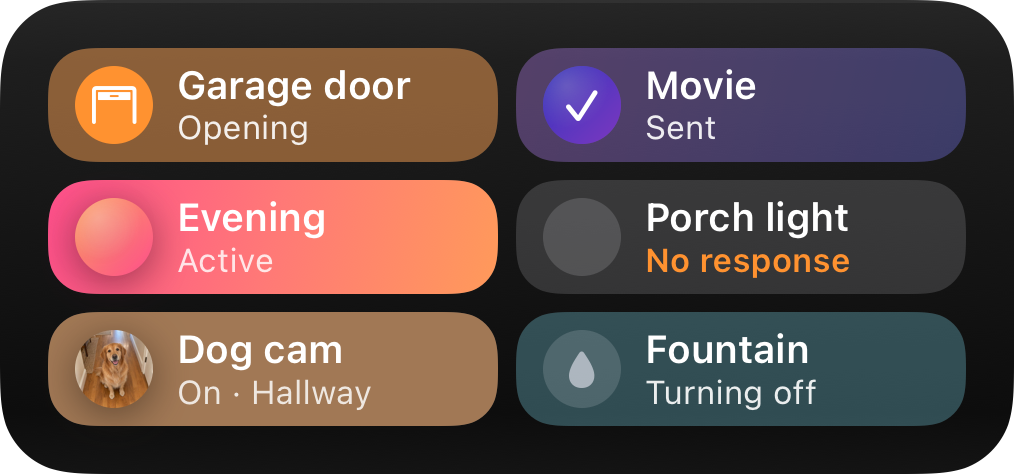
| State | What the tile shows |
|---|---|
| Off (toggle) | A neutral tile with a muted mark, and Off on the second line. A picture turns grey. |
| Idle (button) | A neutral tile with the full mark as a preview, and the subtitle. |
| On (toggle), active (button) | The tile fills with its mark: the gradient, else the picture’s average color, else the color. The mark lifts off the fill with a soft shadow, and the text turns dark on pale fills. |
| Turning on, turning off | At once after the press, with Turning on or Turning off on the second line. Turning on tints the tile lightly in the color it will fill with, under the full mark; turning off fades the fill and mutes the mark. |
| No response | Your update didn’t arrive within 15 seconds. The tile shows the state you last published, with No response on the second line, for about a minute. |
| Sent (button) | A check in the mark over a light wash, with Sent on the second line, until your update arrives. If none comes within 5 seconds, Sent stays about 2 seconds longer and the tile goes back to what you last published. It means the press reached Aivi, not that the scene ran. |
The words in bold are the app’s. A tile can use your own instead, such as Open and Opening for a garage door: see State words. They rename the states, and change nothing about when each one shows.
A toggle fills in, or empties, only when your update arrives with the new
on value. An update that confirms the press ends the wait at any point,
even after No response has appeared, so a slow system still gets the
right result on screen. A button’s press is answered by any update you
publish after it, and the tile then shows that update. A button is
highlighted only when you publish it with "active": true; pressing it
never does that on its own. Buttons never show No response: a button
has no state to confirm, so an unanswered press just ends.
If the press can’t be sent at all, for example without a connection, or Aivi refuses it, the tile goes straight back to what it showed before, with no marker.
The small size has no second line, so the fill and the check
are the whole signal there. VoiceOver reads the label, the picture’s alt
when a picture is drawn, and the subtitle, then the state: On, Off,
Turning on, Turning off, No response, Active, or Sent.
Confirming the result
Section titled “Confirming the result”When your system has carried a press out, publish the widget’s content
again with what is true now: the toggle’s on, or the button’s active.
Content replaces the previous content as a whole, so send every action, not
only the one that changed. The update confirms the press on the phone that
sent it and refreshes the widget on every other phone.
- A toggle is confirmed by an update that shows it in the requested state.
- A button is confirmed by any update after the press, even one identical to the last. Publish after every button press, so the tile stops saying Sent as soon as the press is handled.
Answer quickly. The phone that sent the press waits for your update, up to 15 seconds for a toggle and 5 for a button, and draws it the moment it arrives. Other phones get updates through iOS, which decides when a widget reloads; Aivi sends them at most one update per widget every 2 seconds, always the latest content.
If you already publish whenever the underlying device changes, you don’t need extra code: the change the press caused triggers the confirming update. Publish the true state even when a press failed. A light that stayed off because it is unreachable should be published as off, and the phone shows off instead of waiting. See Confirming the result for an example request.
Who can press
Section titled “Who can press”The widget’s owner and every device subscribed to a shared widget can press its tiles. Every press is delivered to the owner’s account, whoever pressed it: the owner’s API token opens the event stream, and the owner configures the webhooks.
When a widget’s privacy setting hides its content on a locked phone, the tiles hide their labels and state, and don’t take presses until the phone is unlocked.
Presses come from the Home Screen. The Lock Screen and Apple Watch versions of a widget, a widget shown inside a Board, and the previews in the Aivi app show the state but can’t be pressed.
Rate limit and duplicates
Section titled “Rate limit and duplicates”Presses are rate limited, so a tile tapped over and over can’t flood your system:
- Per phone and widget: 8 presses in a quick burst, then one a second, and at most 60 a minute.
- Per account: 20 presses in a quick burst across all your widgets and the phones that show them, then one a second.
A press over the limit is refused and never reaches you. The tile goes back to what it showed, and the phone ignores taps on that widget for a moment. If a press is retried, for example after a network timeout, it keeps its id, and Aivi delivers it only once.
Delivery to your system can still repeat: a webhook is retried after a
transient failure such as a timeout, and a stream that reconnects can see
an event again. Every press has its own event id, unique across all your
widgets and the same on every retry, so deduplicate on it when an action
isn’t safe to repeat. Turning a light on twice does no harm; feeding the
cat twice might.
Home Assistant
Section titled “Home Assistant”The example publishes a switchboard with two scenes and two toggles, and
turns presses into service calls. It reuses the update_widget
RESTful command from the
widget templates page. Create a widget with the Switchboard template in the
app first, with the slug living-room.
-
Publish the switchboard whenever one of its entities changes. Every update carries the whole content, with each toggle’s
onread from its entity:- alias: "Aivi: publish the living room switchboard"triggers:- trigger: stateentity_id:- light.porch- switch.fountain- trigger: homeassistantevent: startactions:- action: rest_command.update_widgetdata:slug: living-roompayload: >-{{ {"content": {"template": "switchboard", "actions": [{"id": "movie", "label": "Movie", "icon": "tv.fill"},{"id": "all_off", "label": "All off", "icon": "power"},{"id": "porch", "label": "Porch light", "icon": "lightbulb.fill","kind": "toggle", "color": "yellow", "on": is_state("light.porch", "on")},{"id": "fountain", "label": "Fountain", "icon": "drop.fill","kind": "toggle", "color": "cyan", "on": is_state("switch.fountain", "on")}]}} | tojson }}This automation is also what confirms a press: turning the porch light on changes its state, and the update fills in the tile. A scene changes none of these entities, so the next step runs this automation after each scene or script to answer the button press.
-
Make a token of your own. Aivi sends it with every press, and the automation in the next step checks it, so that only Aivi can use the webhook:
openssl rand -hex 32 -
Receive presses with a webhook trigger. It checks the token, drops expired presses, then carries out the action:
- alias: "Aivi: living room switchboard presses"mode: queuedmax: 10triggers:- trigger: webhookwebhook_id: "[webhook-id]"allowed_methods: [POST]local_only: trueconditions:- condition: templatevalue_template: "{{ trigger.json.token == '[shared-secret]' }}"actions:- variables:event: "{{ trigger.json.event | from_json }}"- condition: templatevalue_template: >-{{ event.type == 'widget.action.v1'and as_timestamp(event.expires_at, 0) > as_timestamp(now()) }}- choose:- conditions: "{{ event.data.action == 'movie' }}"sequence:- action: scene.turn_ontarget: { entity_id: scene.movie }- action: automation.triggertarget: { entity_id: automation.aivi_publish_the_living_room_switchboard }- conditions: "{{ event.data.action == 'all_off' }}"sequence:- action: script.turn_ontarget: { entity_id: script.all_off }- action: automation.triggertarget: { entity_id: automation.aivi_publish_the_living_room_switchboard }- conditions: "{{ event.data.kind == 'toggle' }}"sequence:- variables:entity: >-{{ {"porch": "light.porch", "fountain": "switch.fountain"}[event.data.action] }}- if: "{{ event.data.value }}"then:- action: homeassistant.turn_ontarget: { entity_id: "{{ entity }}" }else:- action: homeassistant.turn_offtarget: { entity_id: "{{ entity }}" } -
Point the widget’s webhooks at it. The
"*"entry catches every action, and thebodytemplate carries your token and the whole event:curl https://api.getaivi.app/widget/living-room/webhooks \-X PUT \-H "Content-Type: application/json" \-H "Authorization: Token [token]" \-d '{"webhooks": {"*": {"url": "[webhook-url]", "body": {"token": "[shared-secret]", "event": "{{event_json}}"}}}}'
Toggles and scenes are safe to repeat, so an occasional duplicate delivery
does no harm here. For an action that isn’t, remember recent event.id
values and skip repeats.
Limitations
Section titled “Limitations”- Presses need a connection. The phone sends every press to Aivi, so tiles don’t work offline. Nothing is queued for later.
- Confirm quickly. Aivi stops delivering a press 5 seconds after it happened, and a toggle waits 15 seconds for your update before it shows No response.
- Rate limited. Each phone can send 8 presses to a widget in a burst, then one a second. See Rate limit and duplicates.
- Short replay only. A stream that reconnects gets the presses it missed only while they are still unexpired. A press that happens while nothing is listening, with no event stream open and no webhook configured, is lost.
- Webhooks reach port 443 only, on public addresses, with 2 seconds per attempt, and a second attempt only after a transient failure. See delivery rules.
- Pictures lag. The phone fetches a tile’s picture in the background, so a new picture can take a while to appear. See Pictures, and Hosting Widget Pictures for where to put them.
- Presses come from the Home Screen. The Lock Screen and Apple Watch versions, and widgets inside a Board, show the state but can’t be pressed.
Aivi: Live Activities and widgets over an API · Pricing · App Store