This is the full developer documentation for Aivi
# What is Aivi?
> Aivi puts Live Activities and widgets on your iPhone for Home Assistant and anything that can make an HTTP request. Guides, templates, and the API.
[Aivi](https://getaivi.app/) puts beautiful, real-time Live Activities on your iPhone, lock screen, and Dynamic Island, plus persistent widgets on your Home Screen, Lock Screen, and Apple Watch. It works with **Home Assistant** out of the box: import a blueprint, pick an entity, and your automations show up live on every subscriber’s device. Under the hood it is a simple HTTP API, so anything that can make a request can drive an activity or a widget too.
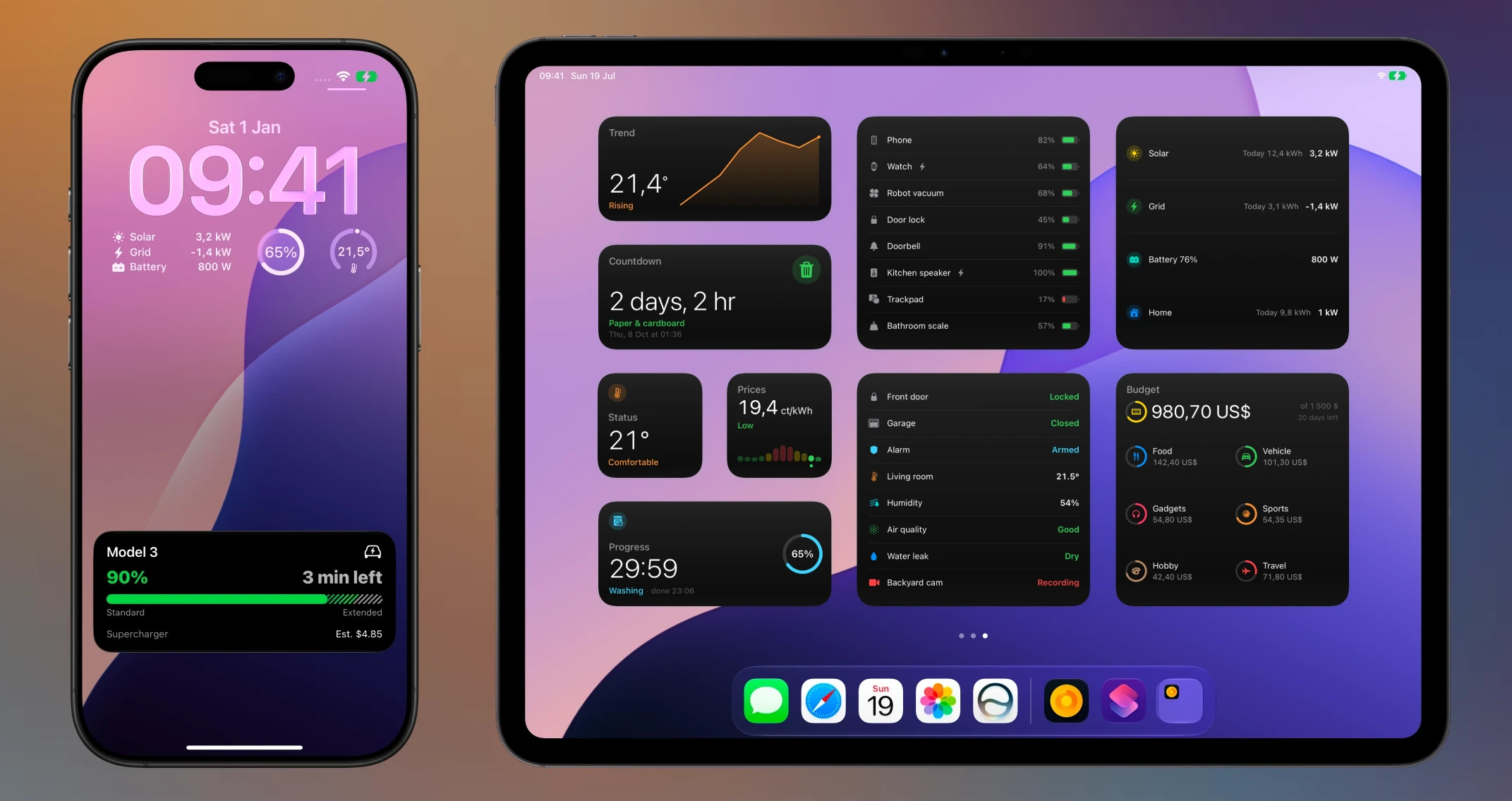
## Home Assistant
[Section titled “Home Assistant”](#home-assistant)
Aivi is the easiest way to bring Live Activities and widgets to Home Assistant. There is a ready-made blueprint for every Live Activity template and every display widget template: import one, point it at your entities, and you are done. No custom components; the only YAML is one short `rest_command` you paste once.
Because activities are shared, a single automation keeps every member of your household in sync: set it up once, invite the others, and everyone’s devices update together.
[**Set up Live Activities for Home Assistant**](/guides/homeassistant/) walks you through it step by step, and [**Home Assistant widgets on iPhone**](/guides/homeassistant-widgets/) does the same for the Home Screen, Lock Screen, and Apple Watch.
## Beyond Home Assistant
[Section titled “Beyond Home Assistant”](#beyond-home-assistant)
Aivi is a plain HTTP API, so any system that can make an HTTPS request can drive a Live Activity or a widget:
* **Home and smart devices**: dishwashers, washing machines, EV charging, 3D prints, robot vacuums, and oven timers.
* **Developers and infrastructure**: CI/CD pipelines, deployments, server metrics, cron jobs, backups, and uptime monitors.
If it has a state, you can track it. See the [use cases](/use-cases/) for inspiration, and the guides for [Node-RED and scripts](/guides/node-red-and-scripts/) and [openHAB](/guides/openhab/) for step-by-step setups.
## Always-on widgets
[Section titled “Always-on widgets”](#always-on-widgets)
Live Activities come and go with the task they track. For the state you want visible all the time (battery levels across your home, electricity prices, today’s energy flow, a budget), Aivi also drives persistent [widgets](/widget-templates/) on the Home Screen, the Lock Screen, StandBy, and the Apple Watch. Same API, same Home Assistant pattern, same sharing: create a widget in the app, update it with one `PATCH`, and every device that shows it stays current.
## Features
[Section titled “Features”](#features)
* **Broad Apple support**. Live Activities on iOS, iPadOS, watchOS, CarPlay, and macOS.[1](#user-content-fn-1)
* **Live Activity templates**. Pick from several [activity templates](/templates/) to match your data, from progress bars to status columns.
* **Persistent widgets**. Eleven [widget templates](/widget-templates/), from gauges and sparklines to battery rings, price timelines, and pressable switchboards, keep the latest state on screen around the clock.
* **Shared activities and widgets**. Invite up to five people, and a single API call keeps everyone’s devices in sync. No extra work to keep the group updated.
* **Works with any device**. Most smart home devices offer no Live Activities of their own. Aivi bridges that gap for anything, old or new.
* **Auto-updating timers**. Countdown and elapsed timers update on-device with no extra API calls.
* **Power-efficient**. Aivi only sends data when something changes, so your devices do not waste battery checking for updates.
[See all features →](/features/)
## Get started
[Section titled “Get started”](#get-started)
[Quick Start ](/quick-start/)Send your first Live Activity in a few minutes.
[Home Assistant guide ](/guides/homeassistant/)Connect your automations with a one-click blueprint.
[Home Assistant widgets ](/guides/homeassistant-widgets/)Put your sensors on the Home Screen, Lock Screen, and Apple Watch.
[API Reference ](/api-reference/)The endpoints, authentication, states, and errors.
[Live Activity Templates ](/templates/)Everything an activity can render, with examples and previews.
[Widget Templates ](/widget-templates/)The eleven persistent widget layouts and their content schemas.
## Community & updates
[Section titled “Community & updates”](#community--updates)
* [Community Hub](https://github.com/getaivi/community): report bugs and showcase your use cases.
* [X](https://x.com/getaivi) & [Bluesky](https://bsky.app/profile/getaivi.bsky.social): updates and announcements.
## Footnotes
[Section titled “Footnotes”](#footnote-label)
1. Mirroring Live Activities on macOS is not available in the EU. [↩](#user-content-fnref-1)
# API Reference
> The Aivi HTTP API. Authenticate with your API token and update a Live Activity or a widget with a single PATCH request.
The Aivi API is intentionally small. You create and configure an activity or a widget once in the app, then drive it from anywhere with a single HTTP request. Anything that can make an HTTPS call can update a Live Activity or a widget. One kind of widget also talks back: presses on a [switchboard](/widget-templates/#switchboard-template) reach you as [events](#receive-events).
## Base URL
[Section titled “Base URL”](#base-url)
All requests go to:
```plaintext
https://api.getaivi.app
```
Activities live under `/activities` and widgets under `/widgets`, each addressed by its slug. The earlier singular paths, `/activity/{slug}` and `/widget/{slug}`, answer the same way and stay supported, so automations that already use them need no change.
## Authentication
[Section titled “Authentication”](#authentication)
Every request must include your API token in the `Authorization` header, using the `Token` scheme:
```plaintext
Authorization: Token YOUR_API_TOKEN
```
You get your token in the app: open the **Settings** tab, sign in with your Apple account, and subscribe to a plan to unlock API access. The token stays the same until you rotate it.
Caution
API access requires an active subscription. A valid token without an active subscription is rejected with a `402` response. See [Errors](#errors).
## Check your account
[Section titled “Check your account”](#check-your-account)
```plaintext
GET /account
```
Returns whether your subscription is active and until when. Unlike every other endpoint, it answers `200` while the subscription is inactive, so you can check a token, and whether the API will answer, in one call.
```bash
curl https://api.getaivi.app/account \
-H "Authorization: Token YOUR_API_TOKEN"
```
`subscription` takes one of three shapes, told apart by `state`:
```json
{ "subscription": { "state": "active", "expires_at": "2026-11-12T09:30:00Z", "renews": true } }
{ "subscription": { "state": "expired", "expired_at": "2026-09-01T12:30:15Z" } }
{ "subscription": { "state": "none" } }
```
| `state` | Meaning | Fields |
| --------- | -------------------------------------------------------- | ------------------------------------------------------------------------------------------------------------------- |
| `active` | The API answers. | `expires_at`: when the paid period ends, or `null` if it does not end. `renews`: whether it renews at `expires_at`. |
| `expired` | The subscription ended. Other endpoints answer `402`. | `expired_at`: when it ended, the same date as in the `402` body. |
| `none` | The account never had one. Other endpoints answer `402`. | None. |
## Update an activity
[Section titled “Update an activity”](#update-an-activity)
```plaintext
PATCH /activities/{slug}
```
Updates the activity identified by `slug` and pushes the new state to every subscribed device. This is the only endpoint you need to drive Live Activities.
Note
The activity itself is created in the app, where you pick its template and assign the `slug`. The API updates an existing activity; it does not create one. Updating an activity that does not exist returns `404`.
### Path parameters
[Section titled “Path parameters”](#path-parameters)
| Parameter | Type | Description |
| --------- | -------- | ------------------------------------------------------------------- |
| `slug` | `string` | The unique ID you gave the activity in the app (e.g. `dishwasher`). |
### Request body
[Section titled “Request body”](#request-body)
The body has two top-level fields: a lifecycle `state` and a `content` object that describes what to render.
| Field | Type | Description | Required? |
| --------- | ------------------------------ | ----------------------------------------------- | --------- |
| `state` | [`State`](#activity-states) | Whether the activity should be live on devices. | Yes |
| `content` | [`Content`](#activity-content) | The template payload to render. | Yes |
### Activity states
[Section titled “Activity states”](#activity-states)
The `state` field controls the lifecycle of the Live Activity on every subscribed device. There are two values:
| `state` | What it does |
| --------- | ------------------------------------------------------------------------------------------ |
| `ONGOING` | The activity is live. The first `ONGOING` update starts it; later ones update it in place. |
| `IDLE` | The activity is not live. Sending `IDLE` ends an active Live Activity and dismisses it. |
A typical flow sets `state` to `ONGOING` while a task is running, then to `IDLE` once it finishes. How long a finished activity lingers on screen before it disappears is controlled by the per-activity dismissal delay you configure in the app.
### Activity content
[Section titled “Activity content”](#activity-content)
The `content` object is chosen by its `template` field, which decides both the layout and the rest of the fields it accepts. Three templates are available:
| `template` | Use it for | |
| ---------- | --------------------------------------------------- | ------ |
| `progress` | Progress bars: cycles, charging, prints, downloads. | |
| `monitor` | One or two columns of labeled live values. | |
| `generic` | The original simple progress layout. | Legacy |
Each template’s full field list, example payloads, and rendered previews live on the [**Live Activity Templates**](/templates/) page. Shared building blocks such as [colors](/templates/#color), [icons](/templates/#icon-object), [value formatters](/templates/#formatter), and the [tap action URL](/templates/#tap-action-url) are documented there too.
### Example request
[Section titled “Example request”](#example-request)
```bash
curl https://api.getaivi.app/activities/{slug} \
-X PATCH \
-H "Content-Type: application/json" \
-H "Authorization: Token YOUR_API_TOKEN" \
--data-binary @- << 'EOF'
{
"state": "ONGOING",
"content": {
"template": "progress",
"icon": "washer",
"progress": { "style": "simple", "value": 0.35 },
"header_left": { "value": "In progress", "text_color": "green" },
"header_right": { "value": "35 min" }
}
}
EOF
```
### Response
[Section titled “Response”](#response)
A successful update returns `200 OK` and echoes the stored `state` and `content`:
```json
{
"state": "ONGOING",
"content": {
"template": "progress",
"icon": "washer",
"progress": { "style": "simple", "value": 0.35 },
"header_left": { "value": "In progress", "text_color": "green" },
"header_right": { "value": "35 min" }
}
}
```
Tip
`PATCH` is safe to call repeatedly. Aivi only pushes to devices when the content actually changes, so sending the same payload twice does not waste battery or count against [update budgets](/limitations/).
## Update a widget
[Section titled “Update a widget”](#update-a-widget)
```plaintext
PATCH /widgets/{slug}
```
Updates the persistent widget identified by `slug`, stores the new content, and notifies every device that displays it. Authentication is the same as for activities.
Note
Like activities, widgets are created in the app, where you pick the template and assign the `slug`. The API updates an existing widget; updating a widget that does not exist returns `404`.
### Path parameters
[Section titled “Path parameters”](#path-parameters-1)
| Parameter | Type | Description |
| --------- | -------- | ------------------------------------------------------------------ |
| `slug` | `string` | The unique ID you gave the widget in the app (e.g. `living-room`). |
### Request body
[Section titled “Request body”](#request-body-1)
| Field | Type | Description | Required? |
| ------------- | ---------------------------- | ---------------------------------------------------------------------------------------------------------------------------------------------------------------------------------------------------------------------------------- | --------- |
| `content` | [`Content`](#widget-content) | The template payload to render. | Yes |
| `stale_after` | `int \| null` | Freshness threshold in seconds (`60`–`604800`). Content older than this is [marked as stale](/widget-templates/#marking-content-as-stale) on device. Omit the field to keep the widget’s current setting; send `null` to clear it. | No |
Widgets have no lifecycle `state`: unlike an activity, a widget is always “on” and simply shows the latest content you sent.
### Widget content
[Section titled “Widget content”](#widget-content)
The `content` object is chosen by its `template` field. Eleven templates are available: Status, Progress, Gauge, Battery, Budget, Trend, Countdown, List, Prices, Energy, and [Switchboard](/widget-templates/#switchboard-template). Each update replaces the previous content as a whole; there is no partial merge.
Every template’s schema, example payload, and rendered previews live on the [**Widget Templates**](/widget-templates/) page. Widget templates share the same building blocks as the activity templates: colors, icons, value formatters, and tap action URLs.
### Example request
[Section titled “Example request”](#example-request-1)
```bash
curl https://api.getaivi.app/widgets/{slug} \
-X PATCH \
-H "Content-Type: application/json" \
-H "Authorization: Token YOUR_API_TOKEN" \
--data-binary @- << 'EOF'
{
"content": {
"template": "gauge",
"value": 21.5,
"min_value": 0,
"max_value": 40,
"unit": "°C",
"label": "Living room",
"icon": "thermometer.medium"
},
"stale_after": 3600
}
EOF
```
### Response
[Section titled “Response”](#response-1)
A successful update returns `200 OK` and echoes the stored `content` along with the widget’s effective `stale_after`, including when the request left `stale_after` out to keep the existing setting:
```json
{
"content": {
"template": "gauge",
"value": 21.5,
"min_value": 0,
"max_value": 40,
"unit": "°C",
"label": "Living room",
"icon": "thermometer.medium"
},
"stale_after": 3600
}
```
Note
Widget pushes are delivered at background priority: iOS batches and budgets them, so a change typically appears on device within minutes, not seconds. See the [freshness model](/widget-templates/#freshness) for what stays live between pushes.
## Receive events
[Section titled “Receive events”](#receive-events)
Presses on an [interactive widget](/interactive-widgets/), such as a [switchboard](/widget-templates/#switchboard-template), come back to you as `widget.action.v1` events. [Receiving Events](/events/) documents the event envelope and both ways to receive it:
| Request | Description |
| --------------------------------- | ------------------------------------------------------------------------------------------------------------- |
| `GET /events` | A [server-sent event stream](/events/#event-stream) of your account’s events, filterable by type and subject. |
| `PUT /widgets/{slug}/webhooks` | Sets the widget’s [webhooks](/events/#webhooks): one per action id, and `"*"` for the rest. |
| `GET /widgets/{slug}/webhooks` | Returns the widget’s webhooks, redacted, with the time of each one’s last success and failure. |
| `DELETE /widgets/{slug}/webhooks` | Removes the widget’s webhooks. |
To confirm what a press did, publish the widget’s new content with [`PATCH /widgets/{slug}`](#update-a-widget).
## Errors
[Section titled “Errors”](#errors)
Errors use standard HTTP status codes and return a JSON body with a `detail` field describing what went wrong.
| Status | `detail` | Cause |
| ------ | ---------------------------------- | ---------------------------------------------------------------------------------------------------------------------------------------------------------------------------------------------- |
| `400` | `Template mismatch` | The `content.template` does not match the template the activity or widget was created with. |
| `401` | `Could not validate credentials` | The `Authorization` header is missing, malformed, or the token is unknown. |
| `402` | `No active subscription was found` | The token is valid but the account has no active subscription. |
| `404` | `Activity not found` | No activity with that `slug` exists on your account. |
| `404` | `Widget not found` | No widget with that `slug` exists on your account. |
| `422` | `Too many ongoing activities` | Starting this activity would exceed your concurrent-activity quota. |
| `422` | `Invalid widget content` | The widget `content` fails its template schema. |
| `422` | `Content exceeds the 4 KiB limit` | The widget `content` is larger than 4 KiB as compact JSON. |
| `422` | *array of field errors* | The request body is missing fields or has invalid values. |
| `422` | *array of field errors* | The activity `content` (with its name) would make a Live Activity push larger than Apple’s 4096-byte limit: `type` `payload_too_large` at `content`, with `ctx.size` and `ctx.limit` in bytes. |
| `429` | `Too many event streams` | Your account already has 4 `/events` streams open. |
Note
The validation `422` is the one exception to the `detail` shape above: its `detail` is an array of field-level error objects (`loc`, `msg`, `type`) rather than a string.
Note
Live Activities are also subject to system budgets enforced by iOS, separate from these API errors. See [Limitations](/limitations/) for the details.
## OpenAPI specification
[Section titled “OpenAPI specification”](#openapi-specification)
A machine-readable OpenAPI document is generated from the API itself and served at [`https://api.getaivi.app/openapi.json`](https://api.getaivi.app/openapi.json). Import it into an OpenAPI-compatible client such as Postman or Insomnia to explore the schema and make test requests.
# Changelog
> Every Aivi release: new Live Activity and widget templates, API additions, and fixes, with links to the full write-ups.
2026-10-08 v2.3.1
## Reliability and polish
[Section titled “Reliability and polish”](#reliability-and-polish)
* Faster and smoother, with less battery use.
* Live Activities and widgets stay in sync more reliably.
* Widgets that need a newer version of Aivi now tell you so, with a link to the App Store. Sorry for overlooking this when releasing the Switchboard.
* A push that wakes the app right after a device restart no longer crashes it or signs you out.
* Plus many smaller fixes and improvements.
2026-10-01 v2.3.0
## Switchboard: widgets you can press
[Section titled “Switchboard: widgets you can press”](#switchboard-widgets-you-can-press)
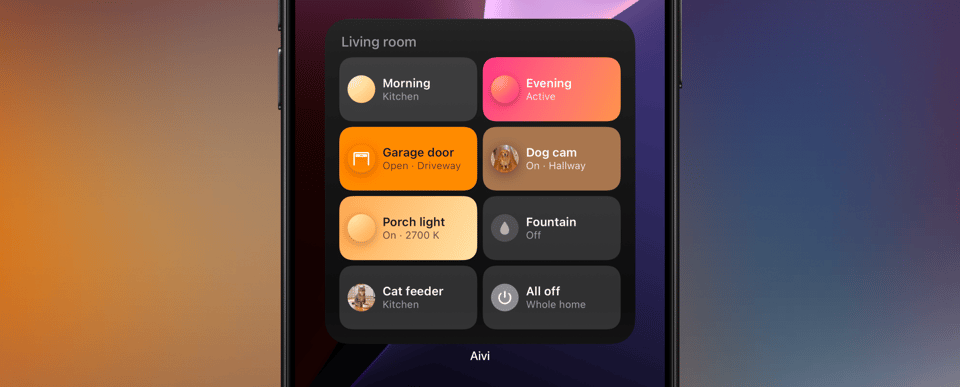
Aivi widgets are now interactive. The new [Switchboard](/widget-templates/#switchboard-template) template puts up to eight buttons and toggles on your Home Screen. Tap one to run a scene, switch a light or open the garage, and the tile shows the result as soon as your home confirms it.
Each tile can have a picture or a color, a subtitle such as the room, and your own words for its states, so a garage door reads **Open** and **Closing** rather than **On** and **Turning off**.
Presses reach your system over an event stream or a webhook, so Home Assistant or a script of your own can act on them. To set one up, start with [Interactive Widgets](/interactive-widgets/).
Read the full story in [Switchboard: Widgets You Can Press](https://getaivi.app/updates/switchboard/).
### Other changes
[Section titled “Other changes”](#other-changes)
* Segmented progress bars in Live Activities and widgets now fill one segment at a time, instead of all segments at once.
2026-09-22 v2.2.1
## Live Activity fixes
[Section titled “Live Activity fixes”](#live-activity-fixes)
* Dynamic Island: text in the corners of the expanded view no longer gets clipped by the Island’s rounded corners.
* Dynamic Island: the Generic template’s minimal view shows a progress ring around the icon, as the Progress template does.
* Apple Watch Smart Stack: a ticking timer in a Monitor activity no longer sits behind a gap of empty space.
2026-09-20 v2.2.0
## Extra-large widgets
[Section titled “Extra-large widgets”](#extra-large-widgets)
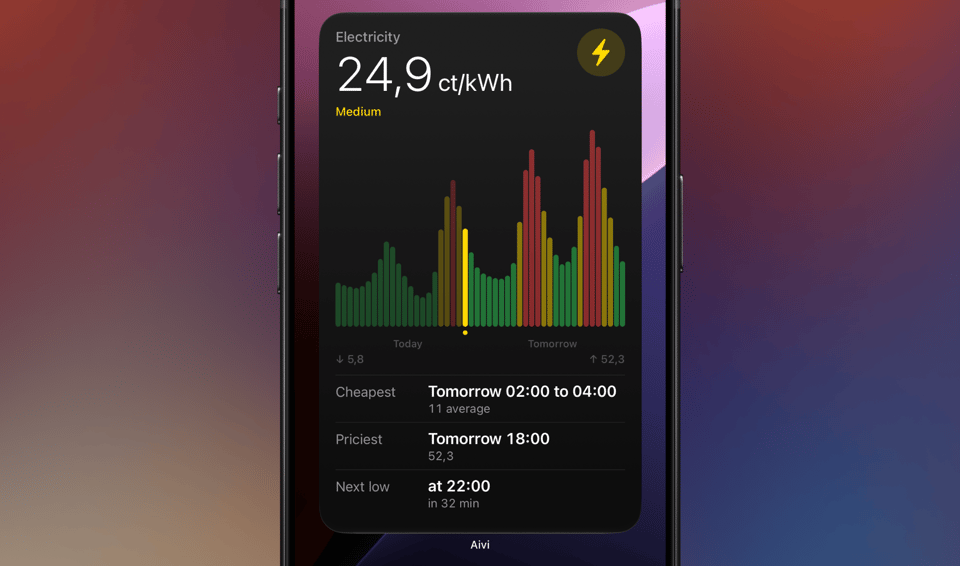
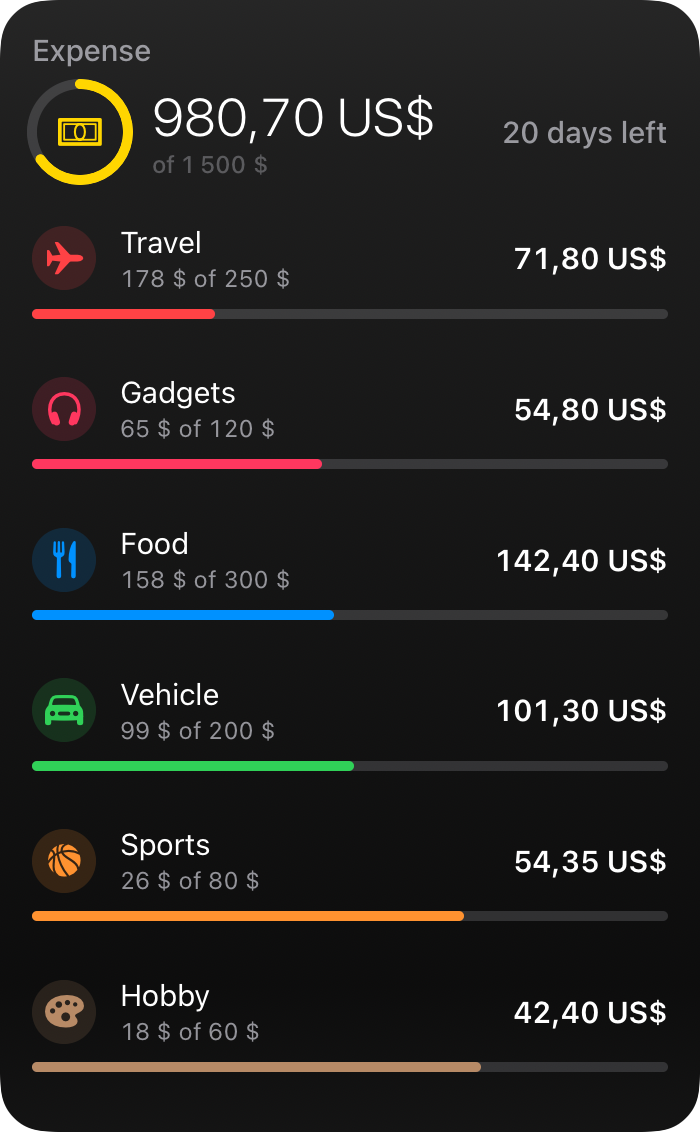
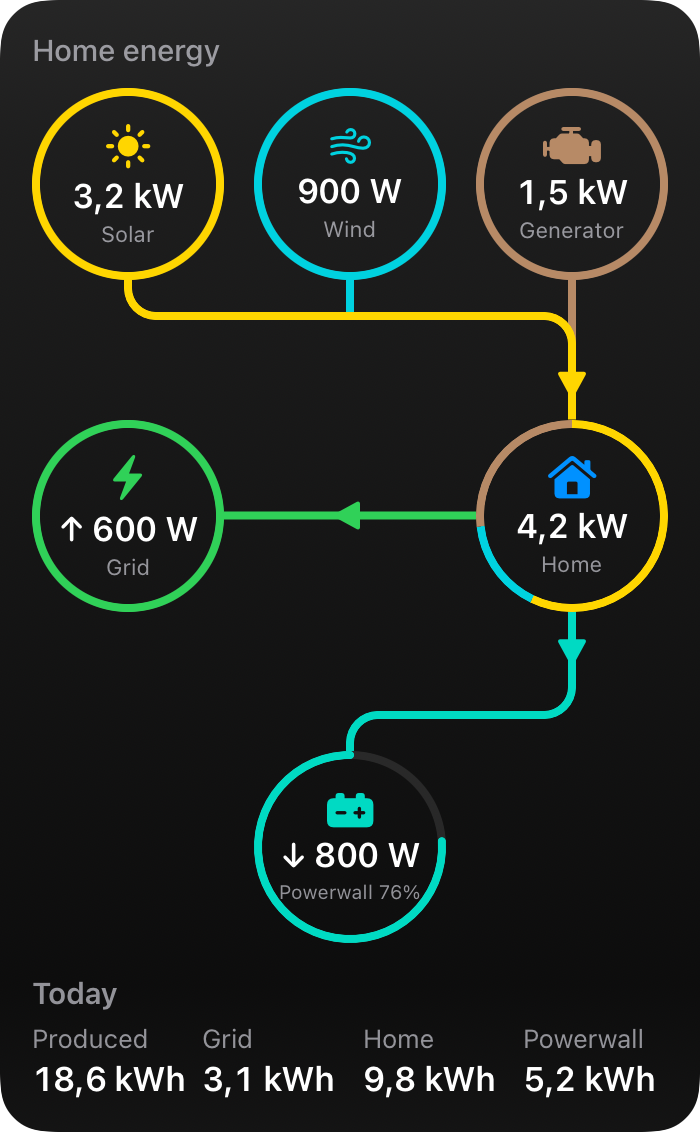
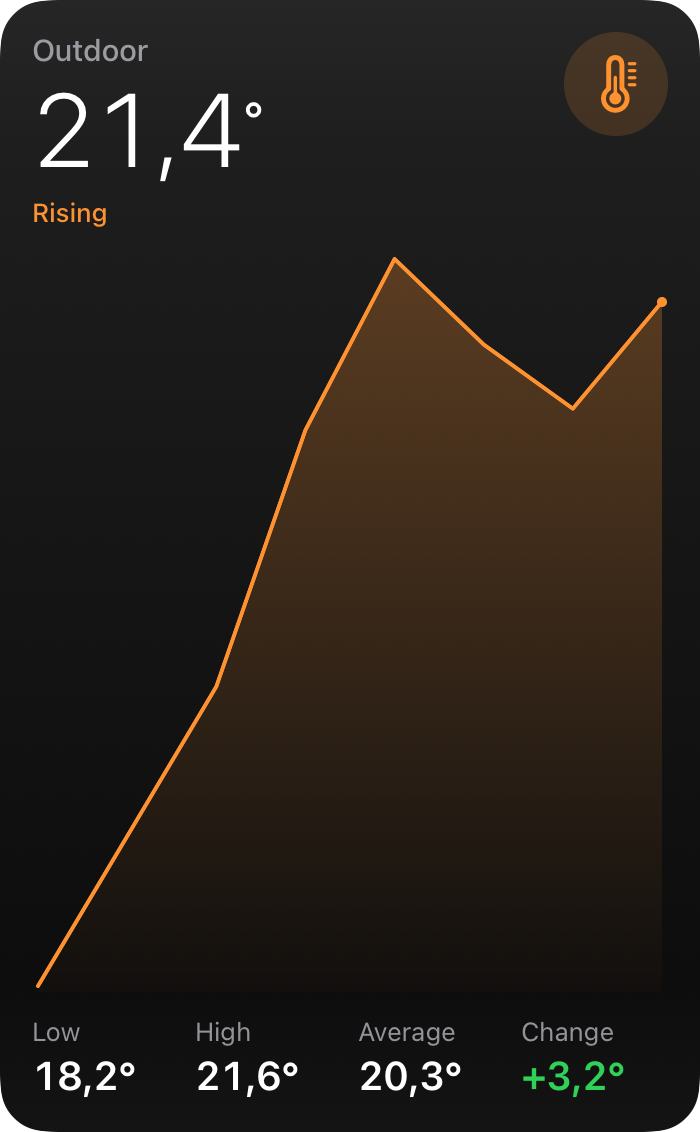
Aivi widgets now come in the new iOS 27 portrait size, which fills most of the iPhone screen. Templates with more data than the large size can show got a layout of their own for it: Budget becomes a ledger, Energy draws the flow, Trend gives the chart the height, Prices adds the cheapest window and the next low, List and Battery fit all eight rows. The rest scale up.
### Widgets that moved with you
[Section titled “Widgets that moved with you”](#widgets-that-moved-with-you)
Widgets carried over from an old iPhone kept showing their last data and never updated again: to Aivi a new phone is a new device, with no subscriptions. Such a widget now says “Set up on this device” on the Home Screen, and the app lists every widget that moved with you, with one tap to subscribe each of them here.
Read the full write-up in [Ready for iOS 27 and the New iPhones](https://getaivi.app/updates/ios-27/).
2026-09-18 v2.1.0
## Ready for iOS 27
[Section titled “Ready for iOS 27”](#ready-for-ios-27)
A release for the new iPhones and iOS 27, with fixes gathered since the widgets launch.
### Live Activities in the landscape Dynamic Island
[Section titled “Live Activities in the landscape Dynamic Island”](#live-activities-in-the-landscape-dynamic-island)
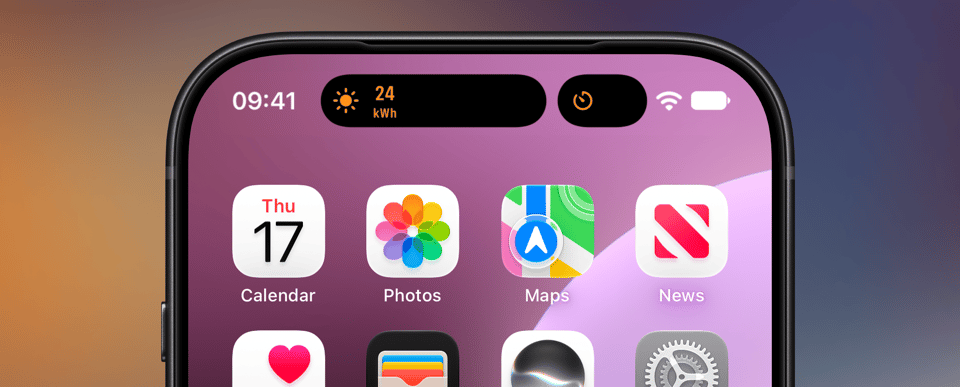
On iOS 27 the Dynamic Island shows Live Activities in landscape too, and the newest iPhones have a narrower island. In both cases the compact presentation has room for about four characters, so the templates now adapt instead of cutting text off: a reading shows its number with the unit underneath (`24` over `kWh`), countdowns and elapsed timers keep ticking as minutes and seconds, and the Generic template folds its icon into a progress ring. Nothing changes in portrait. See the [Templates](/templates/#width-limited-dynamic-island) docs for more details.
### Widgets
[Section titled “Widgets”](#widgets)
Home Screen widgets now use the same background as Apple’s own widgets, so they match exactly in light and dark instead of looking a shade lighter.
Read the full write-up in [Ready for iOS 27 and the New iPhones](https://getaivi.app/updates/ios-27/).
2026-07-25 v2.0.0
## Widgets
[Section titled “Widgets”](#widgets-1)
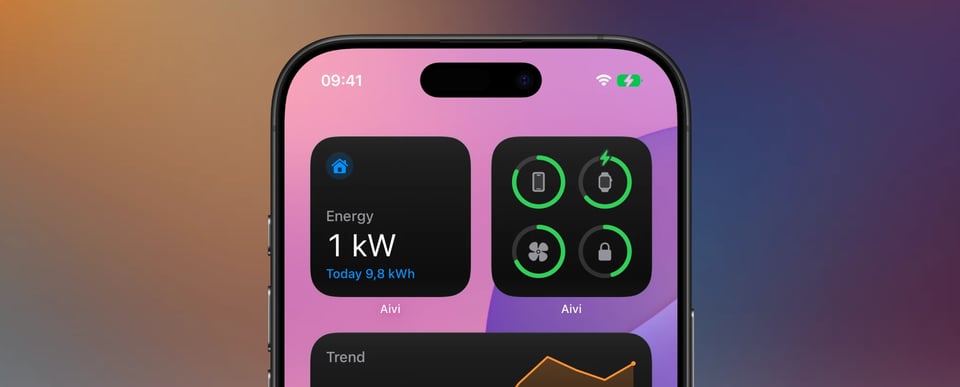
Aivi grows a second layer. Live Activities cover the moment; widgets cover everything that doesn’t start or end: persistent, glanceable, and always showing the latest known state. Create a widget in the app, place it on the Home Screen, Lock Screen, StandBy, or Apple Watch, and every update lands on all of them at once. You can have up to 20.
Ten templates built for standing data: Status, Gauge, Trend, Progress, Countdown, Battery, List, Prices, Energy, and Budget. Every template renders at all the widget sizes, and the Board widget tiles several of your widgets together in one grid. Predictable data stays live between updates: countdowns tick, progress bars advance, the price chart follows the current hour. A freshness setting shows “as of 14:32” instead of presenting old data as current.
### Sharing and privacy
[Section titled “Sharing and privacy”](#sharing-and-privacy)
Share any widget with an invite link. Subscribing needs no account, and you can see and remove subscribed devices at any time. A per-widget privacy setting hides content while a device is locked.
### On the Apple Watch
[Section titled “On the Apple Watch”](#on-the-apple-watch)
Every template renders as corner, circular, rectangular, and inline complications. Widgets join the Smart Stack and surface when they matter (a task about to finish, a battery running low), and the new watch app lets you browse your widgets from the wrist.
### Feeding your widgets
[Section titled “Feeding your widgets”](#feeding-your-widgets)
Update from Home Assistant, from the new **Update Widget** Shortcuts action, or from anything that can reach the web. Every widget’s Connect screen hands you ready-made snippets, prefilled for that widget. See the [Widget Templates](/widget-templates/) docs for every template with previews and example payloads.
### A new look, and a real iPad app
[Section titled “A new look, and a real iPad app”](#a-new-look-and-a-real-ipad-app)
The whole app got a facelift: a design pass across every screen, rebuilt create and onboarding flows, previews on a glass Lock Screen stage, an activity history timeline, a native three-column iPad layout, and VoiceOver + Dynamic Type throughout.
Read the full write-up in [Aivi 2.0: Home Screen and Lock Screen Widgets](https://getaivi.app/updates/widgets/).
2026-06-06 v1.5.0
## Forever activities and priority
[Section titled “Forever activities and priority”](#forever-activities-and-priority)
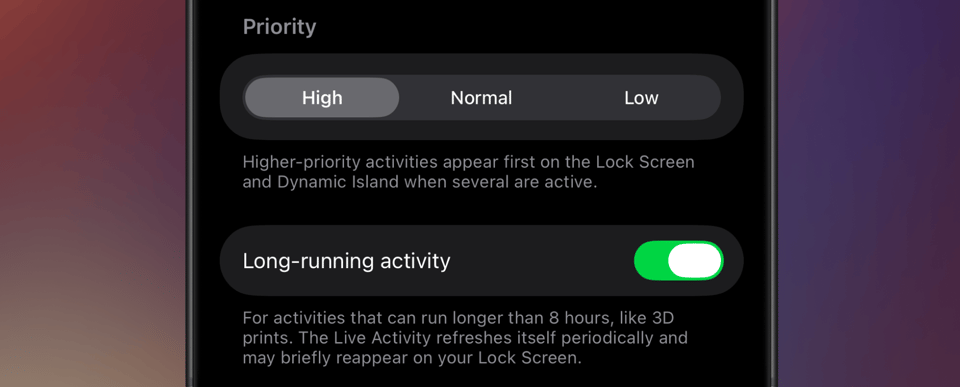
Live Activities normally end at Apple’s eight-hour limit. Turn on **Long-running** when you create or edit an activity, and Aivi carries it past that: just before one expires, it quietly replaces it with a fresh Live Activity. This continues for as long as you keep updating the activity. When your updates stop, Aivi takes that as the activity being over and ends it for you, so you are never left with a frozen card stuck on your Lock Screen. Each replacement is a new Live Activity, so it may briefly reappear on your Lock Screen when it happens.
### Activity priority
[Section titled “Activity priority”](#activity-priority)
Activities can now be set to High, Normal, or Low. When several are active at once, higher-priority activities appear first on the Lock Screen and Dynamic Island.
Both settings live on the activity in the app, so they apply however you drive your updates. Read the full write-up in [Forever Activities and Activity Priority](https://getaivi.app/updates/forever-activities/).
**Also new: annual billing.** Pay $23.99/year, about $2/month, or keep the $2.99/month plan. [See pricing](https://getaivi.app/#pricing).
2026-04-24 v1.4.0
## SF Symbol icon customization
[Section titled “SF Symbol icon customization”](#sf-symbol-icon-customization)
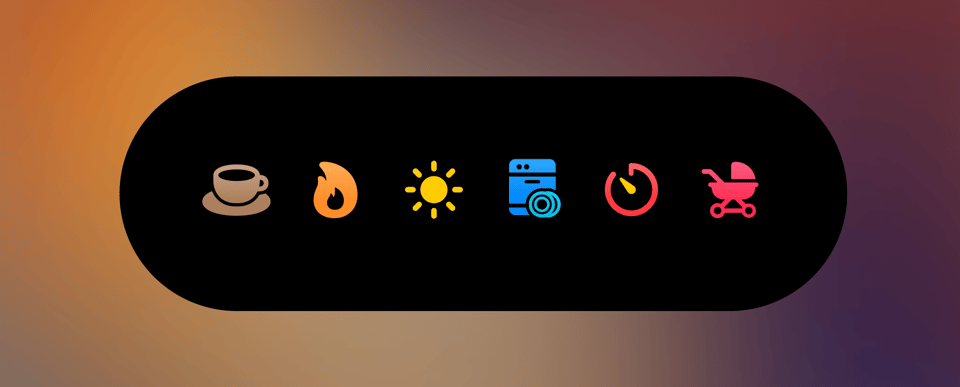
Icons are no longer limited to a name and a default color. The `icon` field now accepts an object with full control over how an SF Symbol is rendered:
* **Rendering modes**: monochrome, hierarchical, palette, and multicolor.
* **Layer colors**: assign up to three colors (primary, secondary, tertiary) to a symbol’s layers.
* **Color rendering**: choose between flat fill and gradient.
Plain strings still work, so existing payloads stay compatible, and the Home Assistant blueprints have been updated to expose the new options as inputs. Re-import to pick them up.
Read the full write-up in [Custom SF Symbol Icons for Live Activities](https://getaivi.app/updates/icon-customization/).
2026-04-11 v1.3.0
## Progress template, tap actions, and activity history
[Section titled “Progress template, tap actions, and activity history”](#progress-template-tap-actions-and-activity-history)
This is a big release. Here’s what’s new:
### Progress template
[Section titled “Progress template”](#progress-template)
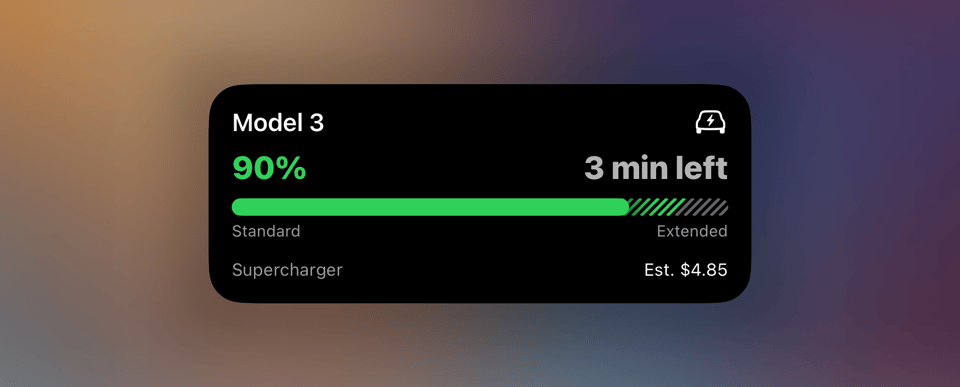
A brand-new template that replaces Generic with a far more flexible progress visualization. Segmented bars with individual colors and labels, two display modes (split and layered), hatched track patterns for overflow zones, and customizable header/footer slots.
Read the full write-up in [Progress Template, Tap Actions, and Activity History](https://getaivi.app/updates/progress-template/).
### Tap action URL
[Section titled “Tap action URL”](#tap-action-url)
Live Activities can now open a URL when tapped. Add `tap_url` to any template’s content to deep-link into another app or open a webpage, directly from the lock screen or Dynamic Island.
### Activity history
[Section titled “Activity history”](#activity-history)
See the 10 most recent state changes for any activity, right from the detail page. Handy for verifying that automations are firing as expected.
### Other changes
[Section titled “Other changes”](#other-changes-1)
* Activity list now shows each activity’s configured SF Symbol icon.
* New color options: `gray2` through `gray6` for finer control over track colors.
2026-03-14 v1.1.3
## Configurable dismissal delay
[Section titled “Configurable dismissal delay”](#configurable-dismissal-delay)
We’ve introduced the ability to customize how long a Live Activity remains on your screen after it finishes. Previously fixed at 10 minutes, v1.1.3 allows you to configure this delay on a per-activity basis, ranging from immediate dismissal up to 4 hours.
Additionally, v1.1.3 resolves the remaining edge cases where using the `time_until` filter in the Monitor template could result in the app crashing.
2026-03-13 Pending review
## Monitor template fix awaiting review
[Section titled “Monitor template fix awaiting review”](#monitor-template-fix-awaiting-review)
We’ve identified that the previous update (v1.1.2) didn’t fully resolve the crashes associated with the `time_until` filter in the new Monitor template. We’ve addressed the remaining edge cases and submitted a final fix to Apple for review.
Version v1.1.3 will be available as soon as it is approved. In the meantime, please continue to avoid using the `time_until` filter with an end time in the past.
We appreciate your continued patience as we resolve this!
2026-03-11 v1.1.2
## Monitor template bugfix released
[Section titled “Monitor template bugfix released”](#monitor-template-bugfix-released)
The fix for the crash caused by the `time_until` filter with an end time in the past has been approved and is now available as v1.1.2. Update your Aivi app to get the fix.
2026-03-06 Pending review
## Monitor template bugfix awaiting release
[Section titled “Monitor template bugfix awaiting release”](#monitor-template-bugfix-awaiting-release)
We’ve identified a bug that may cause the app to crash when a monitor activity using the ‘time until’ filter has an end time in the past.
As a temporary measure, avoid using the `time_until` filter until v1.1.2 has been released.
A fix has been submitted to Apple for review and will be released as soon as possible (v1.1.2). We appreciate your patience while we resolve this!
2026-03-01 v1.1.1
## Monitor template
[Section titled “Monitor template”](#monitor-template)
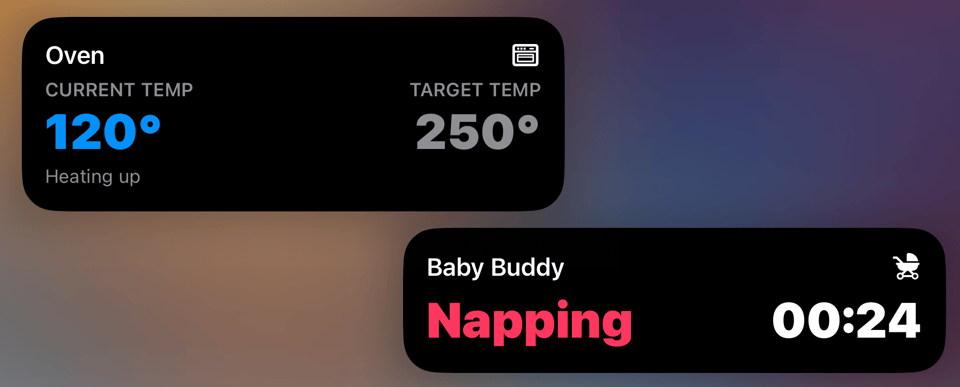
The Monitor template expands the Generic lineup with a layout made for Live Activity status updates that don’t fit a progress bar.
### Highlights
[Section titled “Highlights”](#highlights)
* Two-column layout with optional labels, values, and color-coded states.
* Column priority controls for compact surfaces like Dynamic Island, watchOS, and CarPlay.
* Built-in timer and stopwatch formatting for accurate time displays without extra updates.
* Home Assistant blueprint with optional headers/footers, value colors, and visibility rules.
### Other changes
[Section titled “Other changes”](#other-changes-2)
* You can now modify existing activities on the fly without having to recreate them from scratch.
### Get started
[Section titled “Get started”](#get-started)
Update your Aivi app to v1.1.1 and review the [Monitor template guide](/templates/#monitor-template). Read the full write-up in [Monitor Template: Live Activities for Status Readings](https://getaivi.app/updates/monitor-template/).
# Receiving Events
> Receive widget presses from Aivi over a webhook or a server-sent event stream, and confirm the result by publishing new content.
Most of Aivi’s API goes one way: your system publishes, the phone shows it. Some features go the other way too. When someone presses a tile on a [switchboard widget](/widget-templates/#switchboard-template), the phone reports the press to Aivi, and Aivi hands it to your system as an **event**.
Every event has the same envelope, and every event reaches you the same two ways: an event stream that your system holds open, or a webhook that Aivi calls. This page covers both, then the part that closes the loop: confirming the result by publishing new content.
## The event envelope
[Section titled “The event envelope”](#the-event-envelope)
```json
{
"id": "7c1e5b0a-4d2f-5a8e-9b3c-2f6d8e1a4c57",
"request_id": "act_3f9c2a71b04e",
"type": "widget.action.v1",
"subject": { "kind": "widget", "slug": "living-room" },
"occurred_at": "2026-10-01T19:04:07.512000Z",
"expires_at": "2026-10-01T19:04:12.512000Z",
"data": { "action": "porch", "kind": "toggle", "value": true }
}
```
| Field | Description |
| ------------- | ---------------------------------------------------------------------------------------------------------------------------------------------------------------------------------------------------------------------------------------------------------------------- |
| `id` | The delivery id, a UUID. Unique per resource and press, so presses on two widgets never share one, and the same on every retry of one press: a press delivered twice carries the same `id`. Deduplicate on it. On a webhook it is also the `Idempotency-Key` header. |
| `request_id` | The id the phone gave the press. Unique only within one widget, so don’t deduplicate on it; it is there for logs and for matching a press to the phone that sent it. |
| `type` | What happened, including the version of its `data`, for example `widget.action.v1`. See the [catalog](#event-types). |
| `subject` | The resource the event is about, as an object: `kind` names what the resource is, and `slug` is the slug you gave it. For `widget.action.v1` the kind is `widget`. More kinds will come as other resources start emitting events, so read `kind` together with `slug`. |
| `occurred_at` | When the event happened, in ISO 8601. |
| `expires_at` | When the event stops being useful; for `widget.action.v1`, 5 seconds after `occurred_at`. Aivi stops delivering at that point, and a receiver should drop an event that reaches it later, rather than act on a stale event. |
| `data` | The payload. Its shape depends on `type`. |
The envelope is the same on the event stream and in a webhook’s default body.
Build for more types
Switch on `type` and ignore any type you don’t recognize. New features will add new event types, and a new version of an existing type arrives under a new name (`widget.action.v2`), so a consumer that matches the full type never receives a payload shape it doesn’t know.
## Event types
[Section titled “Event types”](#event-types)
### `widget.action.v1`
[Section titled “widget.action.v1”](#widgetactionv1)
Someone pressed a tile on an [interactive widget](/interactive-widgets/), such as a [switchboard](/widget-templates/#switchboard-template). The `subject` is `{ "kind": "widget", "slug": "" }`.
| Field | Type | Description |
| -------- | ------------------------ | ---------------------------------------------------------------------------------------------------------------------------------------------------------------------------------- |
| `action` | `string` | The `id` of the pressed action, as you published it in the widget’s content. |
| `kind` | `"button"` \| `"toggle"` | The action’s kind. |
| `value` | `bool` | Toggles only: the state the person asked for, `true` to turn on and `false` to turn off. It is a request, not a fact: the tile changes once you [confirm](#confirming-the-result). |
A button press:
```json
{ "action": "movie", "kind": "button" }
```
A toggle press:
```json
{ "action": "porch", "kind": "toggle", "value": true }
```
Presses come from the widget’s owner and from devices subscribed to a [shared widget](/features/#sharing). Every press reaches the owner’s account: the owner’s API token opens the stream, and the owner configures the webhooks. Presses are [rate limited](/interactive-widgets/#rate-limit-and-duplicates) on the phone’s side, so a tile pressed over and over doesn’t flood your system.
## Delivery
[Section titled “Delivery”](#delivery)
Aivi offers two ways to receive events. Use whichever suits your system; you can use both at once.
* The [**event stream**](#event-stream) is a long-lived HTTPS connection your system opens to Aivi. Nothing in your network has to be reachable from the internet, which makes it the natural choice for a home server.
* A [**webhook**](#webhooks) is a request Aivi makes to a URL of yours when the event happens. Nothing has to stay connected, but the URL has to be public.
Delivery is best effort in both. An event can arrive twice (a retried webhook, a stream that resumes after a reconnect), so deduplicate on `id`. An event that nobody receives before it expires is gone: Aivi keeps events only until their `expires_at`.
### Event stream
[Section titled “Event stream”](#event-stream)
```plaintext
GET /events
```
Opens a [server-sent events](https://developer.mozilla.org/en-US/docs/Web/API/Server-sent_events/Using_server-sent_events) stream on the public API, authenticated with your API token like every other request. One stream carries the events of every resource on your account.
| Query parameter | Type | Description |
| --------------- | -------------------- | -------------------------------------------------------------------------------------------------------------------------------- |
| `types` | `string`, repeatable | Only events of these types, for example `types=widget.action.v1`. Omit for every type. |
| `subject` | `string`, repeatable | Only events about these resources, written as `/`, for example `subject=widget/living-room`. Omit for every subject. |
```bash
curl -N "https://api.getaivi.app/events?types=widget.action.v1&subject=widget/living-room" \
-H "Authorization: Token YOUR_API_TOKEN"
```
Each event arrives as an `id:` line with the stream’s position, then one `data:` line holding the envelope as JSON, then a blank line. The stream opens with a `retry:` line and its starting position. Positions count your account’s events, in the form `u:`; treat them as opaque strings. A `: ping` comment arrives every 20 seconds while nothing else happens, so a quiet connection is easy to tell from a dead one:
```plaintext
retry: 1000
id: u:6
: ping
id: u:7
data: {"id":"7c1e5b0a-4d2f-5a8e-9b3c-2f6d8e1a4c57","request_id":"act_3f9c2a71b04e","type":"widget.action.v1","subject":{"kind":"widget","slug":"living-room"},"occurred_at":"2026-10-01T19:04:07.512000Z","expires_at":"2026-10-01T19:04:12.512000Z","data":{"action":"porch","kind":"toggle","value":true}}
```
Things to know when you write a client:
* **Reconnect.** The server closes every stream after 15 minutes. Reconnect right away when it does (after the `retry:` delay, one second), and back off when a connection attempt fails.
* **Resume with `Last-Event-ID`.** Send the last `id:` you saw in a `Last-Event-ID` header when you reconnect, and the stream first replays the events you missed that haven’t expired yet. Browser `EventSource` clients do this on their own. Without the header nothing is replayed, and expired events are never replayed, so keep the gap short. Send the `id:` exactly as you received it. A value the stream doesn’t recognize, such as a plain number, replays every event that hasn’t expired yet. Either way a replay can repeat an event you already saw: deduplicate on the envelope’s `id`.
* **At most 4 streams per account.** A fifth returns `429` with `Too many event streams`. Close streams you no longer need.
* **Filters name the kind.** A `subject` filter must have the `/` form. A bare slug, or an unknown kind, is rejected with `422` rather than matched loosely, since the same slug can name different kinds of resource.
* **Temporary outages.** When Aivi can’t set a stream up, for example while its database is unavailable, it answers `200` with a stream that holds only a `retry:` line and ends. Reconnect after the delay, as after any closed stream. A browser `EventSource` keeps reconnecting after that, where an error status would make it give up.
Most languages have an SSE client, but the format is simple enough to read line by line. A minimal Python consumer:
```python
import json
import requests
URL = "https://api.getaivi.app/events"
HEADERS = {"Authorization": "Token YOUR_API_TOKEN"}
seen = set()
last_id = None
while True:
headers = dict(HEADERS)
if last_id is not None:
headers["Last-Event-ID"] = last_id # replay what we missed
with requests.get(
URL,
headers=headers,
params={"types": "widget.action.v1"},
stream=True,
timeout=(10, 60),
) as response:
response.raise_for_status()
for line in response.iter_lines(decode_unicode=True):
if line.startswith("id: "):
last_id = line[len("id: "):]
continue
if not line.startswith("data: "):
continue # blank separators, "retry:", ": ping" heartbeats
event = json.loads(line[len("data: "):])
if event["id"] in seen:
continue
seen.add(event["id"])
print(event["subject"]["slug"], event["data"])
```
A real client also drops expired events, trims `seen`, waits the `retry:` delay before reconnecting, and backs off between failed connection attempts.
### Webhooks
[Section titled “Webhooks”](#webhooks)
A webhook is a request template: Aivi fills it in for each event and sends it to your URL. Webhooks are configured per resource. For a widget, that is one entry per action and an optional default:
```plaintext
PUT /widgets/{slug}/webhooks
```
```bash
curl https://api.getaivi.app/widgets/{slug}/webhooks \
-X PUT \
-H "Content-Type: application/json" \
-H "Authorization: Token YOUR_API_TOKEN" \
--data-binary @- << 'EOF'
{
"webhooks": {
"movie": {
"url": "https://hooks.example.com/scenes/movie",
"headers": { "Authorization": "Bearer YOUR_RECEIVER_TOKEN" }
},
"*": {
"url": "https://hooks.example.com/aivi",
"secret": "A_LONG_RANDOM_STRING"
}
}
}
EOF
```
The keys of `webhooks` are action ids, plus `"*"` for the default. A press goes to its action’s own entry if there is one, otherwise to `"*"`, otherwise nowhere. A map holds at most 9 entries: eight actions and the default. A `PUT` replaces the whole map. Keys don’t have to match the actions the widget shows right now, so you can configure webhooks before you publish the actions.
| Request | Result |
| --------------------------------- | -------------------------------------------------------------------------------------------------------------------------------------------------------- |
| `PUT /widgets/{slug}/webhooks` | Replaces the map and returns it, redacted. |
| `GET /widgets/{slug}/webhooks` | Returns the map, redacted, with `last_success_at` and `last_failure_at` for each entry: when a delivery to it last succeeded and last failed, or `null`. |
| `DELETE /widgets/{slug}/webhooks` | Removes every entry. Returns `204`. |
The response to a `PUT` or `GET` looks like this:
```json
{
"webhooks": {
"movie": {
"config": {
"url": "https://hooks.example.com/scenes/movie",
"method": "POST",
"headers": { "Authorization": "***" },
"body": null
},
"last_success_at": "2026-10-01T19:04:07.901000Z",
"last_failure_at": null
}
}
}
```
Redacted means the `secret` is never returned, header values come back as `"***"`, and so do the values in the URL’s query string. A validation error never echoes a secret, a header value, or a query value either.
#### Webhook fields
[Section titled “Webhook fields”](#webhook-fields)
| Field | Type | Description | Required? |
| --------- | ------------------------------------- | ---------------------------------------------------------------------------------------------------------------------------------------------------------------------------------------------------------------------------------------------------- | --------- |
| `url` | `string` | The URL to call. Must start with `https://`. May contain [placeholders](#placeholders). | Yes |
| `method` | `"POST" \| "PUT" \| "PATCH" \| "GET"` | Default: `"POST"`. A `GET` sends no body. | No |
| `headers` | `object` | Extra request headers, up to 1 KiB in total. Put your receiver’s credentials here. `Host`, `Content-Length`, `Connection`, `Transfer-Encoding`, `Upgrade`, `TE`, `Trailer`, `Proxy-Authorization`, and any name starting with `X-Aivi-` are refused. | No |
| `body` | `any JSON` | A JSON template of up to 2 KiB whose strings may contain [placeholders](#placeholders). Omit it, or send `null`, to receive the [event envelope](#the-event-envelope) as the body. | No |
| `secret` | `string` | Turns on [request signing](#verifying-signatures). Use a long random string. | No |
Every request carries `Idempotency-Key: `, and every request except a `GET` carries `Content-Type: application/json`.
#### Placeholders
[Section titled “Placeholders”](#placeholders)
Strings in `url` and in `body` may contain placeholders, which Aivi replaces for each event:
| Placeholder | Value |
| ---------------- | ----------------------------------------------------------------- |
| `{{action}}` | The pressed action’s `id`. |
| `{{kind}}` | `button` or `toggle`. |
| `{{value}}` | `true` or `false` for a toggle, empty for a button. |
| `{{slug}}` | The subject’s slug, such as the widget’s slug. |
| `{{subject}}` | The subject as `/`, for example `widget/living-room`. |
| `{{event_id}}` | The event’s `id`, the same value as the `Idempotency-Key` header. |
| `{{request_id}}` | The envelope’s `request_id`: the id the phone gave the press. |
| `{{event_json}}` | The whole event envelope, as a JSON string. |
A placeholder always produces text. In a body, `"on": "{{value}}"` sends the string `"true"`, not the boolean `true`, and `"event": "{{event_json}}"` sends the envelope as an escaped JSON string that your receiver parses. In a URL, placeholders are inserted as they are, without URL encoding; action ids, kinds, and values never need it. `{{kind}}` is the action’s kind from `data`, not the subject’s kind.
For example, a body template for a receiver that expects its own shape:
```json
{
"url": "https://hooks.example.com/aivi/{{action}}",
"body": { "widget": "{{slug}}", "turn_on": "{{value}}" }
}
```
#### Verifying signatures
[Section titled “Verifying signatures”](#verifying-signatures)
When an entry has a `secret`, every request also carries two headers:
```plaintext
X-Aivi-Timestamp: 1790881447
X-Aivi-Signature: v1=5d41402abc4b2a76b9719d911017c592...
```
The signature is `v1=` followed by the hex HMAC-SHA256, keyed with your secret, of this string:
```plaintext
{timestamp}.{METHOD}.{url}.{body_sha256}.{event_id}
```
* `timestamp` is the `X-Aivi-Timestamp` value, in Unix seconds.
* `METHOD` is the request method in capitals, for example `POST`.
* `url` is the exact URL Aivi called, with placeholders filled in.
* `body_sha256` is the lowercase hex SHA-256 of the body bytes as received. A `GET` has no body, so it is the SHA-256 of zero bytes.
* `event_id` is the event’s `id`, which is also the `Idempotency-Key`.
Because the method, the URL, and the event id are signed along with the body, a `GET` webhook that carries everything in its URL is covered as well. To verify, rebuild the string, compute the HMAC, compare it in constant time, and reject old timestamps so a captured request can’t be replayed:
```python
import hashlib
import hmac
import time
def verify(secret: str, method: str, url: str, body: bytes, headers) -> bool:
timestamp = headers["X-Aivi-Timestamp"]
if abs(time.time() - int(timestamp)) > 300:
return False
message = ".".join([
timestamp,
method,
url,
hashlib.sha256(body).hexdigest(),
headers["Idempotency-Key"],
])
digest = hmac.new(secret.encode(), message.encode(), hashlib.sha256)
return hmac.compare_digest("v1=" + digest.hexdigest(), headers["X-Aivi-Signature"])
```
A receiver that can’t compute an HMAC, such as a Home Assistant automation, can check a token of its own instead: put it in `headers` or `body`, and compare it on arrival.
#### Delivery rules
[Section titled “Delivery rules”](#delivery-rules)
* **At most two attempts, quickly.** Each attempt has 2 seconds to get a `2xx` response.
* **Only transient failures are retried:** a network error (DNS, connection refused or reset, no response), a timeout, or a `408`, `425`, `429`, or `5xx` other than `501` and `505`. Any other answer is final and gets one attempt: a `4xx` such as `400`, `401`, `404`, or `422`, a `501` or `505`, or a redirect, which is never followed.
* **Only while there is time.** A retry starts only if a whole 2-second attempt still fits before the event’s `expires_at`. A `Retry-After` on a `429` or `503` is honoured only if the wait and a whole attempt still fit; otherwise there is no retry.
* **Public HTTPS on port 443 only.** The host must resolve to a public address, and the URL can’t name another port. A webhook can’t reach a server on your home network directly; use the [event stream](#event-stream) for that, or a public relay such as Home Assistant Cloud.
* **Answer fast, work later.** Respond as soon as you have accepted the event, and do the slow part afterwards. A slow response counts as a failure and can bring a second attempt with the same `Idempotency-Key`, so deduplicate on it.
## Confirming the result
[Section titled “Confirming the result”](#confirming-the-result)
An event is a request, not a fact. When your system has carried it out, say so by publishing the new state with the usual [`PATCH /widgets/{slug}`](/api-reference/#update-a-widget). For a switchboard, that means setting the toggle’s `on`, or the button’s `active`, to what is true now. Content replaces the previous content as a whole, so send every action, not only the one that changed:
```bash
curl https://api.getaivi.app/widgets/living-room \
-X PATCH \
-H "Content-Type: application/json" \
-H "Authorization: Token YOUR_API_TOKEN" \
--data-binary @- << 'EOF'
{
"content": {
"template": "switchboard",
"actions": [
{ "id": "movie", "label": "Movie", "icon": "tv.fill", "active": true },
{ "id": "porch", "label": "Porch light", "icon": "lightbulb.fill", "kind": "toggle", "on": true }
]
}
}
EOF
```
The update does two things: it confirms the press on the phone that sent it, and it refreshes the widget on every other phone showing it. A toggle is confirmed by content that shows it in the requested state. A button is confirmed by any update after the press, even one with nothing changed, so publish after every button press, whether or not you set `active`. The phone that sent the press waits for your update, up to 15 seconds for a toggle and 5 for a button, and shows it the moment it arrives. Other phones get the update through iOS, which can take longer. If you publish whenever the underlying device changes anyway, you don’t need extra code: the change the press caused triggers the confirming update.
Publish the true state, even when a press failed. A toggle that stays off because the light is unreachable should be published as off: the phone then shows off instead of waiting, and never says **No response**. [Interactive Widgets](/interactive-widgets/#what-a-tile-shows) describes exactly how a tile looks while it waits.
# Features
> Everything in Aivi: Lock Screen and Dynamic Island Live Activities, Home Screen and Apple Watch widgets, sharing, Home Assistant blueprints, and the API.
Aivi turns anything that can make an HTTP request into a Live Activity or a persistent widget on your Apple devices. Here is the full picture, with links to the details.
## Live Activities everywhere
[Section titled “Live Activities everywhere”](#live-activities-everywhere)
* **Lock screen and Dynamic Island.** Glanceable, always-current updates on your iPhone.
* **Apple Watch, iPad, CarPlay, and Mac.** The same activity propagates across your Apple devices (macOS mirroring is not available in the EU).
* **One call drives everything.** A single request updates every surface and every subscriber at once. See the [API reference](/api-reference/).
## Live Activity templates
[Section titled “Live Activity templates”](#live-activity-templates)
* **[Progress](/templates/#progress-template).** Simple or segmented progress bars, with split or layered display, hatched tracks, and header/footer slots.
* **[Monitor](/templates/#monitor-template).** One or two columns of labeled, live, color-coded values, with a primary column for compact surfaces.
* **Animated updates.** Updates animate in place, and timers keep ticking on the device between updates.
## Widgets
[Section titled “Widgets”](#widgets)
* **Persistent and always on screen.** Widgets live on the Home Screen, the Lock Screen, StandBy, and the Apple Watch, and show the latest known state, with no ongoing activity required.
* **[Eleven widget templates](/widget-templates/).** Status, Progress, Gauge, Battery, Budget, Trend, Countdown, List, Prices, Energy, and Switchboard, each rendering at every size from small to extra large.
* **[Interactive widgets](/interactive-widgets/).** The [Switchboard](/widget-templates/#switchboard-template) template is a grid of buttons and toggles: a press on the Home Screen reaches your system as an [event](/events/), and the tile shows the state you confirm.
* **[Self-updating content](/widget-templates/#freshness).** Countdowns, progress bars with an end date, and price timelines keep themselves current on-device between pushes.
* **[Honest staleness](/widget-templates/#marking-content-as-stale).** Opt a widget into a freshness threshold and it shows “as of 14:32” instead of presenting old data as current.
* **The Aivi Board.** A configurable grid widget that shows several of your widgets together as tiles, in the style of Apple’s Batteries widget.
* **[Same API](/api-reference/#update-a-widget).** One `PATCH` updates the widget on every device that displays it, and [Home Assistant and Shortcuts examples](/widget-templates/#publishing-from-home-assistant) get you started.
## Customization
[Section titled “Customization”](#customization)
These building blocks are shared by Live Activity and widget templates alike:
* **[Icons](/templates/#icon-object).** Any SF Symbol, with monochrome, hierarchical, palette, or multicolor rendering and flat or gradient fills.
* **[Colors](/templates/#color).** A palette of named colors for values, text, and bars.
* **[Tap actions](/templates/#tap-action-url).** Open an app or a webpage when the activity or widget is tapped.
* **[Live time formatters](/templates/#formatter).** `time_until` and `time_since` render as on-device countdown and elapsed timers.
## Behavior and efficiency
[Section titled “Behavior and efficiency”](#behavior-and-efficiency)
* **Battery-friendly.** Activity pushes go out only when the content actually changes, and widget pushes only to devices that currently display the widget: no polling or background drain.
* **Auto-updating timers.** Countdown and elapsed timers tick on-device with no extra API calls, in activities and widgets alike.
* **Configurable dismissal delay.** Choose how long a finished activity lingers before it disappears, from immediate up to 4 hours (10 minutes by default), per activity.
* **Activity priority.** Set an activity’s prominence so the most important ones stay visible on crowded surfaces.
* **Long-running activities.** Opt an activity into running indefinitely; Aivi keeps it alive past the system’s multi-hour limit by refreshing it automatically.
## Sharing
[Section titled “Sharing”](#sharing)
* **Shared activities.** Share one activity with up to five people. A single update reaches everyone’s devices, and subscribers pay nothing.
* **Shared widgets.** Widgets share the same way: send an invite link and up to five subscribers see every content update on their own Home and Lock Screens. Revoke a subscriber, or unsubscribe yourself, at any time.
## In the app
[Section titled “In the app”](#in-the-app)
* **Activity history.** See the most recent state changes for an activity, handy for confirming an automation fired.
* **Widget gallery.** Create widgets from a template gallery with live previews, with placement help for getting them onto the Home Screen and the Lock Screen.
* **In-app changelog.** See what’s new, with a badge when there are unread entries.
* **API token management.** View, copy, and rotate your token from the Settings tab.
## Home Assistant
[Section titled “Home Assistant”](#home-assistant)
* **[One-click blueprints](/home-assistant/blueprints/).** Import a ready-made blueprint with no custom components; the only YAML is one short `rest_command` you paste once.
* **[Guided setup](/guides/homeassistant/).** Map your sensors to fields and go.
* **[Widgets on iPhone](/guides/homeassistant-widgets/).** Sensors on the Home Screen, Lock Screen, StandBy, and Apple Watch, with a blueprint for every display template.
* **Per-template blueprints** for Progress, Monitor, and timers on the activity side, plus one for each of the ten display widget templates (the Switchboard has no blueprint), with inputs for tap actions and icon customization.
* **[Widget blueprints](/home-assistant/blueprints/#widget-blueprints).** One import per display widget template keeps a widget in sync with your sensors; the same [`rest_command` pattern](/widget-templates/#publishing-from-home-assistant) covers anything custom.
## Beyond Home Assistant
[Section titled “Beyond Home Assistant”](#beyond-home-assistant)
* **[Node-RED and scripts](/guides/node-red-and-scripts/).** Flows, cron jobs, and shell scripts update widgets and activities with one HTTPS request.
* **[openHAB](/guides/openhab/).** A JavaScript Scripting rule keeps a widget or activity in sync with an openHAB item.
## The API
[Section titled “The API”](#the-api)
* **[A tiny API](/api-reference/).** One `PATCH` per activity or widget, with a token, plus an OpenAPI spec you can import into Postman or Insomnia.
* **[Activity states](/api-reference/#activity-states).** `ONGOING` and `IDLE` control the full activity lifecycle. Widgets have no lifecycle: they are always on and simply show the latest content you sent.
***
Looking for inspiration? The [use cases](/use-cases/) show these features in real scenarios, with full payloads.
# Home Assistant Live Activities on iPhone
> Set up Home Assistant Live Activities on iPhone with Aivi blueprints, and see how it compares with the free Companion app on layouts, sharing, and 8+ hours.
Home Assistant can put Live Activities on your iPhone’s Lock Screen and Dynamic Island in two ways. The free Companion app gives you one built-in layout for activities that end within eight hours. Aivi adds layout templates, widgets driven by the same automations, sharing with your household, and activities that keep running past eight hours. Aivi costs [$2.99 a month or $23.99 a year](https://getaivi.app/#pricing), and the first week is free.
[Set it up in a few minutes](#setting-up-live-activities-for-home-assistant) · [Compare with the Companion app](#aivi-or-the-companion-app)
## Setting up Live Activities for Home Assistant
[Section titled “Setting up Live Activities for Home Assistant”](#setting-up-live-activities-for-home-assistant)
You need an iPhone on iOS 18.4 or later, and a Home Assistant that can make outgoing HTTPS requests. Any installation type works: no custom components, no port forwarding, and no remote access to your Home Assistant.
1. Install [Aivi from the App Store](https://apps.apple.com/app/aivi/id6749237387), open the **Settings** tab, sign in, and start your free week. Then copy your API token from the same tab.
2. In the **Activities** tab, create an activity with the **Progress** template and the slug `dishwasher` (or any name for your device). Your automation updates the activity by this slug; the API returns `404` for a slug that does not exist yet.
3. Add a [RESTful command](https://www.home-assistant.io/integrations/rest_command/) to your `configuration.yaml`, then reload your configuration:
```yaml
rest_command:
update_live_activity:
url: 'https://api.getaivi.app/activities/{{ slug }}'
method: PATCH
headers:
content-type: application/json
authorization: Token [token]
payload: '{{ payload }}'
```
Note
Replace `[token]` with your API token from the Aivi app.
4. Import the quick-start blueprint and point it at your device’s sensors and the slug from step 2.
[](https://my.home-assistant.io/redirect/blueprint_import/?blueprint_url=https%3A%2F%2Fha.getaivi.app%2Fblueprints%2Fprogress-simple-v1.yaml)
The blueprint calls `rest_command.update_live_activity` with the Progress template whenever one of your sensors changes. For segmented bars, timer-driven progress, and the Monitor layout, see the [blueprints catalog](/home-assistant/blueprints/).
Your entities don’t match the blueprint inputs?
Adapt them with [helpers](https://my.home-assistant.io/redirect/helpers/). For example, if your device does not expose a binary “running” state, create a [Template Binary Sensor](https://www.home-assistant.io/integrations/template/#binary-sensor) helper that turns a device state (such as a text value) into one.
5. Start your device. Its progress appears on your Lock Screen and in the Dynamic Island, and updates as the automation runs. Nothing showing up? See [Troubleshooting](#troubleshooting).
Note
Prefer to write the automation yourself? See [Setup without blueprint](#setup-without-blueprint) below.
## Aivi or the Companion app?
[Section titled “Aivi or the Companion app?”](#aivi-or-the-companion-app)
Since release 2026.9, the Home Assistant Companion app can turn a notification into a Live Activity on its own. See [Live Activities and Live Updates](https://companion.home-assistant.io/docs/notifications/live-activities/) in the Companion docs.
**The Companion app is enough if** you want a title, a message, a progress bar or a timer, an MDI icon, and your own colors, for something that finishes within a few hours. It is free, needs no extra app, and runs on iOS 17.2 or later.
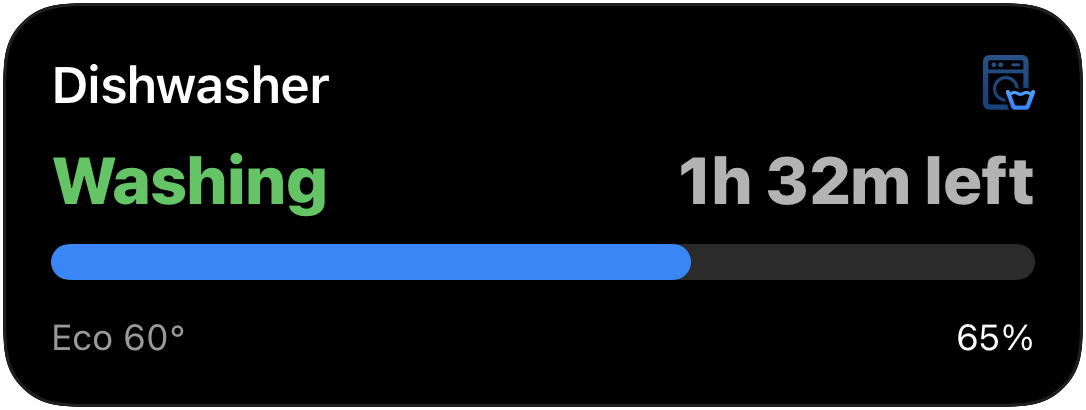
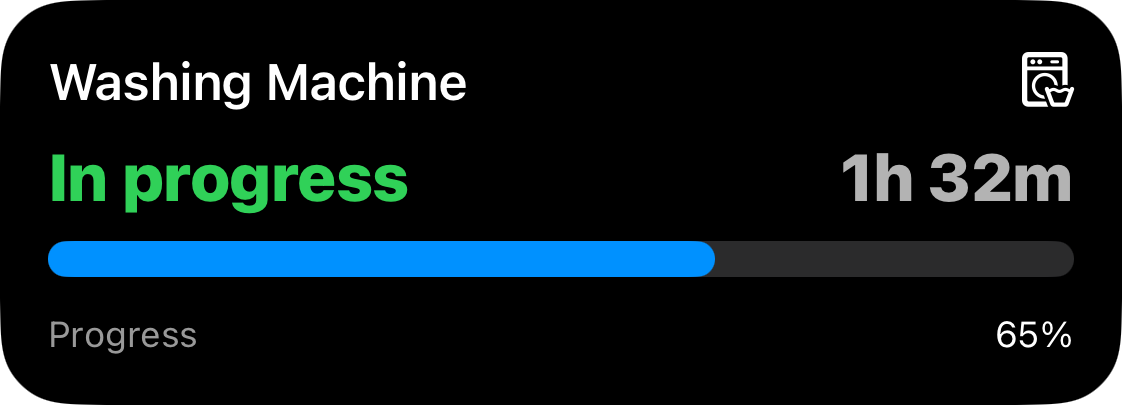
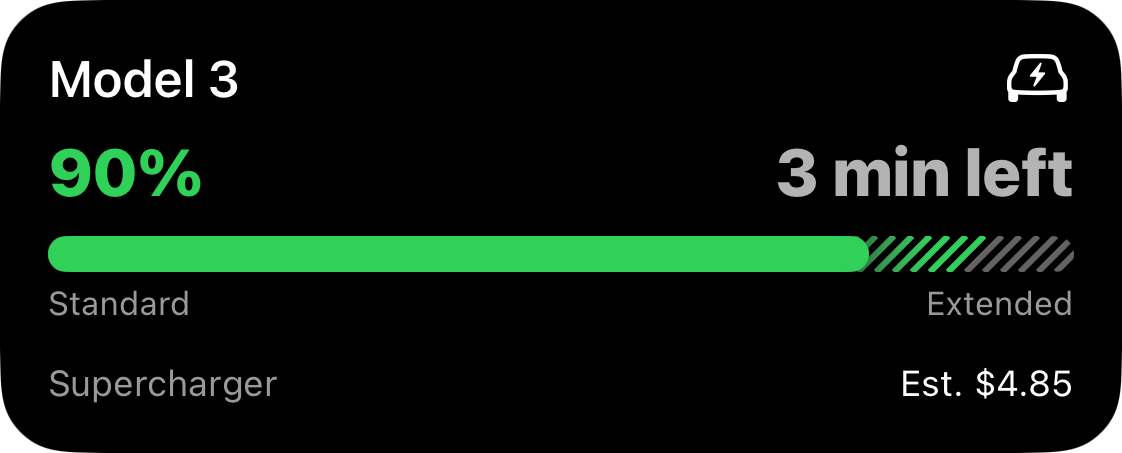
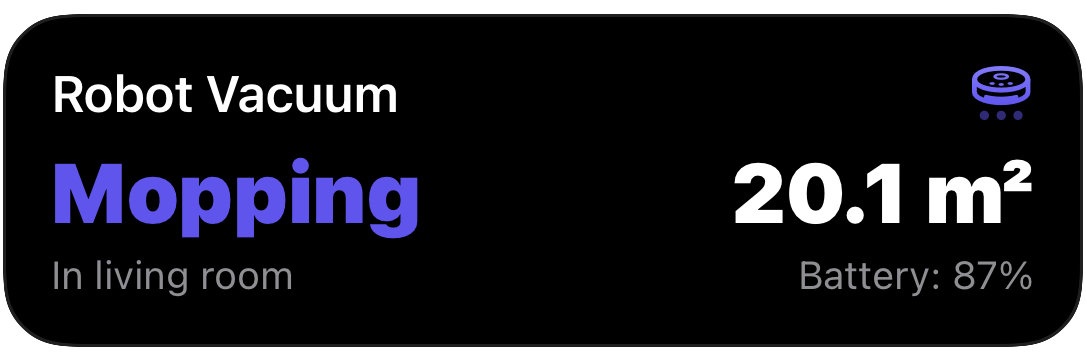
Some of Aivi’s layouts, each with a one-click Home Assistant blueprint:
[ ](/home-assistant/blueprints/#progress-simple-from-sensors)
[ Progress A cycle with a clear finish: laundry, dishwasher, 3D print. ](/home-assistant/blueprints/#progress-simple-from-sensors)
[ ](/home-assistant/blueprints/#progress-segmented-from-sensors)
[ Segmented progress Milestones on one bar: EV charging with standard and extended range. ](/home-assistant/blueprints/#progress-segmented-from-sensors)
[ ](/home-assistant/blueprints/#monitor)
[ Monitor Live readings while something runs: area cleaned, temperatures, power. ](/home-assistant/blueprints/#monitor)
[ ](/guides/homeassistant-widgets/)
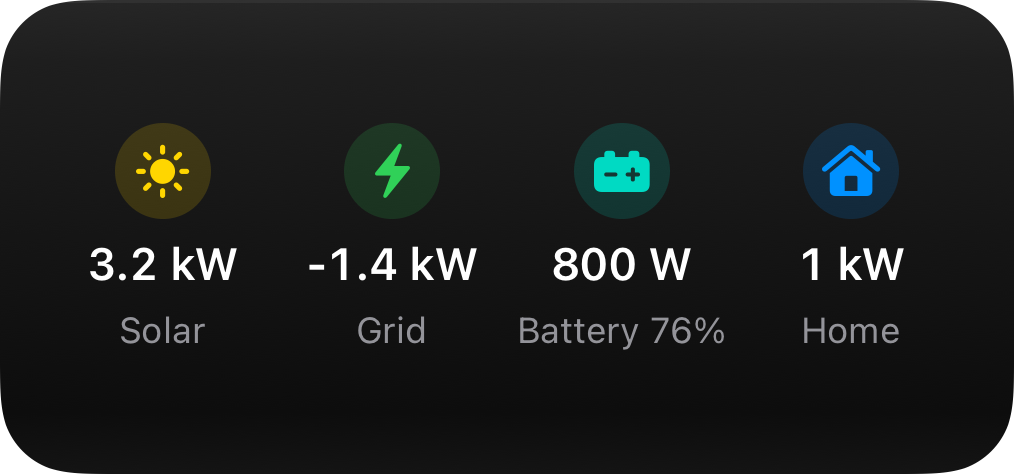
[ Energy widget Always on screen: solar, grid, battery, and home in one widget.](/guides/homeassistant-widgets/)
**Aivi is the better fit if you want:**
* **Templates beyond a single card.** Progress bars in one piece, in segments, or layered against a target, and a Monitor of live, color-coded values, with any SF Symbol as the icon. See [Live Activity Templates](/templates/).
* **Widgets built for your data.** [Eleven widget templates](/guides/homeassistant-widgets/), from Battery to Energy, for the Home Screen, Lock Screen, StandBy, and Apple Watch, fed by the same automations. The Aivi Board combines several into one grid.
* **Activities longer than eight hours.** Companion activities expire at Apple’s limit; Aivi’s [long-running activities](#keep-it-running-past-8-hours) hand over to a fresh one.
* **Updates away from home without remote access.** Companion activities need a token handshake between your phone and Home Assistant, so away from home they only start and update if you have [remote access](https://www.home-assistant.io/docs/configuration/remote/) set up. With Aivi, Home Assistant only sends outgoing requests to Aivi’s API; your phone never connects to it.
* **Sharing without Home Assistant accounts.** Up to five people see your activity or widget; they install Aivi and pay nothing.
* **The same API outside Home Assistant,** from scripts, CI, Shortcuts, or anything that can make an HTTP request. See the [API reference](/api-reference/).
## Setup without blueprint
[Section titled “Setup without blueprint”](#setup-without-blueprint)
If you want full control over the automation logic, create the automation manually:
* Add triggers for each entity you reference (running state, progress, etc). This keeps the Live Activity updated whenever any value changes.
* Set up an action that posts the activity state to Aivi:
```yaml
- action: rest_command.update_live_activity
response_variable: aivi_response
data:
slug: dishwasher
payload: >-
{% set running = is_state("binary_sensor.dishwasher_running", "on") %}
{
"state": "{{ 'ONGOING' if running else 'IDLE' }}",
"content": {
"template": "progress",
"icon": "washer",
"progress": {
"style": "simple",
"value": {{ (states('sensor.dishwasher_progress') | float(0)) / 100 }}
},
"header_left": {
"value": "{{ states('sensor.dishwasher_cycle_status') }}"
},
"header_right": {
"value": "{{ states('sensor.dishwasher_eta_minutes') | int(0) }} min left"
}
}
}
```
`ONGOING` starts the Live Activity or updates it in place, and `IDLE` ends it and dismisses it. See [Activity states](/api-reference/#activity-states).
The `| float(0)` and `| int(0)` filters keep the payload valid JSON even when a sensor is briefly `unavailable`: they fall back to `0` instead of emitting an invalid value. The progress sensor is assumed to report `0–100`, so it is divided by `100` to fit the `0.0–1.0` range the API expects.
## Adapting the example
[Section titled “Adapting the example”](#adapting-the-example)
The example above is specific to a dishwasher, but you can adapt it for any device in Home Assistant:
* **Change the slug** to match your device (e.g., `washing_machine`, `robot_vacuum`, `3d_printer`)
* **Update the sensor names** to match your Home Assistant entities
* **Adjust the state logic** to fit your device’s behavior (running, idle, paused, etc.)
* **Pick a different icon** from [SF Symbols](https://developer.apple.com/sf-symbols/) that matches your device
Track several devices at once by creating one activity and one automation per device, each with its own slug. For more starting points (washing machine, EV charging, robot vacuum, oven, and more), each with its template and matching blueprint, see [Use Cases](/use-cases/). The [Live Activity Templates](/templates/) page covers every layout option.
## Keep it running past 8 hours
[Section titled “Keep it running past 8 hours”](#keep-it-running-past-8-hours)
Apple ends every Live Activity after about eight hours. For a long 3D print, an overnight EV charge, or an automation that runs all day, turn on **Long-running** when you create or edit the activity in Aivi. Shortly before the limit, Aivi replaces the Live Activity with a fresh one carrying the same content, and it carries on.
Keep sending updates: if a long-running activity has received none for about six hours, Aivi ends it at the next handover instead of leaving a frozen card on your Lock Screen. For devices that go quiet for long stretches, send an occasional update to keep it live. See [Forever Activities](https://getaivi.app/updates/forever-activities/) for the details.
## Widgets too
[Section titled “Widgets too”](#widgets-too)
Live Activities are the real-time layer: they appear while something is happening and dismiss when it is done. For state you want permanently on the Home Screen or Lock Screen (battery levels across your devices, electricity prices, energy flow), the same `rest_command` pattern drives Aivi’s persistent widgets, and every widget template has a ready-made blueprint. See [Home Assistant widgets on iPhone](/guides/homeassistant-widgets/) for the setup, the [widget blueprints](/home-assistant/blueprints/#widget-blueprints), or [publishing widgets from Home Assistant](/widget-templates/#publishing-from-home-assistant) for the underlying setup and a working automation.
## Troubleshooting
[Section titled “Troubleshooting”](#troubleshooting)
When a call fails, Home Assistant logs a `rest_command` warning with the status code under **Settings > System > Logs**. In a hand-written automation, the `response_variable: aivi_response` line also puts the response in the automation’s trace.
* **`401`**: the token in `configuration.yaml` is missing or mistyped. Copy it again from the app and reload your configuration.
* **`402`**: the token is valid, but the account has no active subscription.
* **`404`**: no activity with that slug exists. Create it in the app first, and check that the slug matches exactly.
* **`422`**: the payload is not valid for the template, often because a sensor returned `unavailable` or `unknown`. Add defaults such as `| float(0)` as in the example above. A `422` with `Too many ongoing activities` means you are at your plan’s limit of activities running at once.
If the calls succeed but the activity stops updating, iOS may be throttling it: Apple budgets how many Live Activities can start and how many updates each one receives. Trigger on meaningful changes rather than every sensor tick. See [Limitations](/limitations/) for the numbers we have observed.
## Common questions
[Section titled “Common questions”](#common-questions)
**Is a live notification the same as a Live Activity?** On iPhone, yes: Apple calls them Live Activities, shown on the Lock Screen and in the Dynamic Island. On Android, the Companion app’s Live Updates play the same role; Aivi is for Apple devices only.
**Do I still need the Companion app?** Not for Aivi. Home Assistant talks to Aivi’s API directly, and the Aivi app receives the updates.
**Does my Home Assistant need to be reachable from the internet?** No. Home Assistant only makes outgoing requests to Aivi’s API, and your phone receives updates through Apple’s push service, at home or away.
**Do I need to keep the Aivi app open?** No. Live Activities update even when the app is closed.
**Can someone else in my household see the activity?** Yes. Share it from the app with up to five people. One update from your automation reaches everyone’s devices, and they do not need a Home Assistant account.
**How much does it cost?** $2.99 a month or $23.99 a year, with the first week free. People you share with pay nothing.
# Home Assistant iOS Widgets for iPhone and Apple Watch
> Add Home Assistant widgets to your iPhone Home Screen, Lock Screen, StandBy, and Apple Watch, with blueprints and pressable tiles. Needs iOS 26.
The Home Assistant Companion app has iOS widgets for controls and simple sensor displays, refreshed on a timer. Aivi adds eleven widget templates: ten display templates that your automations fill in, such as energy flow, gauges, device batteries, and electricity prices, each with a one-click blueprint, plus a Switchboard of tiles you can press. Widgets need iOS 26. Aivi costs [$2.99 a month or $23.99 a year](https://getaivi.app/#pricing), and the first week is free.
[Set it up in a few minutes](#set-up-home-assistant-widgets-on-ios) · [Pick a template for your sensor](#which-template-for-which-sensor) · [Control devices](#control-devices-from-a-widget) · [Compare with the Companion app](#aivi-or-the-companion-apps-widgets)
## Set up Home Assistant widgets on iOS
[Section titled “Set up Home Assistant widgets on iOS”](#set-up-home-assistant-widgets-on-ios)
You need an iPhone on iOS 26 or later, and a Home Assistant that can make outgoing HTTPS requests. Any installation type works: no custom components, no port forwarding, and no remote access to your Home Assistant.
1. Install [Aivi from the App Store](https://apps.apple.com/app/aivi/id6749237387), open the **Settings** tab, sign in, and start your free week. Then copy your API token from the same tab.
2. In the **Widgets** tab, create a widget: pick a template (Gauge is a good first one) and give it a slug such as `living-room`. Your automation updates the widget by this slug.
3. Add a [RESTful command](https://www.home-assistant.io/integrations/rest_command/) to your `configuration.yaml`, then reload your configuration:
```yaml
rest_command:
update_widget:
url: 'https://api.getaivi.app/widgets/{{ slug }}'
method: PATCH
headers:
content-type: application/json
authorization: Token [token]
payload: '{{ payload }}'
```
Note
Replace `[token]` with your API token from the Aivi app.
4. Import the blueprint for your template, and point it at your sensor and the slug from step 2. This one is for the Gauge:
[](https://my.home-assistant.io/redirect/blueprint_import/?blueprint_url=https%3A%2F%2Fha.getaivi.app%2Fblueprints%2Fwidget-gauge-v1.yaml)
The blueprint updates the widget whenever the sensor changes. To send the first update right away, open the new automation, tap **⋮**, and choose **Run actions**. Every display template has a blueprint; see the [widget blueprints](/home-assistant/blueprints/#widget-blueprints).
5. Put the widget on screen:
* **Home Screen:** long-press an empty area, tap **Edit**, then **Add Widget**, and choose **Aivi** and a size.
* **Lock Screen:** long-press the Lock Screen, tap **Customize**, choose the Lock Screen, tap the widget area, and choose **Aivi**.
Then long-press the placed widget, tap **Edit Widget**, and pick yours under **Widget**. iOS usually shows the content within a few minutes.
Note
Prefer to write the automation yourself? [Publishing from Home Assistant](/widget-templates/#publishing-from-home-assistant) has a complete example.
## Which template for which sensor
[Section titled “Which template for which sensor”](#which-template-for-which-sensor)
[ ](/home-assistant/blueprints/#energy-widget)
[ Energy Solar, grid, battery, and home from your power sensors. ](/home-assistant/blueprints/#energy-widget)
[ ](/home-assistant/blueprints/#gauge-widget)
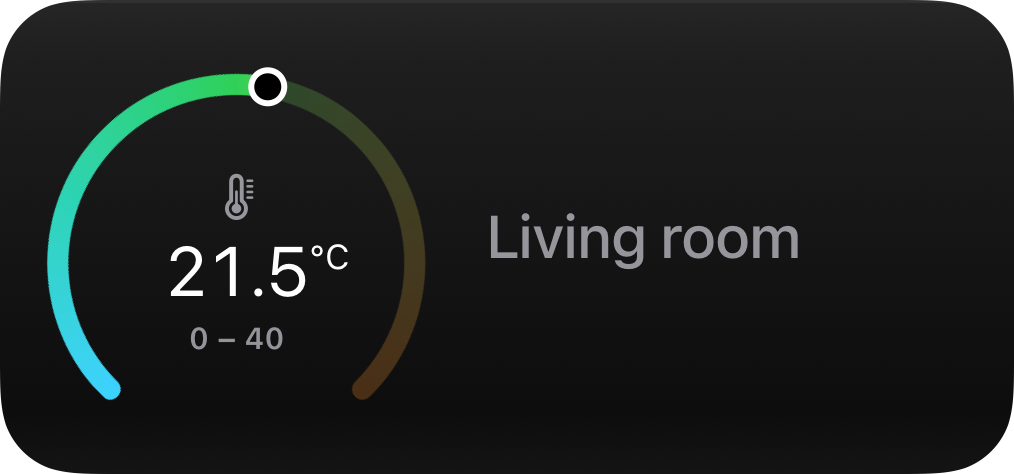
[ Gauge One reading on a dial: temperature, humidity, CO₂. ](/home-assistant/blueprints/#gauge-widget)
[ ](/home-assistant/blueprints/#battery-widget)
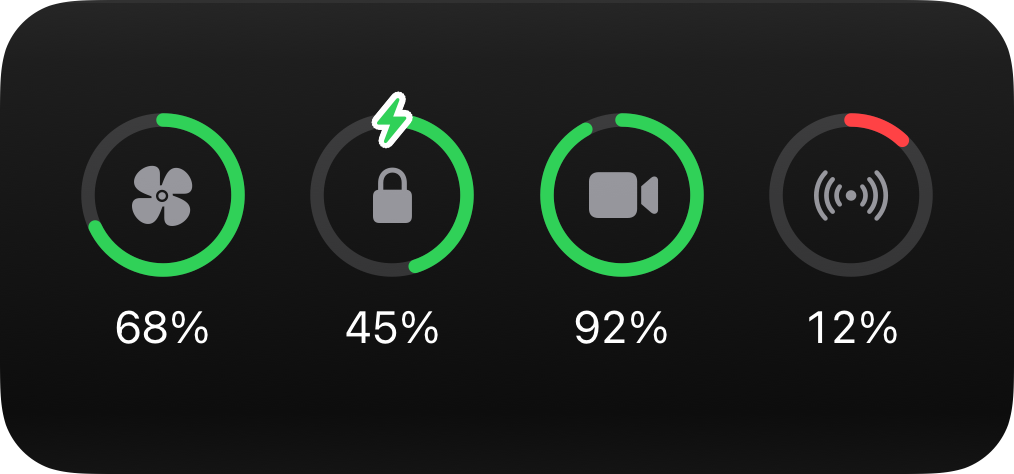
[ Battery Battery levels across your devices. ](/home-assistant/blueprints/#battery-widget)
[ ](/home-assistant/blueprints/#prices-widget)
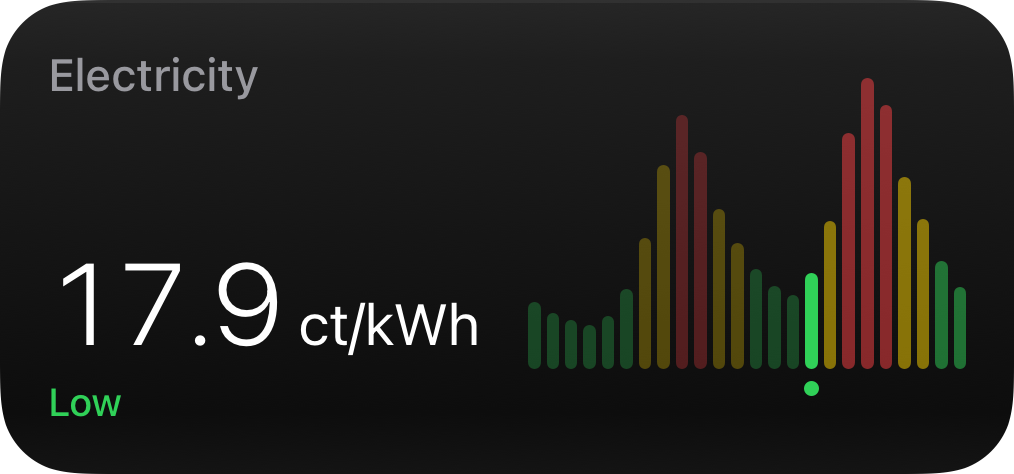
[ Prices Today's electricity prices, with the current hour marked.](/home-assistant/blueprints/#prices-widget)
| What you want to show | Template | Typical Home Assistant source |
| ---------------------------------- | ------------------------------------------------------ | ------------------------------------------------------------------------------- |
| One reading on a dial | [Gauge](/widget-templates/#gauge-template) | Temperature, humidity, CO₂, air quality |
| A headline value with a state line | [Status](/widget-templates/#status-template) | Thermostat, alarm, washer state |
| Several device batteries at once | [Battery](/widget-templates/#battery-template) | Phones, locks, sensors, cameras |
| Solar, grid, battery, and home | [Energy](/widget-templates/#energy-template) | Power (W) sensors from your inverter, meter, or battery |
| Electricity prices through the day | [Prices](/widget-templates/#prices-template) | Nord Pool (example in the blueprint), or any hourly price list via a template |
| A value and where it’s heading | [Trend](/widget-templates/#trend-template) | Indoor temperature, power use |
| Time until something | [Countdown](/widget-templates/#countdown-template) | Any timestamp sensor: next alarm, waste pickup, calendar event |
| A few labeled values | [List](/widget-templates/#list-template) | Door and window states, room temperatures (up to eight rows) |
| Spending against a limit | [Budget](/widget-templates/#budget-template) | Monthly energy cost |
| Progress toward a finish | [Progress](/widget-templates/#progress-template) | Dishwasher, backup, charging |
| Buttons and toggles | [Switchboard](/widget-templates/#switchboard-template) | Scenes, scripts, lights, switches (see [below](#control-devices-from-a-widget)) |
The Countdown, Prices, and Progress templates keep themselves current on the device between updates, so a countdown keeps ticking and the current price hour moves on without Home Assistant sending anything.
Homematic IP devices work like any other entity once they are in Home Assistant, through the [Homematic(IP) Local](https://github.com/SukramJ/homematicip_local) integration (for a CCU3 or OpenCCU) or the built-in [Homematic IP Cloud](https://www.home-assistant.io/integrations/homematicip_cloud/) one: a thermostat or weather station feeds the Gauge or Status template, and window contacts fit the List template.
## Control devices from a widget
[Section titled “Control devices from a widget”](#control-devices-from-a-widget)
The [Switchboard](/widget-templates/#switchboard-template) template is a grid of up to eight pressable tiles on the Home Screen: buttons for scenes and scripts, and toggles for lights, switches, and fans. A press reaches Home Assistant through a webhook, an automation carries it out, and the tile fills in once Home Assistant publishes the new state. Everyone you share the widget with can press it too. [Interactive Widgets](/interactive-widgets/#home-assistant) has the complete Home Assistant example; there is no blueprint for this one.
Note
Presses need Home Assistant reachable over public HTTPS on port 443, because Aivi delivers them to a webhook. The simplest way is a Home Assistant Cloud webhook URL, which opens no port on your router. The display templates need none of this.
## On Apple Watch
[Section titled “On Apple Watch”](#on-apple-watch)
Every template also renders as corner, circular, rectangular, and inline complications, and Aivi widgets join the watch’s Smart Stack. Add one like any other complication: touch and hold the watch face, tap **Edit**, choose a complication slot, and pick **Aivi**.
## Aivi or the Companion app’s widgets?
[Section titled “Aivi or the Companion app’s widgets?”](#aivi-or-the-companion-apps-widgets)
The Companion app’s [iOS widgets](https://companion.home-assistant.io/docs/integrations/ios-widgets/) cover controls (scripts, dashboard shortcuts, tiles that toggle entities, Assist) and sensor displays, including gauges and template lines. They refresh about every 15 minutes within an iOS budget. **If you mostly want buttons for your home, they are free and a good fit:** their controls go through the Companion app’s own connection to Home Assistant, with no webhook to set up.
**Aivi is the better fit if you want:**
* **Templates designed for your data.** Ten display layouts, from Energy to Prices, each built for its kind of data at every size, with any SF Symbol as the icon. With the Switchboard below, that makes eleven widget templates.
* **Pushed, not polled.** Your automation sends new content when a sensor changes, and it usually shows up within minutes. Countdowns, price timelines, and progress with an end time keep moving on the device between updates.
* **Sharing without Home Assistant accounts.** Up to five people see the same widget on their own devices (iOS 26 or later); they install Aivi and pay nothing.
* **Controls that show the confirmed state.** A [Switchboard](#control-devices-from-a-widget) tile only looks on when Home Assistant says so, and people you share it with can press it without a Home Assistant account. It needs a public HTTPS webhook, such as Home Assistant Cloud’s.
* **Several widgets in one place.** The Aivi Board combines your widgets as tiles in a single widget.
## How fresh are the widgets?
[Section titled “How fresh are the widgets?”](#how-fresh-are-the-widgets)
iOS treats widgets as a background, battery-friendly surface, for every app. When your automation updates an Aivi widget, the change typically appears within minutes: often faster, occasionally slower in Low Power Mode or on a sleeping device. Design for “latest known state”, not for second-by-second updates.
* **For something happening right now**, like a wash cycle or a charging session, use a [Live Activity](/guides/homeassistant/) instead: that is the real-time layer.
* **To see how old a value is**, set a staleness threshold on the widget. Once its content is older than that, it shows “as of 14:32” instead of passing old data off as current. See [marking content as stale](/widget-templates/#marking-content-as-stale).
## Widgets not working or not updating?
[Section titled “Widgets not working or not updating?”](#widgets-not-working-or-not-updating)
These checks cover Aivi widgets. When an update fails, Home Assistant logs a `rest_command` warning with the status code under **Settings > System > Logs**:
* **`400`**: the slug belongs to a widget with a different template.
* **`401`**: the token in `configuration.yaml` is missing or mistyped. Copy it again from the app and reload your configuration.
* **`402`**: the token is valid, but the account has no active subscription.
* **`404`**: no widget with that slug exists. Create it in the **Widgets** tab first, and check that the slug matches exactly.
* **`422`**: the content doesn’t fit the template or is over 4 KiB, usually from a hand-written payload.
**The widget stays empty.** If you haven’t yet, open the automation and use **Run actions** to send the first update. Then long-press the widget, tap **Edit Widget**, and check that it points at the right Aivi widget.
**Updates are slow.** Check Low Power Mode, and trigger on meaningful changes rather than every sensor tick. See [Limitations](/limitations/#widgets) for how iOS budgets widget updates.
## Common questions
[Section titled “Common questions”](#common-questions)
**My Companion widgets are empty or stale. Will Aivi fix them?** Aivi is a separate setup, not a repair for the Companion app’s widgets. Its widgets get their content pushed when your automation runs, so your phone never needs to reach your Home Assistant.
**Can I control devices from an Aivi widget?** Yes, with the [Switchboard](#control-devices-from-a-widget): its tiles run scenes and scripts or toggle entities from the Home Screen. Presses reach Home Assistant through a webhook, so it has to be reachable over public HTTPS, for example with Home Assistant Cloud. The other templates show state, and tapping one opens a link you choose, such as a Home Assistant dashboard. The Companion app’s widgets control entities without a webhook, and both can sit side by side.
**Do I need the Companion app?** Not for Aivi. Home Assistant talks to Aivi’s API directly, and the Aivi app shows the widgets.
**How many widgets can I have?** Up to 20, plus up to five Live Activities running at once.
**How much does it cost?** $2.99 a month or $23.99 a year, with the first week free. People you share with pay nothing.
# Hosting Widget Pictures
> Where to put the pictures for Switchboard tiles so every phone can load them, with step-by-step setups for Cloudflare R2 and the Home Assistant www folder.
A [Switchboard](/widget-templates/#switchboard-template) tile can show a picture from its `image.url`. Aivi never downloads that picture: each phone showing the widget fetches it on its own, without your credentials. So the picture has to live somewhere every phone can reach, from anywhere, over `https://`. This page shows how to prepare a picture and two ways to host it: a free [Cloudflare R2](#cloudflare-r2) bucket, which we recommend, and the [Home Assistant `www` folder](#home-assistant-www-folder).
## What a picture URL needs
[Section titled “What a picture URL needs”](#what-a-picture-url-needs)
The full rules are under [Pictures](/widget-templates/#pictures); in short:
* **Public `https://`, reachable from anywhere.** A phone away from home, or a family member’s phone, fetches the same URL. A LAN address such as `http://192.168.1.20/...` or `homeassistant.local` won’t load there.
* **Stable.** The URL must keep working. Links that expire, such as signed storage URLs or tokenized camera snapshots, stop loading after a while.
* **Small.** At most 512 pixels on a side and 256 KB, in PNG, JPEG, HEIC, WebP, or GIF. Anything larger is refused, and a URL that fails isn’t tried again for 30 minutes.
* **A new URL for a new picture.** The phone trusts a picture for 24 hours. To change it sooner, change the URL, for example `dog-cam.jpg?v=2` or `dog-cam-2.jpg`.
* **Short.** Image URLs count toward the 4 KiB content limit, so a short domain and file name leave more room for your tiles.
Anyone who knows the URL can open the picture, so only host pictures you don’t mind being public.
### Prepare the file
[Section titled “Prepare the file”](#prepare-the-file)
Most photos are far larger than 512 pixels. On a Mac, `sips` resizes a photo so its longer side is 512 pixels, and saves it as a JPEG:
```bash
sips -Z 512 -s format jpeg -s formatOptions 80 photo.jpg --out dog-cam.jpg
```
It also reads iPhone `.heic` photos. With [ImageMagick](https://imagemagick.org/) on any platform, the same is:
```bash
magick photo.jpg -resize '512x512>' -quality 80 dog-cam.jpg
```
A 512-pixel JPEG at this quality is usually well under 100 KB. Check the size before you upload it; if it’s over 256 KB, lower the quality.
## Cloudflare R2
[Section titled “Cloudflare R2”](#cloudflare-r2)
[Cloudflare R2](https://developers.cloudflare.com/r2/) is object storage with a free monthly allowance: 10 GB of storage, 1 million write operations (such as uploads), and 10 million read operations. Downloads (egress) are free. A handful of thumbnails fetched by a few phones stays far inside it.
1. Sign in to the [Cloudflare dashboard](https://dash.cloudflare.com/), or create a free account, and open **Storage & databases** > **R2** > **Overview**. The first time, complete the checkout to add R2 to your account. It includes the free monthly allowance, and you’re billed only for usage beyond it.
2. Select **Create bucket**, give it a name such as `aivi-pictures` (lowercase letters, numbers, and hyphens), and select **Create bucket**. The default location and storage class are fine.
3. Make the bucket public. In the bucket, open **Settings**. Under **Public Development URL**, select **Enable**, type `allow` to confirm, and select **Allow**. The bucket’s public URL, on `r2.dev`, appears there.
If you have a domain on Cloudflare, connect it instead: under **Custom Domains**, select **Add**, enter a subdomain such as `pictures.example.com`, select **Continue**, and then **Connect Domain**. See [Custom domain or r2.dev](#custom-domain-or-r2dev).
4. Back in the bucket, select **Upload** and drag in your prepared picture.
5. Put the public URL and the file name together, and use it as the tile’s `image.url`:
```json
"image": {
"url": "https://pictures.example.com/dog-cam.jpg",
"alt": "The dog in the hallway"
}
```
Open the URL in a private browser window first: if the picture shows there, the phone can load it too.
To replace a picture, upload the new file under a new name, or keep the name and change the version in your payload (`dog-cam.jpg?v=2`). Either way, the phone loads it at the next sync.
### Custom domain or r2.dev
[Section titled “Custom domain or r2.dev”](#custom-domain-or-r2dev)
Cloudflare describes the `r2.dev` URL as meant for development: it is rate-limited, and Cloudflare recommends a custom domain for production. A personal widget is a light load: each phone fetches a picture about once a day, so `r2.dev` is fine for a home setup. If you already have a domain on Cloudflare, connect it anyway: the URL is shorter, it’s yours, and Cloudflare can cache the pictures. The domain must be a zone in the same Cloudflare account as the bucket.
## Home Assistant www folder
[Section titled “Home Assistant www folder”](#home-assistant-www-folder)
Home Assistant serves the files in its `www` folder at `/local/`, without asking for a login. That makes it a quick place for a few pictures, but only if your Home Assistant is reachable from the internet over `https://`: with [Home Assistant Cloud](https://www.home-assistant.io/docs/configuration/remote/) remote access, or your own setup such as a reverse proxy with a certificate. If your Home Assistant is only reachable at home (or only over a VPN), the picture won’t load on a phone away from it; use [Cloudflare R2](#cloudflare-r2) instead.
1. Create a folder named `www` inside your configuration folder (`/config`), for example with the File editor or Samba add-on. If the folder is new, restart Home Assistant once so it starts serving it.
2. Put your prepared picture in it, for example `/config/www/aivi/dog-cam.jpg`.
3. Build the URL from your public Home Assistant address and the path below `www`, with `/local/` in front:
```json
"image": {
"url": "https://ha.example.com/local/aivi/dog-cam.jpg?v=1",
"alt": "The dog in the hallway"
}
```
Open it in a private browser window on mobile data to check that it loads away from home.
Anyone who knows a `/local/` URL can open that file, so keep only pictures you would share in `www`. When you replace a file, bump the version (`?v=2`) in the payload so phones fetch the new one.
Caution
Don’t forward an entity’s `entity_picture` as is. It is usually a relative, authenticated, or tokenized address that changes over time, so phones can’t load it. Copy the picture into `www` or a bucket and use that URL.
## Other hosts
[Section titled “Other hosts”](#other-hosts)
Any static host works if the URL is public `https://` and stays the same: a web server you already run, another object storage service with public reads, or your own website. Avoid links that expire: signed or presigned storage URLs, camera snapshot links with a token, and share links that need a login all stop working, and the tile falls back to its gradient or symbol.
# Node-RED and Scripts
> Update Aivi widgets and Live Activities from Node-RED, a Homematic CCU with RedMatic, cron jobs, or any script that can send an HTTPS request.
Anything that can send an HTTPS request can drive Aivi. On Home Assistant, use the [Live Activities](/guides/homeassistant/) guide and the [blueprints](/home-assistant/blueprints/); on the iPhone itself, use [Shortcuts](/widget-templates/#publishing-from-shortcuts); on openHAB, see [openHAB](/guides/openhab/). This page covers the rest: Node-RED, a Homematic CCU with RedMatic, and plain scripts.
Every update is one `PATCH` request with your API token, sent to the slug of a widget or activity you created in the app. See the [API reference](/api-reference/) for the request body of each.
## From a script or cron job
[Section titled “From a script or cron job”](#from-a-script-or-cron-job)
This keeps a [Gauge widget](/widget-templates/#gauge-template) with the slug `nas-disk` in sync with a disk’s usage on a Linux machine. Create the widget in the app’s **Widgets** tab first, then run the script on a schedule:
```bash
#!/bin/sh
USED=$(df --output=pcent /srv | tail -1 | tr -dc '0-9')
curl -sS --fail-with-body \
-X PATCH https://api.getaivi.app/widgets/nas-disk \
-H 'Authorization: Token [token]' \
-H 'Content-Type: application/json' \
--data-binary @- < Keep an Aivi widget or Live Activity in sync with an openHAB item using a JavaScript Scripting rule, since openHAB's HTTP actions cannot send PATCH.
openHAB can update Aivi from a rule whenever an item changes. The one catch: openHAB’s built-in [HTTP actions](https://www.openhab.org/docs/configuration/actions.html#http-actions) send GET, PUT, POST, and DELETE, but not the `PATCH` request Aivi expects. The rule below uses Java’s own HTTP client instead, from the JavaScript Scripting add-on.
This setup is tested against openHAB 5.1.
## Keep a widget in sync with an item
[Section titled “Keep a widget in sync with an item”](#keep-a-widget-in-sync-with-an-item)
This example keeps a [Gauge widget](/widget-templates/#gauge-template) with the slug `living-room` in sync with a temperature item.
1. In the Aivi app’s **Widgets** tab, create a widget with the **Gauge** template and the slug `living-room`. Copy your API token from the **Settings** tab.
2. In openHAB, open **Settings > Add-on Store > Automation** and install **JavaScript Scripting**.
3. Use an existing Number item, or define one in `conf/items/aivi.items`:
```text
Number LivingRoom_Temperature "Living room temperature [%.1f °C]"
```
4. Save the rule as `conf/automation/js/aivi.js`, with your item name, slug, and token filled in:
```js
// Keeps an Aivi Gauge widget in sync with an openHAB Number item.
// openHAB's HTTP actions have no PATCH, so this uses Java's HTTP client.
const { rules, triggers } = require("openhab");
const AIVI_TOKEN = "[token]";
const ITEM = "LivingRoom_Temperature";
const SLUG = "living-room";
const HttpClient = Java.type("java.net.http.HttpClient");
const HttpRequest = Java.type("java.net.http.HttpRequest");
const HttpResponse = Java.type("java.net.http.HttpResponse");
const URI = Java.type("java.net.URI");
const client = HttpClient.newHttpClient();
rules.JSRule({
name: "Aivi: update the living-room widget",
triggers: [triggers.ItemStateChangeTrigger(ITEM)],
execute: (event) => {
const body = JSON.stringify({
content: {
template: "gauge",
value: Number.parseFloat(event.newState),
min_value: 10,
max_value: 35,
unit: "°C",
label: "Living room",
icon: "thermometer.medium",
},
});
const request = HttpRequest.newBuilder(URI.create(`https://api.getaivi.app/widgets/${SLUG}`))
.header("Authorization", `Token ${AIVI_TOKEN}`)
.header("Content-Type", "application/json")
.method("PATCH", HttpRequest.BodyPublishers.ofString(body))
.build();
const response = client.send(request, HttpResponse.BodyHandlers.ofString());
if (response.statusCode() >= 300) {
console.warn(`Aivi update failed: ${response.statusCode()} ${response.body()}`);
}
},
});
```
5. openHAB loads the file on its own. The log shows `Adding rule: Aivi: update the living-room widget`, and the widget updates the next time the item changes.
Note
The token sits in plain text in the rule file, so keep `conf/automation` readable only by the openHAB user.
To show something else, change the `content` to another [widget template](/widget-templates/). To drive a Live Activity instead, send to `/activities/{slug}` with a `state` and a Live Activity template; see [Update an activity](/api-reference/#update-an-activity).
## Troubleshooting
[Section titled “Troubleshooting”](#troubleshooting)
Failed updates are logged as `Aivi update failed: `:
* **`401`**: the token is missing or mistyped.
* **`402`**: the token is valid, but the account has no active subscription.
* **`404`**: no widget with that slug exists. Create it in the app first.
* **`422`**: the content doesn’t fit the template, for example an item state of `NULL` or `UNDEF` that isn’t a number.
See [Errors](/api-reference/#errors) for the full list.
# Home Assistant Blueprints
> Home Assistant blueprints that send entity changes to iPhone Live Activities and widgets: progress, timers, gauges, batteries, energy, and more.
Aivi provides a set of Home Assistant blueprints that help you connect Home Assistant devices and automations to Live Activities and persistent widgets. They handle the “plumbing” - watching entities for changes and calling the right `rest_command` with the right payload - so you can get a working Live Activity or widget in a few clicks.
## Prerequisites
[Section titled “Prerequisites”](#prerequisites)
The Live Activity blueprints call `rest_command.update_live_activity` and the widget blueprints call `rest_command.update_widget`. Add both to your Home Assistant configuration:
1. Open your Home Assistant `configuration.yaml`.
2. Add the `rest_command` entries below:
```yaml
rest_command:
update_live_activity:
url: 'https://api.getaivi.app/activities/{{ slug }}'
method: PATCH
headers:
content-type: application/json
authorization: Token [token]
payload: '{{ payload }}'
update_widget:
url: 'https://api.getaivi.app/widgets/{{ slug }}'
method: PATCH
headers:
content-type: application/json
authorization: Token [token]
payload: '{{ payload }}'
```
Note
Replace `[token]` with your Aivi API token.
3. Reload your Home Assistant configuration.
## Versioning
[Section titled “Versioning”](#versioning)
Blueprints are versioned using a suffix like `-v1` (for example, `timer-v1`).
* **Stability**: Updates within the same major version (e.g. `v1`) are intended to be backwards compatible.
* **Breaking changes**: If we need to change inputs or behavior in a breaking way, we’ll publish a new major version (e.g. `-v2`) alongside the old one so existing automations keep working.
* **Upgrades**: To move to a new major version, import the newer blueprint and reselect your entities/inputs in the automation editor (Home Assistant does not auto-migrate blueprint input mappings across breaking changes).
## Live Activity blueprints
[Section titled “Live Activity blueprints”](#live-activity-blueprints)
These blueprints drive Live Activities through `rest_command.update_live_activity`.
### Progress: Simple (from sensors)
[Section titled “Progress: Simple (from sensors)”](#progress-simple-from-sensors)
[](https://my.home-assistant.io/redirect/blueprint_import/?blueprint_url=https%3A%2F%2Fha.getaivi.app%2Fblueprints%2Fprogress-simple-v1.yaml)
Version v1
Drives a simple progress bar from sensors. Use this when your device exposes:
* A binary “running” entity (on/off)
* A progress sensor (0–100)
* Optionally, an ETA sensor (timestamp or duration) and/or a human-readable state sensor (“Washing”, “Drying”, …)
### Progress: Segmented (from sensors)
[Section titled “Progress: Segmented (from sensors)”](#progress-segmented-from-sensors)
[](https://my.home-assistant.io/redirect/blueprint_import/?blueprint_url=https%3A%2F%2Fha.getaivi.app%2Fblueprints%2Fprogress-segmented-v1.yaml)
Version v1
Drives a segmented progress bar from sensors. Same inputs as the simple blueprint, but lets you define up to 4 labeled segments with individual colors, track patterns, and a display mode (split or layered).
### Progress: Timer (from a timer helper)
[Section titled “Progress: Timer (from a timer helper)”](#progress-timer-from-a-timer-helper)
[](https://my.home-assistant.io/redirect/blueprint_import/?blueprint_url=https%3A%2F%2Fha.getaivi.app%2Fblueprints%2Fprogress-timer-v1.yaml)
Version v1
Drives a simple progress bar from a Home Assistant [timer](https://www.home-assistant.io/integrations/timer/). Automatically synchronizes the Live Activity state with the timer’s progress, and supports pausing, resuming, and cancelling.
### Monitor
[Section titled “Monitor”](#monitor)
[](https://my.home-assistant.io/redirect/blueprint_import/?blueprint_url=https%3A%2F%2Fha.getaivi.app%2Fblueprints%2Fmonitor-dynamic-v1.yaml)
Version v1
Use this when you want to drive the Monitor template from sensors or templates. It supports optional headers/footers, custom value colors, formatters, and per-column visibility conditions, with an optional set of custom triggers for templated fields.
## Widget blueprints
[Section titled “Widget blueprints”](#widget-blueprints)
One blueprint per [widget template](/widget-templates/). Each one watches your sensors and calls `rest_command.update_widget` when they change, and they all share the same conveniences: an SF Symbols icon with full [customization](/templates/#icon-object), an accent color, an optional tap URL, and an optional staleness threshold (`stale_after`). Updates are skipped while a required sensor is unavailable.
Note
The Battery, List, Budget, and Energy blueprints use row-based inputs and require Home Assistant 2025.7 or newer; the rest work on 2024.10+. Because automations cannot trigger on entities picked inside rows, these four also have a “Watched entities” input: add the entities your rows reference so the automation fires when they change.
### Status widget
[Section titled “Status widget”](#status-widget)
[](https://my.home-assistant.io/redirect/blueprint_import/?blueprint_url=https%3A%2F%2Fha.getaivi.app%2Fblueprints%2Fwidget-status-v1.yaml)
Version v1
Keeps a [Status widget](/widget-templates/#status-template) in sync with your sensors: a hero reading and a supporting state line.
### Progress widget
[Section titled “Progress widget”](#progress-widget)
[](https://my.home-assistant.io/redirect/blueprint_import/?blueprint_url=https%3A%2F%2Fha.getaivi.app%2Fblueprints%2Fwidget-progress-v1.yaml)
Version v1
Drives a [Progress widget](/widget-templates/#progress-template): a live bar or self-advancing countdown with an optional state line.
### Gauge widget
[Section titled “Gauge widget”](#gauge-widget)
[](https://my.home-assistant.io/redirect/blueprint_import/?blueprint_url=https%3A%2F%2Fha.getaivi.app%2Fblueprints%2Fwidget-gauge-v1.yaml)
Version v1
Puts a numeric sensor on a [Gauge widget](/widget-templates/#gauge-template)’s dial.
### Battery widget
[Section titled “Battery widget”](#battery-widget)
[](https://my.home-assistant.io/redirect/blueprint_import/?blueprint_url=https%3A%2F%2Fha.getaivi.app%2Fblueprints%2Fwidget-battery-v1.yaml)
Version v1
Tracks up to eight battery sensors on a [Battery widget](/widget-templates/#battery-template). Device names default to each sensor’s friendly name, with any trailing “battery” stripped.
### Budget widget
[Section titled “Budget widget”](#budget-widget)
[](https://my.home-assistant.io/redirect/blueprint_import/?blueprint_url=https%3A%2F%2Fha.getaivi.app%2Fblueprints%2Fwidget-budget-v1.yaml)
Version v1
Keeps a [Budget widget](/widget-templates/#budget-template) current with a top-level budget and up to six category breakdowns.
### Trend widget
[Section titled “Trend widget”](#trend-widget)
[](https://my.home-assistant.io/redirect/blueprint_import/?blueprint_url=https%3A%2F%2Fha.getaivi.app%2Fblueprints%2Fwidget-trend-v1.yaml)
Version v1
Feeds a [Trend widget](/widget-templates/#trend-template) with a current reading and its recent history sparkline.
### Countdown widget
[Section titled “Countdown widget”](#countdown-widget)
[](https://my.home-assistant.io/redirect/blueprint_import/?blueprint_url=https%3A%2F%2Fha.getaivi.app%2Fblueprints%2Fwidget-countdown-v1.yaml)
Version v1
Aims a [Countdown widget](/widget-templates/#countdown-template) at a timestamp from a sensor; the countdown then ticks on-device.
### List widget
[Section titled “List widget”](#list-widget)
[](https://my.home-assistant.io/redirect/blueprint_import/?blueprint_url=https%3A%2F%2Fha.getaivi.app%2Fblueprints%2Fwidget-list-v1.yaml)
Version v1
Fills a [List widget](/widget-templates/#list-template) with up to eight labeled rows from arbitrary entities.
### Prices widget
[Section titled “Prices widget”](#prices-widget)
[](https://my.home-assistant.io/redirect/blueprint_import/?blueprint_url=https%3A%2F%2Fha.getaivi.app%2Fblueprints%2Fwidget-prices-v1.yaml)
Version v1
Publishes a price series to a [Prices widget](/widget-templates/#prices-template), which keeps the current period highlighted on its own.
### Energy widget
[Section titled “Energy widget”](#energy-widget)
[](https://my.home-assistant.io/redirect/blueprint_import/?blueprint_url=https%3A%2F%2Fha.getaivi.app%2Fblueprints%2Fwidget-energy-v1.yaml)
Version v1
Wires solar, grid, battery, and home power sensors into an [Energy widget](/widget-templates/#energy-template), with up to three named generation sources.
## Legacy blueprints
[Section titled “Legacy blueprints”](#legacy-blueprints)
These blueprints drive the legacy Generic template. They continue to work, but we recommend using the Progress blueprints above for new automations.
### Generic: Progress + ETA (from sensors)
[Section titled “Generic: Progress + ETA (from sensors)”](#generic-progress--eta-from-sensors)
[](https://my.home-assistant.io/redirect/blueprint_import/?blueprint_url=https%3A%2F%2Fha.getaivi.app%2Fblueprints%2Fgeneric-sensors-v1.yaml)
Version v1
Drives the legacy Generic template from sensors. See [Progress: Simple](#progress-simple-from-sensors) for the recommended replacement.
### Generic: Timer (from a timer helper)
[Section titled “Generic: Timer (from a timer helper)”](#generic-timer-from-a-timer-helper)
[](https://my.home-assistant.io/redirect/blueprint_import/?blueprint_url=https%3A%2F%2Fha.getaivi.app%2Fblueprints%2Fgeneric-timer-v1.yaml)
Version v1
Drives the legacy Generic template from a timer helper. See [Progress: Timer](#progress-timer-from-a-timer-helper) for the recommended replacement.
## Source code
[Section titled “Source code”](#source-code)
The source code for all blueprints is available on GitHub at [getaivi/ha-blueprints](https://github.com/getaivi/ha-blueprints).
# Interactive Widgets
> Pressable Switchboard tiles on the iPhone Home Screen: how a press reaches your system, what the tile shows while it waits, and how you confirm it.
Most widgets only show something. An interactive widget also lets you do something: some of its tiles can be pressed on the Home Screen, and each press goes to your own system, which carries it out and publishes the new state back.
The [Switchboard](/widget-templates/#switchboard-template) template is the first interactive template, and this guide uses it as the example. Everything here applies to any template with pressable tiles.
## Actions
[Section titled “Actions”](#actions)
A pressable tile is an **action** in the widget’s content. Every action has an `id`, which is what your system receives when the tile is pressed, and a kind:
* A **button** does something once: start a scene, run a script, open the garage. It has an optional `active` flag, a highlight that only you set, for example on the scene that is running now.
* A **toggle** has two states: a light, a fountain, a fan. Its `on` value says whether the thing is on right now, and you own it: a press asks for a change, and your next update says whether it happened.
The template’s section on the [Widget Templates](/widget-templates/) page lists the exact fields.
## How a press travels
[Section titled “How a press travels”](#how-a-press-travels)
1. You publish the widget’s content with [`PATCH /widgets/{slug}`](/api-reference/#update-a-widget): the actions, and for each toggle whether it is on.
2. Someone presses a tile. The phone sends the press to Aivi, and the tile shows that it is waiting.
3. Aivi delivers a [`widget.action.v1`](/events/#widgetactionv1) event to your [event stream](/events/#event-stream) or your [webhook](/events/#webhooks). [Receiving Events](/events/) covers the envelope and both ways to receive it.
4. Your system carries the press out, for example turns the porch light on.
5. Your system publishes the new state: the porch light’s toggle with `"on": true`. The phone that sent the press is still waiting for it and fills the tile in at once; every other phone that shows the widget updates too.
The phone never decides on its own that something is on. The last step is what makes a tile trustworthy: it only looks on when your system says so.
## What a tile shows
[Section titled “What a tile shows”](#what-a-tile-shows)
A tile always shows what you published, plus a clear sign when a press is on its way. **A filled tile means on**: a toggle that is on, or a button you published as `"active": true`. Everything else is a neutral tile.
| State | What the tile shows |
| ---------------------------- | ------------------------------------------------------------------------------------------------------------------------------------------------------------------------------------------------------------------------------------------------------------------------------------- |
| Off (toggle) | A neutral tile with a muted mark, and **Off** on the second line. A picture turns grey. |
| Idle (button) | A neutral tile with the full mark as a preview, and the subtitle. |
| On (toggle), active (button) | The tile fills with its mark: the gradient, else the picture’s average color, else the `color`. The mark lifts off the fill with a soft shadow, and the text turns dark on pale fills. |
| Turning on, turning off | At once after the press, with **Turning on** or **Turning off** on the second line. Turning on tints the tile lightly in the color it will fill with, under the full mark; turning off fades the fill and mutes the mark. |
| No response | Your update didn’t arrive within 15 seconds. The tile shows the state you last published, with **No response** on the second line, for about a minute. |
| Sent (button) | A check in the mark over a light wash, with **Sent** on the second line, until your update arrives. If none comes within 5 seconds, **Sent** stays about 2 seconds longer and the tile goes back to what you last published. It means the press reached Aivi, not that the scene ran. |
The words in bold are the app’s. A tile can use your own instead, such as **Open** and **Opening** for a garage door: see [State words](/widget-templates/#state-words). They rename the states, and change nothing about when each one shows.
A toggle fills in, or empties, only when your update arrives with the new `on` value. An update that confirms the press ends the wait at any point, even after **No response** has appeared, so a slow system still gets the right result on screen. A button’s press is answered by any update you publish after it, and the tile then shows that update. A button is highlighted only when you publish it with `"active": true`; pressing it never does that on its own. Buttons never show **No response**: a button has no state to confirm, so an unanswered press just ends.
If the press can’t be sent at all, for example without a connection, or Aivi refuses it, the tile goes straight back to what it showed before, with no marker.
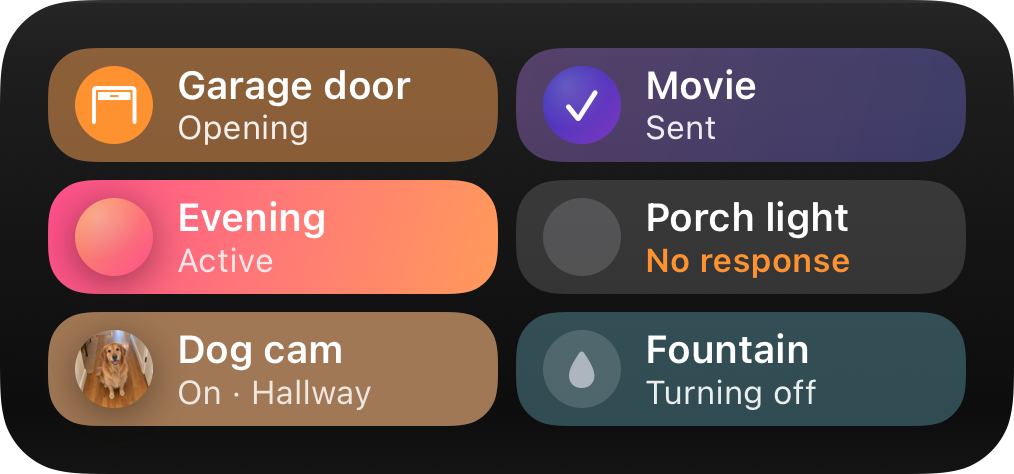
The small size has no second line, so the fill and the check are the whole signal there. VoiceOver reads the label, the picture’s `alt` when a picture is drawn, and the subtitle, then the state: On, Off, Turning on, Turning off, No response, Active, or Sent.
## Confirming the result
[Section titled “Confirming the result”](#confirming-the-result)
When your system has carried a press out, publish the widget’s content again with what is true now: the toggle’s `on`, or the button’s `active`. Content replaces the previous content as a whole, so send every action, not only the one that changed. The update confirms the press on the phone that sent it and refreshes the widget on every other phone.
* **A toggle** is confirmed by an update that shows it in the requested state.
* **A button** is confirmed by any update after the press, even one identical to the last. Publish after every button press, so the tile stops saying **Sent** as soon as the press is handled.
Answer quickly. The phone that sent the press waits for your update, up to 15 seconds for a toggle and 5 for a button, and draws it the moment it arrives. Other phones get updates through iOS, which decides when a widget reloads; Aivi sends them at most one update per widget every 2 seconds, always the latest content.
If you already publish whenever the underlying device changes, you don’t need extra code: the change the press caused triggers the confirming update. Publish the true state even when a press failed. A light that stayed off because it is unreachable should be published as off, and the phone shows off instead of waiting. See [Confirming the result](/events/#confirming-the-result) for an example request.
## Who can press
[Section titled “Who can press”](#who-can-press)
The widget’s owner and every device subscribed to a [shared widget](/features/#sharing) can press its tiles. Every press is delivered to the owner’s account, whoever pressed it: the owner’s API token opens the event stream, and the owner configures the webhooks.
When a widget’s privacy setting hides its content on a locked phone, the tiles hide their labels and state, and don’t take presses until the phone is unlocked.
Presses come from the Home Screen. The Lock Screen and Apple Watch versions of a widget, a widget shown inside a Board, and the previews in the Aivi app show the state but can’t be pressed.
## Rate limit and duplicates
[Section titled “Rate limit and duplicates”](#rate-limit-and-duplicates)
Presses are rate limited, so a tile tapped over and over can’t flood your system:
* **Per phone and widget:** 8 presses in a quick burst, then one a second, and at most 60 a minute.
* **Per account:** 20 presses in a quick burst across all your widgets and the phones that show them, then one a second.
A press over the limit is refused and never reaches you. The tile goes back to what it showed, and the phone ignores taps on that widget for a moment. If a press is retried, for example after a network timeout, it keeps its id, and Aivi delivers it only once.
Delivery to your system can still repeat: a webhook is retried after a transient failure such as a timeout, and a stream that reconnects can see an event again. Every press has its own event `id`, unique across all your widgets and the same on every retry, so deduplicate on it when an action isn’t safe to repeat. Turning a light on twice does no harm; feeding the cat twice might.
## Home Assistant
[Section titled “Home Assistant”](#home-assistant)
The example publishes a switchboard with two scenes and two toggles, and turns presses into service calls. It reuses the `update_widget` [RESTful command](/widget-templates/#publishing-from-home-assistant) from the widget templates page; if you haven’t published a widget from Home Assistant yet, the [Home Assistant widgets guide](/guides/homeassistant-widgets/) sets it up step by step. Create a widget with the Switchboard template in the app first, with the slug `living-room`.
1. Publish the switchboard whenever one of its entities changes. Every update carries the whole content, with each toggle’s `on` read from its entity:
```yaml
- alias: "Aivi: publish the living room switchboard"
triggers:
- trigger: state
entity_id:
- light.porch
- switch.fountain
- trigger: homeassistant
event: start
actions:
- action: rest_command.update_widget
data:
slug: living-room
payload: >-
{{ {"content": {"template": "switchboard", "actions": [
{"id": "movie", "label": "Movie", "icon": "tv.fill"},
{"id": "all_off", "label": "All off", "icon": "power"},
{"id": "porch", "label": "Porch light", "icon": "lightbulb.fill",
"kind": "toggle", "color": "yellow", "on": is_state("light.porch", "on")},
{"id": "fountain", "label": "Fountain", "icon": "drop.fill",
"kind": "toggle", "color": "cyan", "on": is_state("switch.fountain", "on")}
]}} | tojson }}
```
This automation is also what confirms a press: turning the porch light on changes its state, and the update fills in the tile. A scene changes none of these entities, so the next step runs this automation after each scene or script to answer the button press.
2. Make a token of your own. Aivi sends it with every press, and the automation in the next step checks it, so that only Aivi can use the webhook:
```bash
openssl rand -hex 32
```
3. Receive presses with a [webhook trigger](https://www.home-assistant.io/docs/automation/trigger/#webhook-trigger). It checks the token, drops expired presses, then carries out the action:
```yaml
- alias: "Aivi: living room switchboard presses"
mode: queued
max: 10
triggers:
- trigger: webhook
webhook_id: "[webhook-id]"
allowed_methods: [POST]
local_only: true
conditions:
- condition: template
value_template: "{{ trigger.json.token == '[shared-secret]' }}"
actions:
- variables:
event: "{{ trigger.json.event | from_json }}"
- condition: template
value_template: >-
{{ event.type == 'widget.action.v1'
and as_timestamp(event.expires_at, 0) > as_timestamp(now()) }}
- choose:
- conditions: "{{ event.data.action == 'movie' }}"
sequence:
- action: scene.turn_on
target: { entity_id: scene.movie }
- action: automation.trigger
target: { entity_id: automation.aivi_publish_the_living_room_switchboard }
- conditions: "{{ event.data.action == 'all_off' }}"
sequence:
- action: script.turn_on
target: { entity_id: script.all_off }
- action: automation.trigger
target: { entity_id: automation.aivi_publish_the_living_room_switchboard }
- conditions: "{{ event.data.kind == 'toggle' }}"
sequence:
- variables:
entity: >-
{{ {"porch": "light.porch", "fountain": "switch.fountain"}[event.data.action] }}
- if: "{{ event.data.value }}"
then:
- action: homeassistant.turn_on
target: { entity_id: "{{ entity }}" }
else:
- action: homeassistant.turn_off
target: { entity_id: "{{ entity }}" }
```
4. Point the widget’s webhooks at it. The `"*"` entry catches every action, and the `body` template carries your token and the whole event:
```bash
curl https://api.getaivi.app/widgets/living-room/webhooks \
-X PUT \
-H "Content-Type: application/json" \
-H "Authorization: Token [token]" \
-d '{"webhooks": {"*": {"url": "[webhook-url]", "body": {"token": "[shared-secret]", "event": "{{event_json}}"}}}}'
```
Note
Aivi only calls public HTTPS addresses on port 443, so it can’t reach `homeassistant.local`. The simplest webhook URL is a Home Assistant Cloud one: after saving the automation, open **Settings → Home Assistant Cloud → Webhooks**, enable the automation’s webhook, and use its `https://hooks.nabu.casa/...` address. That works with `local_only: true` and opens no port on your router. Otherwise Home Assistant has to be reachable from the internet on port 443, and the trigger needs `local_only: false`. Keep the URL and the token private.
Toggles and scenes are safe to repeat, so an occasional duplicate delivery does no harm here. For an action that isn’t, remember recent `event.id` values and skip repeats.
## Limitations
[Section titled “Limitations”](#limitations)
* **Presses need a connection.** The phone sends every press to Aivi, so tiles don’t work offline. Nothing is queued for later.
* **Confirm quickly.** Aivi stops delivering a press 5 seconds after it happened, and a toggle waits 15 seconds for your update before it shows **No response**.
* **Rate limited.** Each phone can send 8 presses to a widget in a burst, then one a second. See [Rate limit and duplicates](#rate-limit-and-duplicates).
* **Short replay only.** A stream that reconnects gets the presses it missed only while they are still unexpired. A press that happens while nothing is listening, with no event stream open and no webhook configured, is lost.
* **Webhooks reach port 443 only**, on public addresses, with 2 seconds per attempt, and a second attempt only after a transient failure. See [delivery rules](/events/#delivery-rules).
* **Pictures lag.** The phone fetches a tile’s picture in the background, so a new picture can take a while to appear. See [Pictures](/widget-templates/#pictures), and [Hosting Widget Pictures](/guides/hosting-pictures/) for where to put them.
* **Presses come from the Home Screen.** The Lock Screen and Apple Watch versions, and widgets inside a Board, show the state but can’t be pressed.
# Limitations
> The start, update, and reload budgets iOS puts on Live Activities and widgets, measured from device logs, and why widget updates can take minutes.
Apple enforces system budgets for Live Activities and widgets to preserve battery life and device performance. These limits are not officially documented in full and are dynamically adjusted based on factors such as battery level, thermal state, and Low Power Mode status.
## Live Activities
[Section titled “Live Activities”](#live-activities)
The following thresholds have been identified from device logs. Note that these are estimates and may vary across iOS versions:
* **Started activity limit**: A budget of 10 started Live Activities within a rolling window. In testing, we’ve seen the budget replenish by 1 every 15 minutes (on a fully charged device), but expect this to vary.
* **Updates per activity**: Up to 240 high-priority updates per activity. Aivi currently sends all updates as high priority to ensure timely delivery.
* **Content up to 4 KiB per push**: Apple refuses a Live Activity push over 4096 bytes, and the activity’s name rides along when it starts. Text written in ASCII always fits; emoji and other non-Latin text take up to 4 bytes a character, so filling every field of a `progress` activity to its maximum length in them does not. An update whose content does not fit is rejected with a `422` (`payload_too_large`) and nothing is stored.
## Widgets
[Section titled “Widgets”](#widgets)
Widgets are the persistent, best-effort layer, and iOS budgets them differently:
* **Background delivery**: Widget content pushes are delivered at background priority. iOS batches and defers them to save battery, so an update typically appears within minutes rather than seconds, occasionally longer in Low Power Mode or on a sleeping device. See the [freshness model](/widget-templates/#freshness) for what stays live on device between pushes.
* **Reload budget**: WidgetKit gives each widget a daily refresh budget: Apple’s guidance is roughly 40 to 70 reloads per day for a frequently viewed widget, further adjusted for battery and usage. Very frequent content pushes are throttled rather than displayed one by one, so design widgets around “latest known state”, not around a stream of updates.
## Widget actions
[Section titled “Widget actions”](#widget-actions)
Presses on an [interactive widget](/interactive-widgets/) travel from the phone through Aivi to your system, with limits of their own:
* **Online only.** A press needs a connection; nothing is queued for later.
* **Short-lived events.** A press expires 5 seconds after it happens. Aivi delivers nothing after that. A stream that resumes with `Last-Event-ID` gets only the events that haven’t expired yet.
* **Rate limits.** Presses are limited per phone and per account, so a tile tapped over and over can’t flood your system. See [Rate limit and duplicates](/interactive-widgets/#rate-limit-and-duplicates).
* **One widget update every 2 seconds.** Aivi sends each widget’s updates to phones at most once per 2 seconds, with the latest content.
* **4 event streams** per account, each closed by the server after 15 minutes.
* **Webhooks** reach only public HTTPS addresses on port 443, with 2 seconds per attempt. A second attempt comes only after a transient failure, and only if it fits before the event expires. Redirects are not followed.
* **15 seconds to confirm.** A toggle shows the requested state for 15 seconds; if your update hasn’t arrived by then, it shows the state you last published with **No response**.
* **Content up to 4 KiB.** Eight switchboard tiles with subtitles, gradients, and long image URLs can pass it.
* **Pictures come later.** A tile’s picture is fetched on the phone, by the Aivi app or the widget itself, at most 256 KB and 512 pixels on a side. A new picture can take a while to appear, and one at an unchanged URL is refreshed about once a day.
# Privacy Policy
> What data Aivi collects to deliver Live Activities and widgets, why, how long it is kept, and how to delete it.
## Key Principles
[Section titled “Key Principles”](#key-principles)
* **Data Minimization**: We collect only the data strictly necessary for app functionality.
* **No Data Sharing**: We do not share user data with third parties for advertising or other non-functional purposes.
## Data Storage
[Section titled “Data Storage”](#data-storage)
The data is stored in the EU region.
## Tools We Use
[Section titled “Tools We Use”](#tools-we-use)
### Sentry
[Section titled “Sentry”](#sentry)
* **Purpose:** To monitor app performance and identify crashes.
* **Data Collected:** Anonymous diagnostic data and crash logs.
* **Data Storage:** EU region.
### RevenueCat
[Section titled “RevenueCat”](#revenuecat)
* **Purpose:** To manage subscriptions and in-app purchases.
* **Data Collected:** Device identifiers and purchase details.
* No personal identifiers are associated with transaction data.
## Data Retention
[Section titled “Data Retention”](#data-retention)
The user data in Aivi is stored only as long as the user account is registered with us.
## Data Deletion
[Section titled “Data Deletion”](#data-deletion)
If you no longer wish for Aivi to collect or process your data:
* You can delete your account from within the app (see the bottom of the “Settings” tab while logged in).
* Deleting the app will stop all future data collection.
## Changes to This Privacy Policy
[Section titled “Changes to This Privacy Policy”](#changes-to-this-privacy-policy)
We may update this Privacy Policy from time to time to reflect changes in our practices, legal requirements, or app functionality. All updates will be posted on this page.
# Quick Start
> Install Aivi, create a Live Activity, and update it with a single curl request. Then end it, or add an always-on widget next to it.
1. Download Aivi from the [App Store](https://apps.apple.com/app/aivi/id6749237387).
2. Get your credentials. Open the app, go to the Settings tab, and sign in with your Apple account. From here, you will need to subscribe to a plan to unlock API access.
3. Create your first activity. Navigate to the Activities tab, then create a new activity. Choose the **Progress** template, pick a name and a unique ID (or slug) for it, like `dishwasher` or `3dprinter`. The device you create the activity on is automatically set to **Show on this device**, so it will receive updates right away.
4. Send your first update. Use the API token from step 2 and the activity slug from step 3. The activity’s detail screen has a copyable version of this command to get you started; here is an example using curl:
```bash
curl \
https://api.getaivi.app/activities/[slug] \
-X PATCH \
-H "Content-Type: application/json" \
-H 'Authorization: Token [token]' \
--data-binary @- << 'EOF'
{
"state": "ONGOING",
"content": {
"template": "progress",
"icon": "washer",
"progress": {
"style": "simple",
"value": 0.35
},
"header_left": {
"value": "In progress",
"text_color": "green"
},
"header_right": {
"value": "35 min"
},
"footer_left": {
"value": "Progress"
},
"footer_right": {
"value": "35%"
}
}
}
EOF
```
Note
Replace `[slug]` with the activity slug from step 3 and `[token]` with your API token from step 2.
5. You should now see a Live Activity on your device.
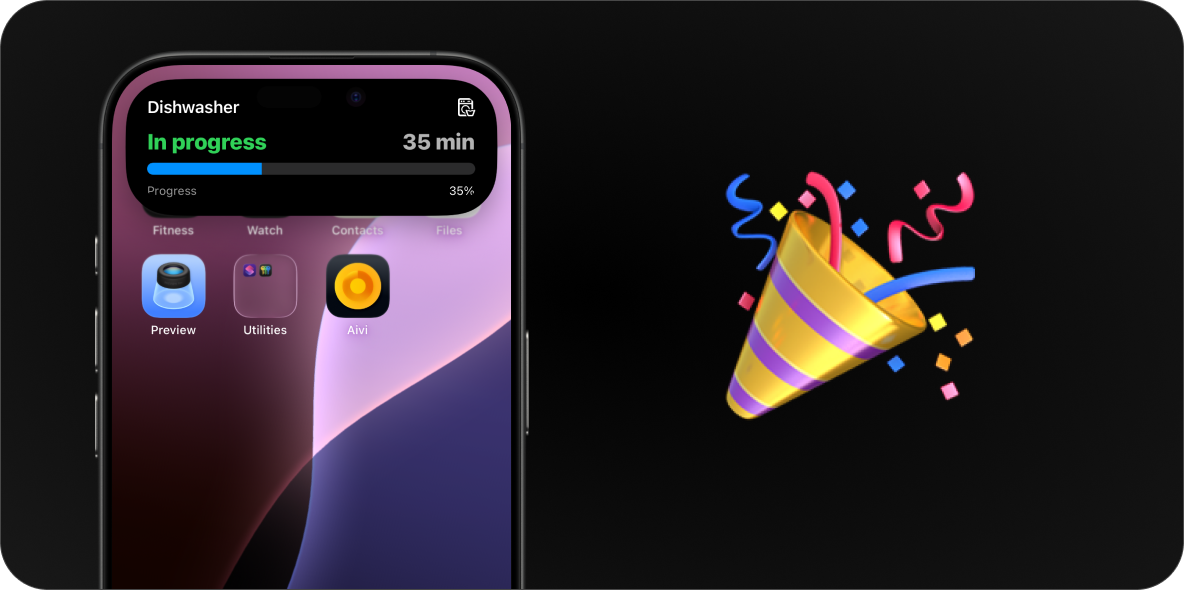
## Updating the activity
[Section titled “Updating the activity”](#updating-the-activity)
As the task progresses, send the same request again with new values, for example a higher `progress` value or different header text. The activity updates in place on every subscribed device; you never create a second one.
## Ending the activity
[Section titled “Ending the activity”](#ending-the-activity)
When the task is done, end the activity by sending `state: "IDLE"`. The same `content` you last sent is fine:
```bash
curl \
https://api.getaivi.app/activities/[slug] \
-X PATCH \
-H "Content-Type: application/json" \
-H 'Authorization: Token [token]' \
--data-binary @- << 'EOF'
{
"state": "IDLE",
"content": { "template": "progress", "progress": { "style": "simple", "value": 1.0 } }
}
EOF
```
The Live Activity then dismisses after the per-activity delay you configure in the app. See [Activity states](/api-reference/#activity-states).
## Widgets: the always-on layer
[Section titled “Widgets: the always-on layer”](#widgets-the-always-on-layer)
Activities end; widgets stay. To keep state permanently on your Home Screen or Lock Screen, create a widget in the app’s **Widgets** tab and update it the same way: a `PATCH` to `/widgets/[slug]` with a `content` payload and no lifecycle `state`:
```bash
curl \
https://api.getaivi.app/widgets/[slug] \
-X PATCH \
-H "Content-Type: application/json" \
-H 'Authorization: Token [token]' \
--data-binary @- << 'EOF'
{
"content": {
"template": "status",
"value": { "value": "21°" },
"state": { "value": "Comfortable", "text_color": "green" },
"icon": "thermometer.medium"
}
}
EOF
```
See the [widget templates](/widget-templates/) for all eleven layouts, and the [freshness model](/widget-templates/#freshness) for how updates reach the widget.
## Next steps
[Section titled “Next steps”](#next-steps)
* Customize what your activity shows with the [templates](/templates/).
* Put persistent state on your screens with the [widget templates](/widget-templates/).
* Browse the [use cases](/use-cases/) for ready-made examples and payloads.
* Connect your smart home with the [Home Assistant guide](/guides/homeassistant/).
* Show Home Assistant sensors on your Home Screen with the [Home Assistant widgets guide](/guides/homeassistant-widgets/).
* See the [API reference](/api-reference/) for the full request format, states, and errors.
# Support & Feedback
> Get help with Aivi, report a bug, or suggest a feature: GitHub issues and discussions, email support, and where to follow releases.
Need help or want to shape what Aivi becomes? This page points you to the right place for support, bug reports, and product feedback.
## Quick actions
[Section titled “Quick actions”](#quick-actions)
[Report an issue ](https://github.com/getaivi/community/issues)Found a bug or something confusing? Open an issue so we can track and fix it.
[Submit an idea ](https://github.com/orgs/getaivi/discussions/categories/ideas)Request a feature or suggest an improvement.
[Ask a question ](https://github.com/orgs/getaivi/discussions/categories/q-a)Not sure if it’s a bug? Start a discussion and we’ll help you figure it out.
[Showcase your setup ](https://github.com/orgs/getaivi/discussions/categories/show-and-tell)Share screenshots, automations, and integrations so others can learn from them.
Note
Support and feedback are managed on GitHub. You’ll need a GitHub account to post.
## Email support
[Section titled “Email support”](#email-support)
If you would rather contact us by email, feel free to reach out to .
## Ways to stay in the loop
[Section titled “Ways to stay in the loop”](#ways-to-stay-in-the-loop)
Subscribe to any of these to get updates on what’s new in Aivi:
[X ](https://x.com/getaivi)
[Bluesky ](https://bsky.app/profile/getaivi.bsky.social)
# Live Activity Templates
> Schemas and examples for Aivi's Live Activity templates: Progress for tasks with a finish, Monitor for live readings, plus tap actions and SF Symbols.
A template decides what a Live Activity looks like on the device. To see these templates in real scenarios, with full payloads, browse the [use cases](/use-cases/).
Updates animate in place, and values with a [`time_since` or `time_until` formatter](#formatter) keep ticking on the device between updates; everything else, including a progress bar, holds until the next update.
Note
These templates drive **Live Activities**: the ephemeral, real-time layer that starts, updates moment to moment, and ends. The persistent Home Screen and Lock Screen widgets use their own set of templates, documented on the [Widget Templates](/widget-templates/) page.
## Choosing a template
[Section titled “Choosing a template”](#choosing-a-template)
Pick the template that matches the shape of your activity; each card jumps to the template’s schema and examples.
[ ](#progress-template)
[ Progress A task with a clear finish: a dishwasher cycle, 3D print, or charging session. ](#progress-template)
[ ](#monitor-template)
[ Monitor Live readings while something runs: temperatures, sensor values, machine states. ](#monitor-template)
[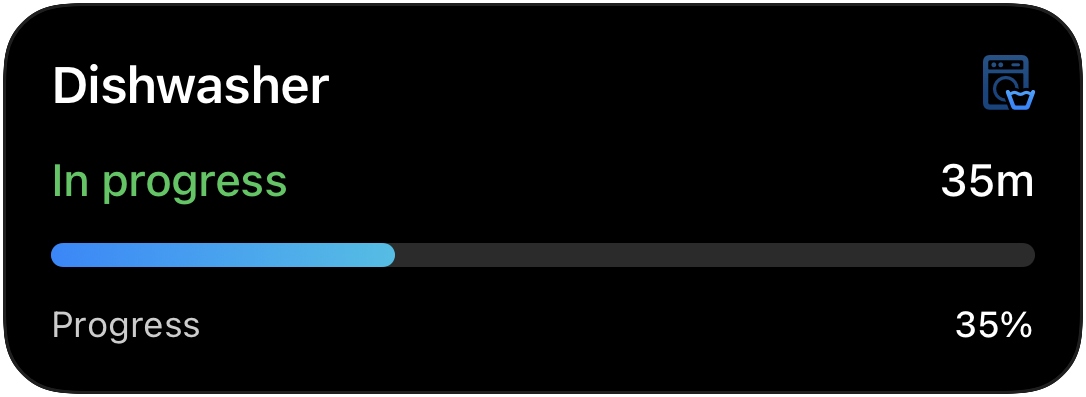 ](#generic-template)
[ Generic Legacy A simple progress bar with a state line. Kept for older setups; prefer Progress.](#generic-template)
## Progress Template
[Section titled “Progress Template”](#progress-template)
ID: `progress`
The progress template is a flexible way to visualize any progress-based activity. It supports simple single-color bars, multi-segment bars with individual colors, and two display modes for segmented bars.
### Home Assistant
[Section titled “Home Assistant”](#home-assistant)
Use the Home Assistant blueprint to get started quickly with the Progress template.
[](https://my.home-assistant.io/redirect/blueprint_import/?blueprint_url=https%3A%2F%2Fha.getaivi.app%2Fblueprints%2Fprogress-simple-v1.yaml)
Two more blueprints are available for segmented bars and timer-driven progress. See the [blueprints page](/home-assistant/blueprints/#progress-simple-from-sensors) for the full list.
### API schema
[Section titled “API schema”](#api-schema)
| Field | Type | Description | Required? |
| --------------- | ------------------------------ | --------------------------------------------------------------------------------------------------- | --------- |
| `template` | `"progress"` | Identifies this template. | Yes |
| `progress` | [`ProgressBar`](#progress-bar) | Progress bar configuration. | Yes |
| `icon` | `string \| Icon` | An [SF Symbols](#finding-sf-symbols) icon name or an [`Icon`](#icon-object) with rendering options. | No |
| `header_left` | [`Value`](#value-object) | Left header slot. | No |
| `header_right` | [`Value`](#value-object) | Right header slot. | No |
| `footer_left` | [`Value`](#value-object) | Left footer slot. | No |
| `footer_right` | [`Value`](#value-object) | Right footer slot. | No |
| `compact_value` | [`Value`](#value-object) | Value shown in Dynamic Island compact trailing. | No |
| `tap_url` | `string` | [Tap action URL](#tap-action-url) to open when tapped. | No |
To get a better understanding of how this schema correlates to a displayed live activity, see the picture below:
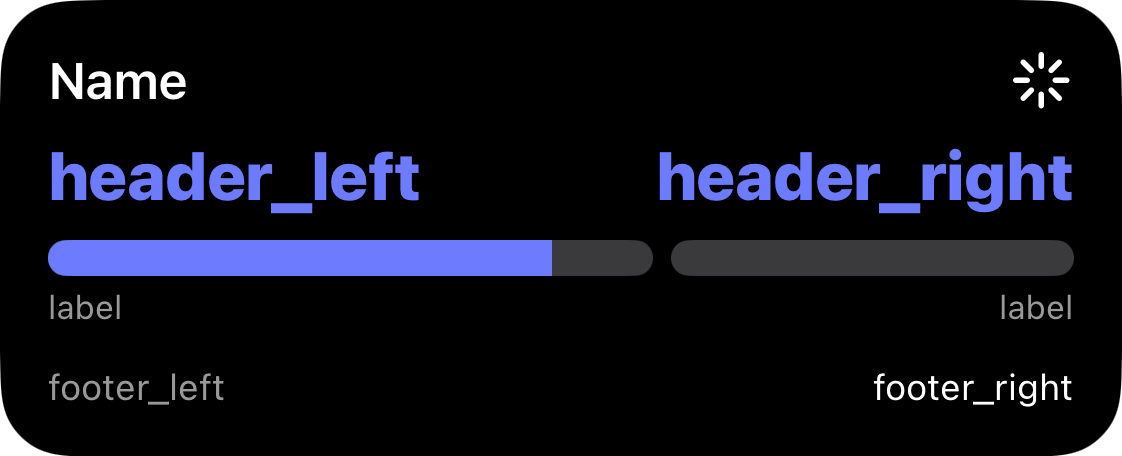
#### Progress bar
[Section titled “Progress bar”](#progress-bar)
The `progress` field accepts two styles, distinguished by the `style` key.
##### Simple
[Section titled “Simple”](#simple)
A single-color bar.
| Field | Type | Description | Required? |
| ------- | ----------------- | ----------------------------- | --------- |
| `style` | `"simple"` | Identifies this style. | Yes |
| `value` | `float` | Progress in range \[0.0–1.0]. | Yes |
| `color` | [`Color`](#color) | Bar fill color. | No |
##### Segmented
[Section titled “Segmented”](#segmented)
A bar split into labeled sections with individual colors.
| Field | Type | Description | Required? |
| ---------- | ------------------------------ | ---------------------------------------------- | --------- |
| `style` | `"segmented"` | Identifies this style. | Yes |
| `value` | `float` | Overall progress in range \[0.0–1.0]. | Yes |
| `segments` | [`Segment[]`](#segment-object) | 1–4 segments. Values must sum to 1.0. | Yes |
| `display` | `"split" \| "layered"` | How segments are rendered. Default: `"split"`. | No |
Note
`split` renders segments side by side with gaps. `layered` overlaps them so each segment emerges from under the previous one with a gradient transition. The overall `value` sets how much of the whole bar is filled; the per-segment `value` weights only divide the bar into labeled sections.
#### Segment object
[Section titled “Segment object”](#segment-object)
| Field | Type | Description | Required? |
| ------------- | ---------------------- | ------------------------------------------ | --------- |
| `value` | `float` | Fraction of the bar this segment occupies. | Yes |
| `fill_color` | [`Color`](#color) | Color when filled. | Yes |
| `track_color` | [`Color`](#color) | Unfilled track color. | No |
| `track_fill` | `"solid" \| "hatched"` | Track pattern. Default: `"solid"`. | No |
| `label` | `string` | Label shown below the segment. | No |
### Example payloads
[Section titled “Example payloads”](#example-payloads)
**Simple bar:**

```json
{
"template": "progress",
"icon": "washer",
"header_left": { "value": "In progress", "text_color": "green" },
"header_right": { "value": "1h 32m" },
"progress": {
"style": "simple",
"value": 0.65,
"color": "blue"
},
"footer_left": { "value": "Progress" },
"footer_right": { "value": "65%" }
}
```
**Segmented bar (layered, with hatched overflow zone):**

```json
{
"template": "progress",
"icon": "bolt.car",
"header_left": { "value": "90%", "text_color": "green" },
"header_right": { "value": "3 min left" },
"progress": {
"style": "segmented",
"value": 0.90,
"display": "layered",
"segments": [
{
"value": 0.8,
"fill_color": "green",
"track_color": "gray",
"label": "Standard"
},
{
"value": 0.2,
"fill_color": "green",
"track_color": "gray",
"track_fill": "hatched",
"label": "Extended"
}
]
},
"footer_left": { "value": "Supercharger", "text_color": "gray" },
"footer_right": { "value": "Est. $4.85" },
"compact_value": { "value": "90%" }
}
```
## Monitor Template
[Section titled “Monitor Template”](#monitor-template)
ID: `monitor`
The monitor template is designed for tracking a live status with one or two columns of labeled values.
### Home Assistant
[Section titled “Home Assistant”](#home-assistant-1)
Use the Home Assistant quick-start blueprint to post Live Activity updates using the Monitor template.
[](https://my.home-assistant.io/redirect/blueprint_import/?blueprint_url=https%3A%2F%2Fha.getaivi.app%2Fblueprints%2Fmonitor-dynamic-v1.yaml)
### API schema
[Section titled “API schema”](#api-schema-1)
| Field | Type | Description | Required? |
| ---------------- | -------------------------- | --------------------------------------------------------------------------------------------------- | --------- |
| `template` | `"monitor"` | Identifies this template. | Yes |
| `icon` | `string \| Icon` | An [SF Symbols](#finding-sf-symbols) icon name or an [`Icon`](#icon-object) with rendering options. | No |
| `left_column` | [`Column`](#column-object) | Left column payload. | No |
| `right_column` | [`Column`](#column-object) | Right column payload. | No |
| `primary_column` | `"left" \| "right"` | Column emphasized in compact layouts. | No |
| `tap_url` | `string` | [Tap action URL](#tap-action-url) to open when tapped. | No |
Note
* At least one of `left_column` or `right_column` must be provided.
* `primary_column` decides which column value appears on the Dynamic Island, watchOS, and CarPlay.
To get a better understanding of how this schema correlates to a displayed live activity, see the picture below:
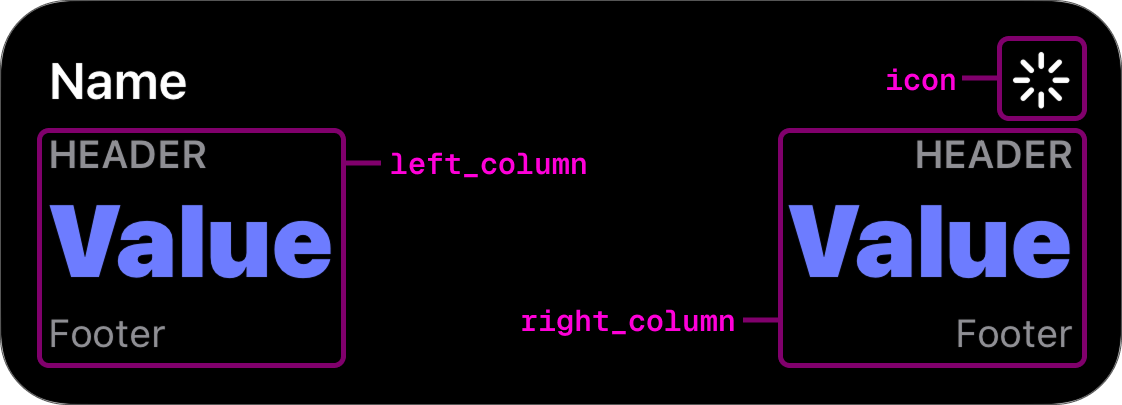
#### Column object
[Section titled “Column object”](#column-object)
| Field | Type | Description | Required? |
| -------- | ------------------------ | ------------------------------- | --------- |
| `header` | `string` | Short label above the value. | No |
| `value` | [`Value`](#value-object) | Value payload. | Yes |
| `footer` | `string` | Optional label below the value. | No |
#### Value object
[Section titled “Value object”](#value-object)
| Field | Type | Description | Required? |
| ------------ | ------------------------- | ---------------------------------------- | --------- |
| `value` | `string` | Value to display. | Yes |
| `text_color` | [`Color`](#color) | Text color for the value. | No |
| `formatter` | [`Formatter`](#formatter) | Controls how the raw value is displayed. | No |
#### Color
[Section titled “Color”](#color)
Color identifiers map to SwiftUI system colors. Swatches below show approximate previews.
| Identifier | Preview |
| ---------- | ------- |
| `red` | |
| `orange` | |
| `yellow` | |
| `green` | |
| `mint` | |
| `teal` | |
| `cyan` | |
| `blue` | |
| `indigo` | |
| `purple` | |
| `pink` | |
| `brown` | |
| `gray` | |
| `gray2` | |
| `gray3` | |
| `gray4` | |
| `gray5` | |
| `gray6` | |
#### Icon object
[Section titled “Icon object”](#icon-object)
When you need more than just a symbol name, pass an object to customize how the icon is rendered. All fields except `name` are optional. Omit them to keep the default appearance.
| Field | Type | Description | Required? |
| ----------------- | ------------------------------------------------------------- | -------------------------------------------------- | --------- |
| `name` | `string` | [SF Symbol](#finding-sf-symbols) name. | Yes |
| `rendering_mode` | `"monochrome" \| "hierarchical" \| "palette" \| "multicolor"` | How the symbol’s layers are colored. | No |
| `primary_color` | [`Color`](#color) | Primary layer color. | No |
| `secondary_color` | [`Color`](#color) | Secondary layer color (palette mode). | No |
| `tertiary_color` | [`Color`](#color) | Tertiary layer color (palette mode). | No |
| `color_rendering` | `"flat" \| "gradient"` | Flat fill or vertical gradient. Default: `"flat"`. | No |
Note
Not every SF Symbol supports every rendering mode. If a symbol doesn’t support the requested mode, it falls back to monochrome automatically.
**Example: palette icon with gradient**
```json
{
"icon": {
"name": "thermometer.sun",
"rendering_mode": "palette",
"primary_color": "red",
"secondary_color": "orange",
"color_rendering": "gradient"
}
}
```
Passing a plain string (`"icon": "thermometer.sun"`) continues to work and renders the symbol in monochrome with the default color.
#### Formatter
[Section titled “Formatter”](#formatter)
A formatter decides how to display the raw `value` field. If formatter is omitted or provided with `null`, it will display the value as-is without any transformation.
| Identifier | Description |
| ------------ | ----------------------------------------------------------------- |
| `time_since` | Formats an ISO8601 timestamp as an auto-updating elapsed timer. |
| `time_until` | Formats an ISO8601 timestamp as an auto-updating countdown timer. |
### Example payload
[Section titled “Example payload”](#example-payload)
```json
{
"template": "monitor",
"icon": "robotic.vacuum.and.ellipsis",
"left_column": {
"value": {
"value": "Mopping",
"text_color": "indigo"
},
"footer": "In living room"
},
"right_column": {
"value": {
"value": "20.1 m²"
},
"footer": "Battery: 87%"
}
}
```
### Preview
[Section titled “Preview”](#preview)
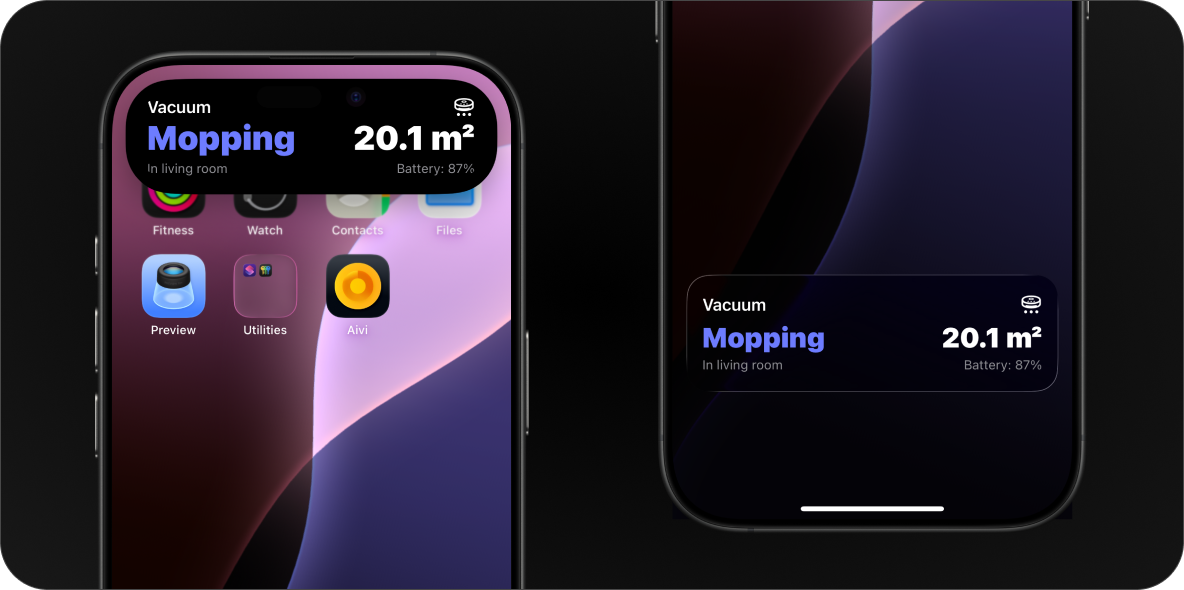
Left: Expanded dynamic island. Right: Lock screen.
## Generic Template Legacy
[Section titled “Generic Template ”](#generic-template)
ID: `generic`
Tip
The [Progress template](#progress-template) replaces Generic with a more flexible layout. Generic continues to work, but we recommend migrating to Progress for new activities.
The generic template works best for simple activities that map cleanly to a progress bar.
### Home Assistant
[Section titled “Home Assistant”](#home-assistant-2)
Use the Home Assistant quick-start blueprint to post Live Activity updates using the Generic template.
[](https://my.home-assistant.io/redirect/blueprint_import/?blueprint_url=https%3A%2F%2Fha.getaivi.app%2Fblueprints%2Fgeneric-sensors-v1.yaml)
### API schema
[Section titled “API schema”](#api-schema-2)
| Field | Type | Description | Required? |
| ---------------- | ---------------- | --------------------------------------------------------------------------------------------------- | --------- |
| `template` | `"generic"` | Identifies this template. | Yes |
| `progress` | `float` | Progress of the activity in range \[0.0-1.0]. | Yes |
| `state` | `string` | Describes the state of the activity. | No |
| `icon` | `string \| Icon` | An [SF Symbols](#finding-sf-symbols) icon name or an [`Icon`](#icon-object) with rendering options. | No |
| `remaining_time` | `int` | Remaining time in seconds. | No |
| `tap_url` | `string` | [Tap action URL](#tap-action-url) to open when tapped. | No |
Caution
In the Generic template, `state` and `progress` mean something different from elsewhere in the API. `content.state` here is free-form display text (for example `"In progress"`), not the lifecycle [`state`](/api-reference/#activity-states) (`ONGOING` / `IDLE`) on the request envelope. And `progress` here is a bare `float`, not the [`ProgressBar`](#progress-bar) object the Progress template uses.
To get a better understanding of how this schema correlates to a displayed Live Activity, see the picture below:
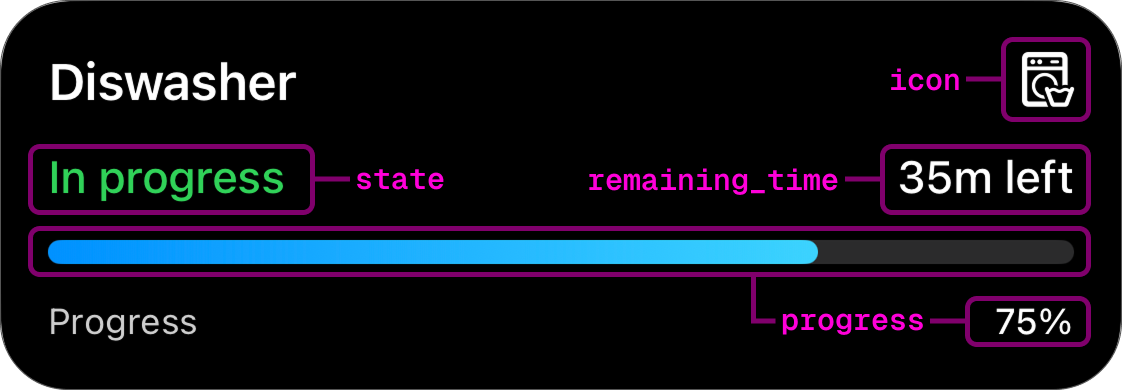
### Example payload
[Section titled “Example payload”](#example-payload-1)
```json
{
"template": "generic",
"progress": 0.35,
"state": "In progress",
"icon": "washer",
"remaining_time": 2120
}
```
### Preview
[Section titled “Preview”](#preview-1)
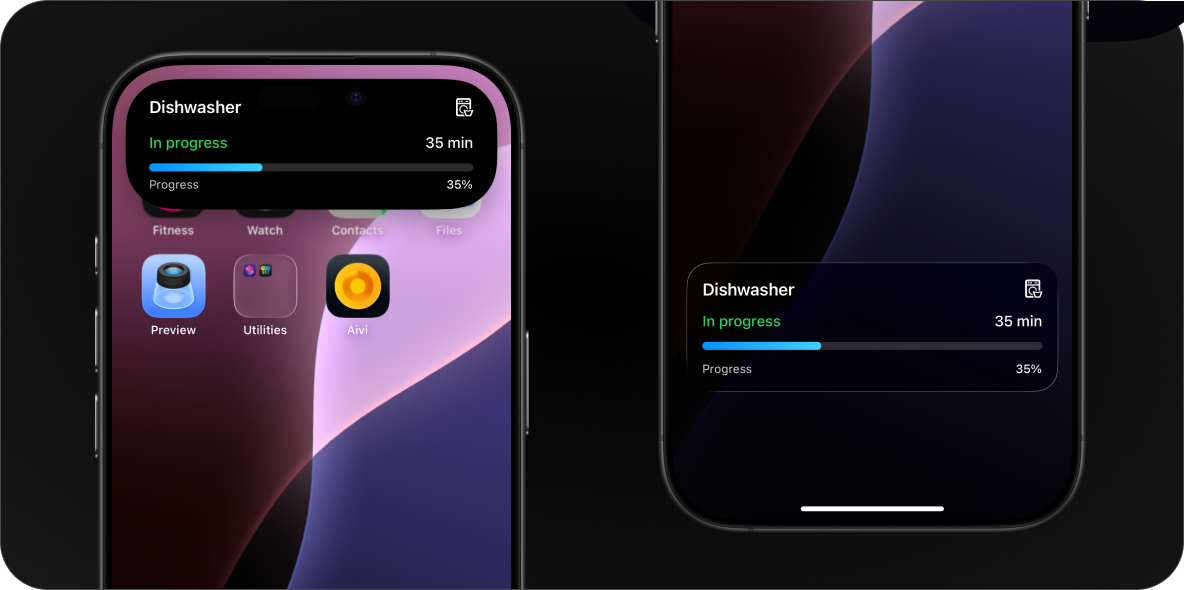
Left: Expanded dynamic island. Right: Lock screen.
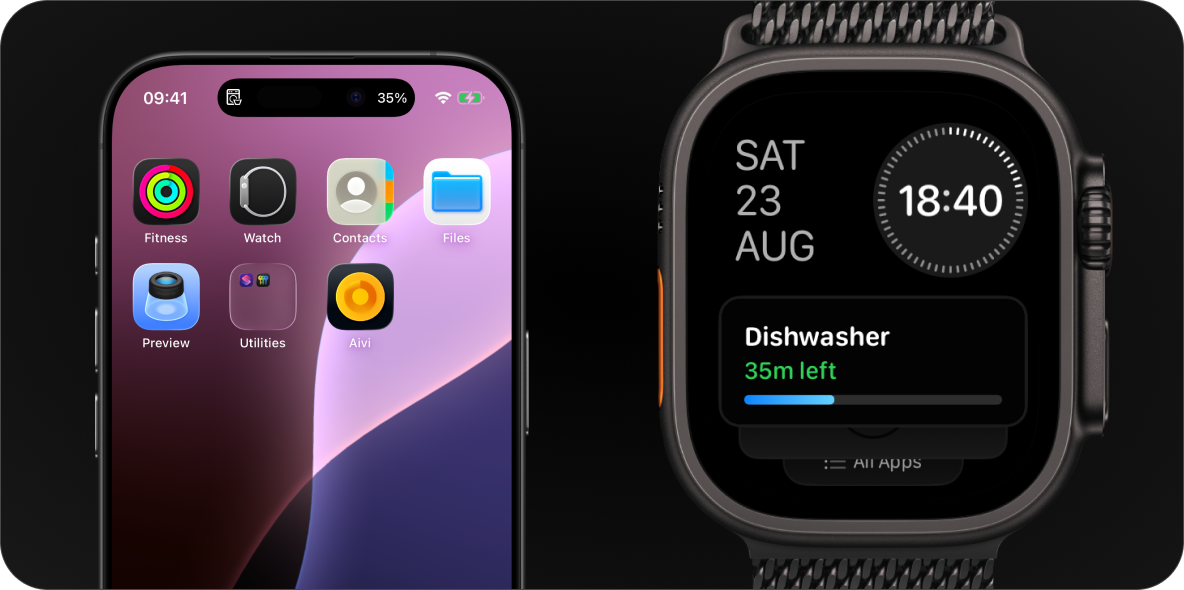
Left: Compact dynamic island. Right: Apple Watch.
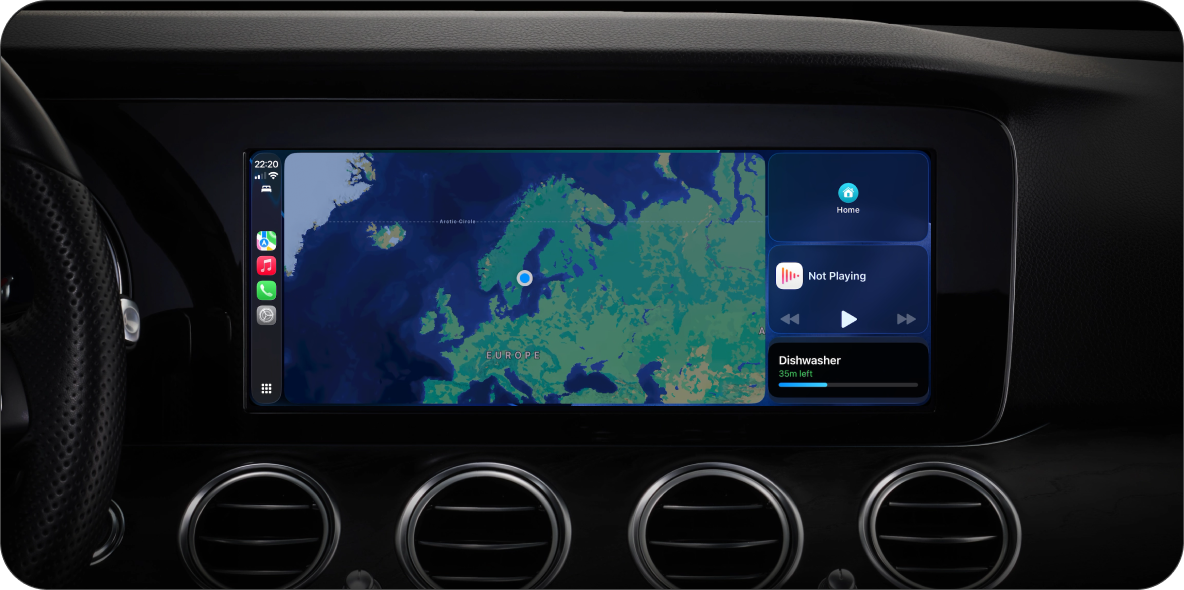
Live activity in the CarPlay dashboard.
## Tap Action URL
[Section titled “Tap Action URL”](#tap-action-url)
All templates support an optional `tap_url` field. When set, tapping the Live Activity on the lock screen or Dynamic Island opens the specified URL instead of the Aivi app.
This works with any URL scheme the device can handle: regular web links, app deep links, or custom schemes.
### Examples
[Section titled “Examples”](#examples)
| Use case | `tap_url` value |
| -------------------------- | -------------------------------------------------------------------- |
| Open a webpage | `https://example.com/status` |
| Navigate in Home Assistant | `homeassistant://navigate/lovelace/climate` |
| Call a HA service | `homeassistant://call_service/switch.toggle?entity_id=switch.garage` |
| Open another app | `myapp://dashboard` |
### Home Assistant deep links
[Section titled “Home Assistant deep links”](#home-assistant-deep-links)
Home Assistant’s Companion app supports a number of URL schemes for navigating to dashboards, calling services, and more. See the [HA Companion docs on URL Handler](https://companion.home-assistant.io/docs/integrations/url-handler) for the full list.
## Width-limited Dynamic Island
[Section titled “Width-limited Dynamic Island”](#width-limited-dynamic-island)
On iPhone 18 Pro, and in landscape on any iPhone with a Dynamic Island, the compact presentation has room for only a few characters on each side. Values are condensed to fit. Units are abbreviated, large numbers get a prefix and fractions are rounded, so `24.2 kWh` becomes `24kWh` and `1500 W` becomes `1.5kW`.
A value that cannot be condensed, like a word or a clock string, is left out and the icon stands alone. For times, send `time_until` or `time_since` values instead. They always fit.
Short units table
| Category | Value unit | Short form |
| ----------- | --------------------------------------------------------------------------- | --------------------------------------------------------------- |
| Time | `min`, `minutes` · `h`, `hr`, `hours` · `s`, `sec`, `seconds` · `d`, `days` | `m` · `h` · `s` · `d` |
| | `w`, `weeks` · `mo`, `months` · `y`, `yr`, `years` | `w` · `mo` · `y` |
| Ratio | `%`, `percent`, `pct` | `%` |
| Temperature | `°C`, `°F`, `℃`, `℉`, `°`, `degrees`, `celsius`, `fahrenheit` | `°` |
| Energy | `wh`, `kwh`, `kilowatt-hours` · `kcal`, `kilocalories` · `cal` | `Wh`, `kWh` · `kcal` · `cal` |
| Power | `w`, `watts` · `kw`, `kilowatts` · `va` · `var` | `W` · `kW` · `VA` · `var` |
| Electricity | `v`, `volts` · `a`, `amps`, `amperes` · `hz`, `hertz` | `V` · `A` · `Hz` |
| Length | `millimeters` · `centimeters` · `meters` · `kilometers` | `mm` · `cm` · `m` · `km` |
| | `inches` · `feet` · `yards` · `miles` | `in` · `ft` · `yd` · `mi` |
| Speed | `mph` · `m/s` · `kn`, `knots` · `kph`, `kmh`, `km/h` | `mph` · `m/s` · `kn` · `km/h` |
| Volume | `l`, `liters`, `litres` · `ml` · `gal`, `gallons` · `m3`, `cbm` | `L` · `mL` · `gal` · `m³` |
| Mass | `g`, `grams` · `kg`, `kilos` · `lb`, `lbs`, `pounds` · `oz`, `ounces` | `g` · `kg` · `lb` · `oz` |
| Pressure | `pa` · `hpa` · `kpa` · `bar` · `psi` · `mbar`, `millibar` · `mmhg` · `inhg` | `Pa` · `hPa` · `kPa` · `bar` · `psi` · `mbar` · `mmHg` · `inHg` |
| Data | `b`, `bytes` · `kb` · `mb` · `gb` · `tb` · `kib`, `mib`, `gib` | `B` · `kB` · `MB` · `GB` · `TB` · `KiB`, `MiB`, `GiB` |
| Area | `m2`, `m²` · `ft2`, `sqft` · `ha`, `hectares` · `ac`, `acres` | `m²` · `ft²` · `ha` · `ac` |
| Other | `lux` · `db` · `dbm` · `ppm` · `bpm` · `rpm` | `lx` · `dB` · `dBm` · `ppm` · `bpm` · `rpm` |
## Finding SF Symbols
[Section titled “Finding SF Symbols”](#finding-sf-symbols)
To browse the full catalog of available symbols, you can use one of the following apps:
* **[SF Symbols](https://developer.apple.com/sf-symbols/)**: Apple’s official app for macOS.
* **[Interactful](https://apps.apple.com/app/interactful/id1528095640)**: a free third-party SF Symbols browser for iPhone and iPad. Look under Foundations → Iconography.
# Use Cases
> Ideas to get you going with Aivi: dishwasher, EV charging, robot vacuum, oven, CI/CD, and more, each with a ready-to-send starting point.
Aivi can track anything with a state worth watching. Here are a few ideas to get you going. Each one comes with a ready-to-send starting point: drop it in, change the values to match your device, and make it yours.
Note
* **New to the API?** Start with the [Quick Start](/quick-start/) to create an activity and get your token, then see the [API Reference](/api-reference/) for the request format.
* **Using Home Assistant?** See the [Home Assistant guide](/guides/homeassistant/) to get set up, then import the blueprint linked in each example instead of calling the API yourself. For always-on widgets, see [Home Assistant widgets on iPhone](/guides/homeassistant-widgets/).
## Around the home
[Section titled “Around the home”](#around-the-home)
The everyday appliances and smart devices you already own, surfaced on your lock screen the moment something starts, finishes, or needs you.
### Dishwasher or washing machine
[Section titled “Dishwasher or washing machine”](#dishwasher-or-washing-machine)
Never wonder whether the cycle is done. Show the time left at a glance.
[Template Progress ](/templates/#progress-template)[Home Assistant Progress: Simple](/home-assistant/blueprints/#progress-simple-from-sensors)

```json
{
"state": "ONGOING",
"content": {
"template": "progress",
"icon": { "name": "washer", "rendering_mode": "hierarchical", "primary_color": "blue", "color_rendering": "gradient" },
"header_left": { "value": "Washing", "text_color": "green" },
"header_right": { "value": "1h 32m left" },
"progress": { "style": "simple", "value": 0.65 },
"footer_left": { "value": "Eco 60°" },
"footer_right": { "value": "65%" }
}
}
```
### EV charging
[Section titled “EV charging”](#ev-charging)
Watch your car fill up, with the standard and extended ranges marked out.
[Template Progress ](/templates/#progress-template)[Home Assistant Progress: Segmented](/home-assistant/blueprints/#progress-segmented-from-sensors)
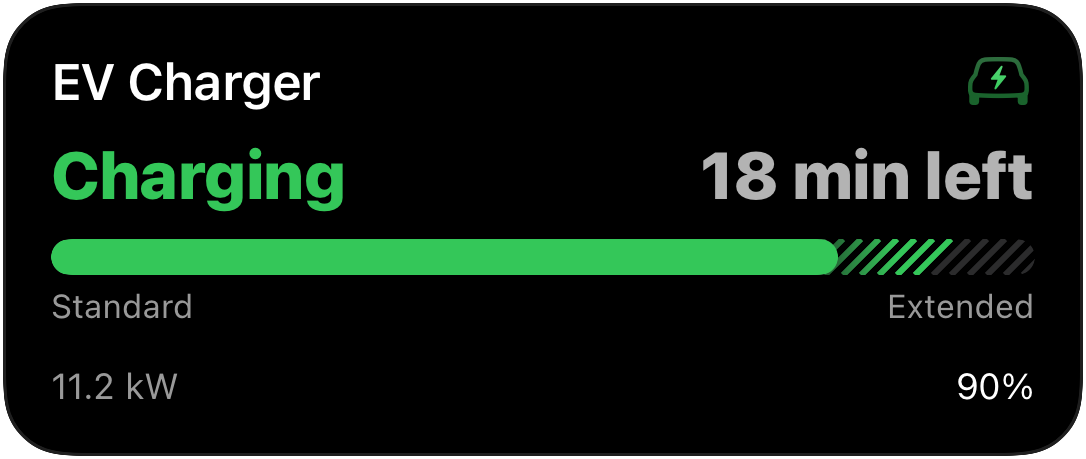
```json
{
"state": "ONGOING",
"content": {
"template": "progress",
"icon": { "name": "bolt.car", "rendering_mode": "hierarchical", "primary_color": "green", "color_rendering": "gradient" },
"header_left": { "value": "Charging", "text_color": "green" },
"header_right": { "value": "18 min left" },
"progress": {
"style": "segmented",
"value": 0.9,
"display": "layered",
"segments": [
{ "value": 0.8, "fill_color": "green", "label": "Standard" },
{ "value": 0.2, "fill_color": "green", "track_fill": "hatched", "label": "Extended" }
]
},
"footer_left": { "value": "11.2 kW" },
"footer_right": { "value": "90%" }
}
}
```
### Robot vacuum
[Section titled “Robot vacuum”](#robot-vacuum)
Follow along as it works, room by room.
[Template Monitor ](/templates/#monitor-template)[Home Assistant Monitor](/home-assistant/blueprints/#monitor)

```json
{
"state": "ONGOING",
"content": {
"template": "monitor",
"icon": { "name": "robotic.vacuum.and.ellipsis", "rendering_mode": "hierarchical", "primary_color": "indigo", "color_rendering": "gradient" },
"left_column": {
"value": { "value": "Mopping", "text_color": "indigo" },
"footer": "In living room"
},
"right_column": {
"value": { "value": "20.1 m²" },
"footer": "Battery: 87%"
}
}
}
```
### Oven timer
[Section titled “Oven timer”](#oven-timer)
A live countdown to dinner, right on your lock screen. The `time_until` formatter turns an end time into an auto-updating timer, so you do not need to keep sending updates.
[Template Monitor ](/templates/#monitor-template)[Home Assistant Monitor](/home-assistant/blueprints/#monitor)
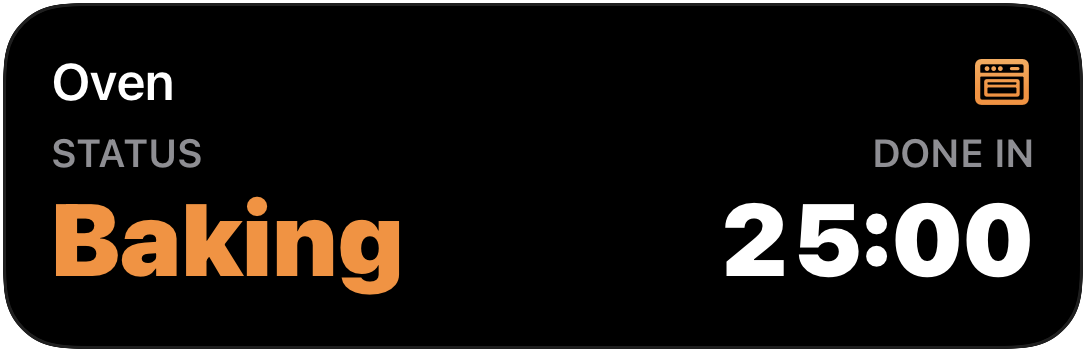
```json
{
"state": "ONGOING",
"content": {
"template": "monitor",
"icon": { "name": "oven", "rendering_mode": "hierarchical", "primary_color": "orange", "color_rendering": "gradient" },
"left_column": {
"header": "Status",
"value": { "value": "Baking", "text_color": "orange" }
},
"right_column": {
"header": "Done in",
"value": { "value": "2026-05-31T18:45:00Z", "formatter": "time_until" }
},
"primary_column": "right"
}
}
```
## For developers
[Section titled “For developers”](#for-developers)
Anything that can make an HTTP request can drive an activity, so the same templates work just as well for your scripts, pipelines, and servers.
### CI/CD pipeline
[Section titled “CI/CD pipeline”](#cicd-pipeline)
Break a deploy into its stages with a segmented bar, each one lighting up as it completes, with a live elapsed timer in the header.
[Template Progress](/templates/#progress-template)
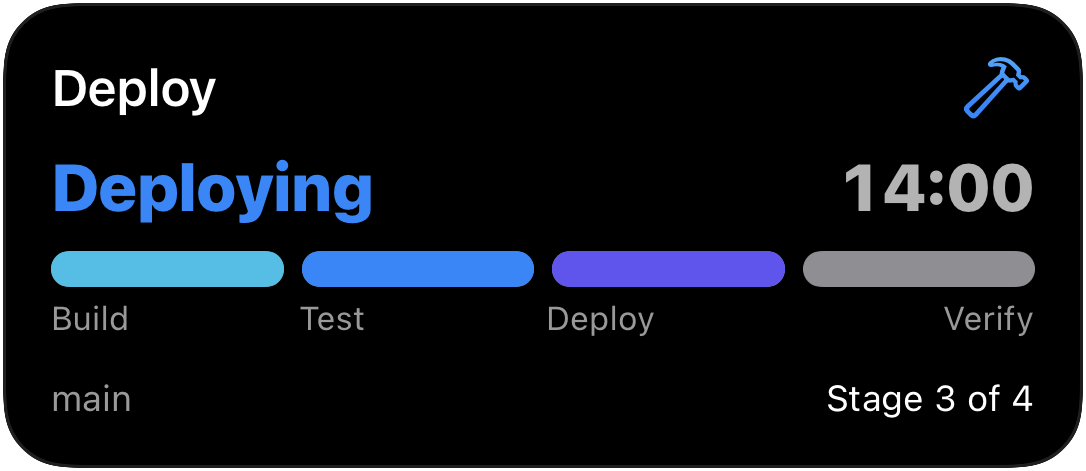
```json
{
"state": "ONGOING",
"content": {
"template": "progress",
"icon": { "name": "hammer", "rendering_mode": "hierarchical", "primary_color": "blue", "color_rendering": "gradient" },
"header_left": { "value": "Deploying", "text_color": "blue" },
"header_right": { "value": "2026-05-31T18:30:00Z", "formatter": "time_since" },
"progress": {
"style": "segmented",
"value": 0.75,
"display": "split",
"segments": [
{ "value": 0.25, "fill_color": "cyan", "label": "Build" },
{ "value": 0.25, "fill_color": "blue", "label": "Test" },
{ "value": 0.25, "fill_color": "indigo", "label": "Deploy" },
{ "value": 0.25, "fill_color": "gray", "label": "Verify" }
]
},
"footer_left": { "value": "main" },
"footer_right": { "value": "Stage 3 of 4" }
}
}
```
### Backups & long-running jobs
[Section titled “Backups & long-running jobs”](#backups--long-running-jobs)
Watch a backup or batch job crawl to the finish line.
[Template Progress](/templates/#progress-template)
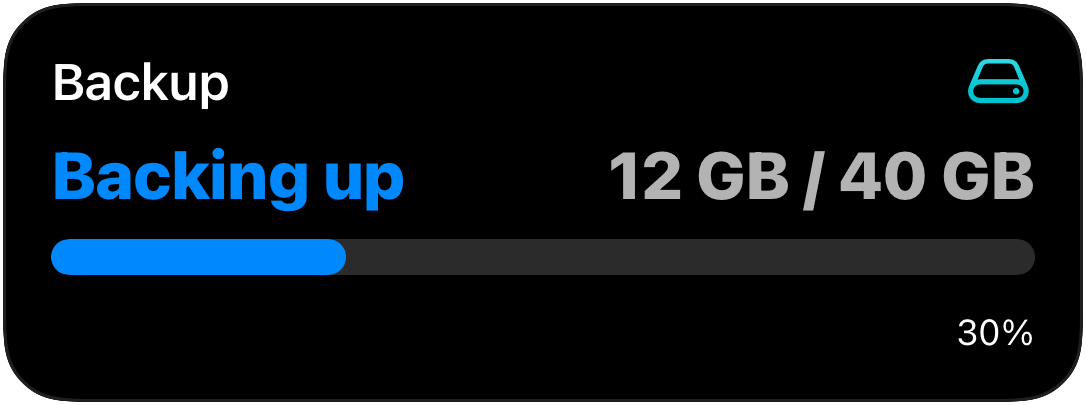
```json
{
"state": "ONGOING",
"content": {
"template": "progress",
"icon": { "name": "externaldrive", "rendering_mode": "hierarchical", "primary_color": "teal", "color_rendering": "gradient" },
"header_left": { "value": "Backing up", "text_color": "blue" },
"header_right": { "value": "12 GB / 40 GB" },
"progress": { "style": "simple", "value": 0.3 },
"footer_right": { "value": "30%" }
}
}
```
When a job finishes, send the same activity with `"state": "IDLE"` to dismiss it. See [Activity states](/api-reference/#activity-states) for the details.
## Keep it on screen with a widget
[Section titled “Keep it on screen with a widget”](#keep-it-on-screen-with-a-widget)
Live Activities shine while something is happening; they start when the task starts and dismiss when it is done. For the numbers you want visible all day (battery levels across your devices, electricity prices, today’s energy flow, a household budget, the next garbage pickup), pair the activity with a persistent [widget](/widget-templates/). It is the same API and the same building blocks: create the widget in the app, then keep it current with one `PATCH` per change or a ready-made [widget blueprint](/home-assistant/blueprints/#widget-blueprints).
# Widget Templates
> Eleven widget templates for the iPhone Home Screen, Lock Screen, StandBy, and Apple Watch, with schemas and update examples for Home Assistant and Shortcuts.
Persistent widgets live on the Home Screen, the Lock Screen, StandBy, and the Apple Watch. Unlike Live Activities, they are not tied to an ongoing activity: you create a widget once in the app, picking its template and `slug`, then update its content whenever you like via the [API](/api-reference/#update-a-widget), and Aivi pushes the change to every device that displays it.
Note
Widgets and Live Activities are separate concepts with separate templates. A Live Activity is ephemeral and real-time: it starts, updates moment to moment, and ends. A widget is persistent and best-effort: it is always on screen and shows the latest known state. Live Activity templates are documented on the [Live Activity Templates](/templates/) page.
## Choosing a template
[Section titled “Choosing a template”](#choosing-a-template)
Eleven templates cover the common shapes of glanceable data, and one of them takes presses. Pick the one that matches yours; each card jumps to the template’s schema and examples.
[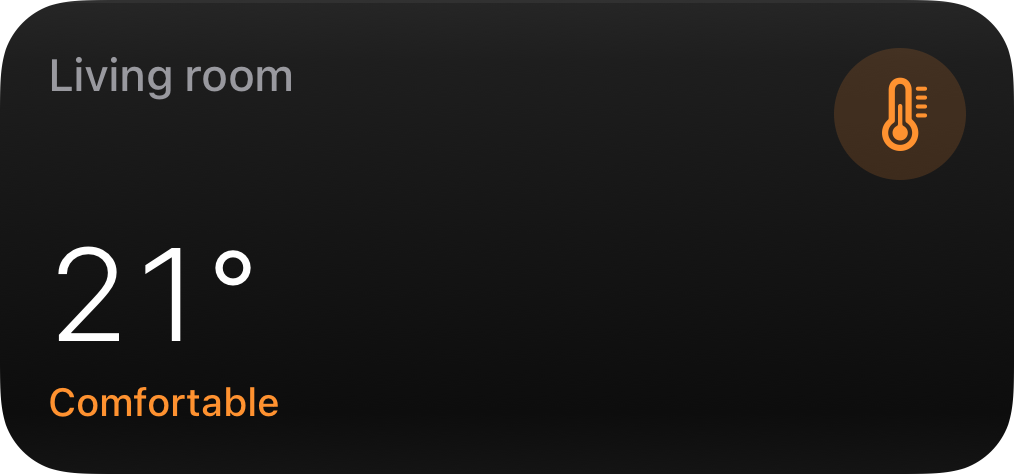 ](#status-template)
[ Status A single state at a glance: door open, lights on, device online. ](#status-template)
[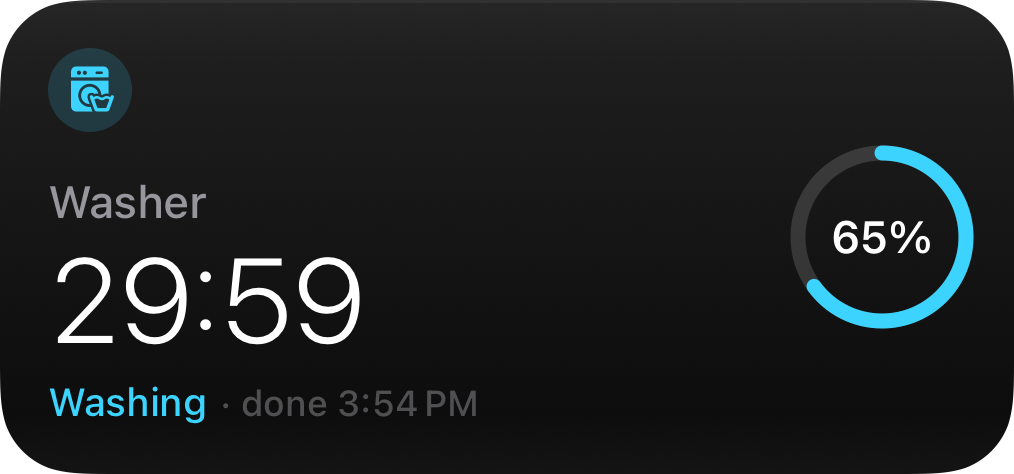 ](#progress-template)
[ Progress Something running to completion: a wash cycle, print job, or download. ](#progress-template)
[ ](#gauge-template)
[ Gauge A reading within a range: temperature, humidity, or fill level. ](#gauge-template)
[ ](#battery-template)
[ Battery Charge levels across your devices: phones, sensors, vacuums. ](#battery-template)
[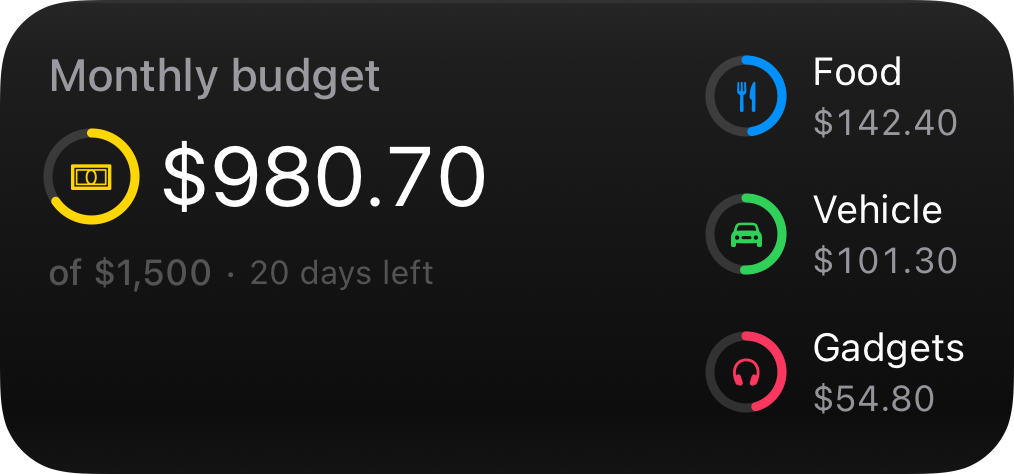 ](#budget-template)
[ Budget Spending against a limit: a monthly budget or data allowance. ](#budget-template)
[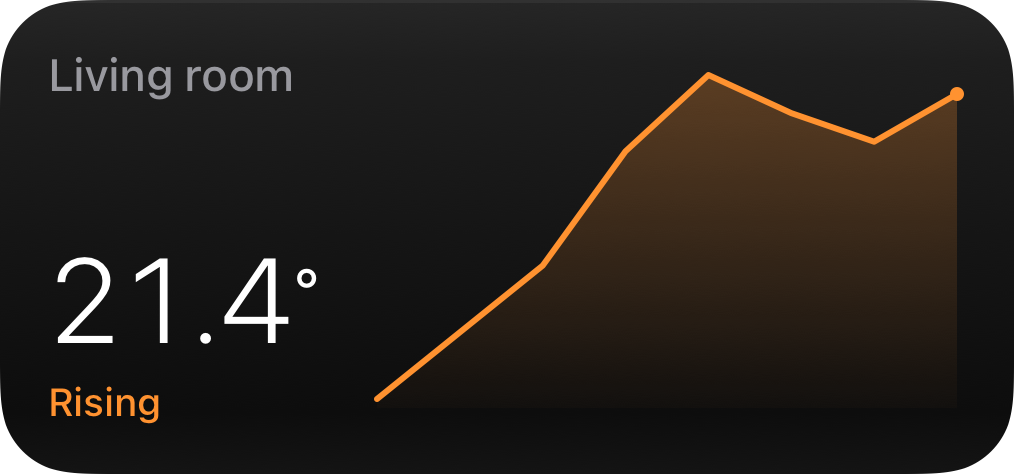 ](#trend-template)
[ Trend How a value moves over time: outdoor temperature or power draw. ](#trend-template)
[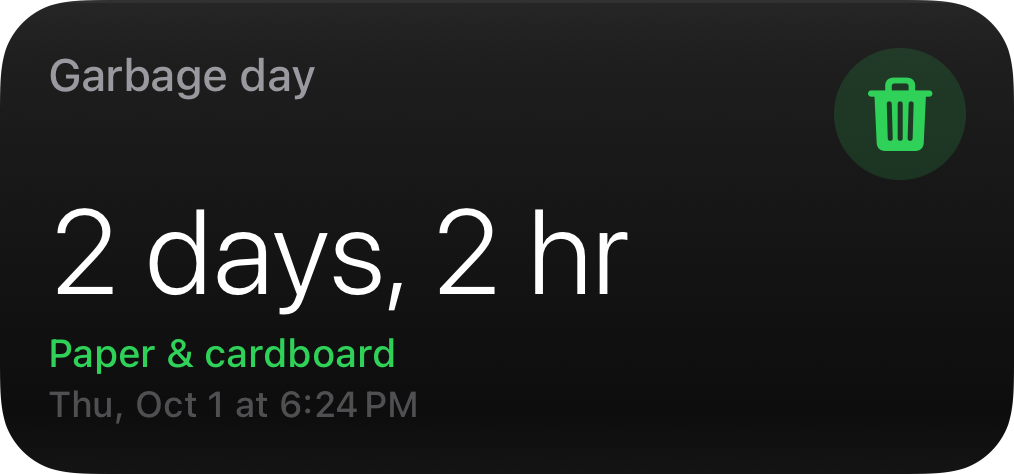 ](#countdown-template)
[ Countdown Time left until a moment: garbage pickup, a departure, a deadline. ](#countdown-template)
[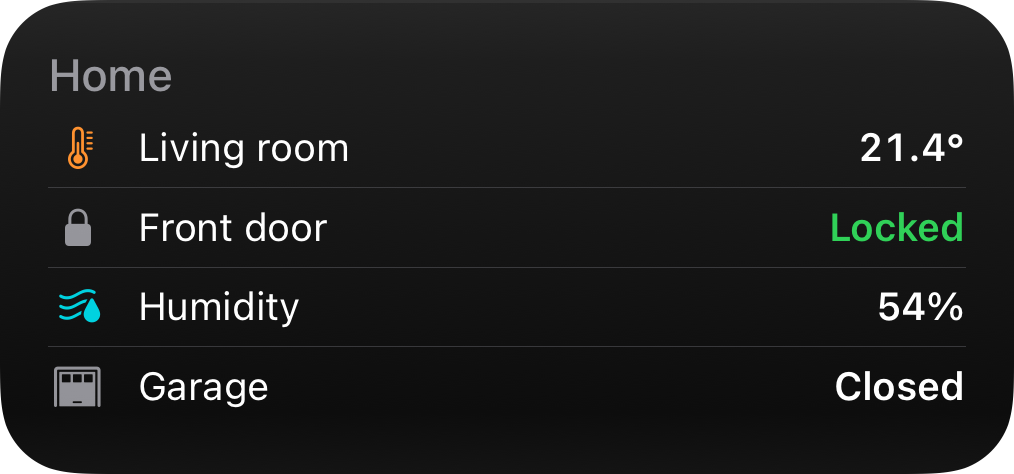 ](#list-template)
[ List Several readings in one widget: sensors around the house. ](#list-template)
[ ](#prices-template)
[ Prices Rates through the day: electricity spot prices or fuel. ](#prices-template)
[ ](#energy-template)
[ Energy Power flowing through your home: solar, grid, battery, usage. ](#energy-template)
[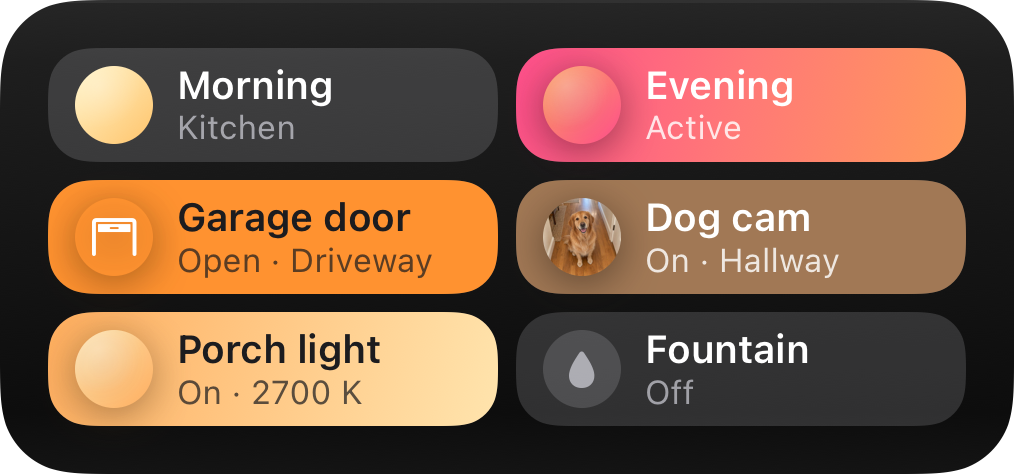 ](#switchboard-template)
[ Switchboard Buttons and switches you press: scenes, lights, the garage door.](#switchboard-template)
Widgets you can press
The [Switchboard](#switchboard-template) template is a grid of buttons and toggles: a press on the Home Screen reaches your own system, and the tile shows the state you publish back. See [Interactive Widgets](/interactive-widgets/) for how presses work.
The `content` object you send must match the widget’s template schema. Widget templates reuse the Live Activity building blocks ( [colors](/templates/#color), [icons](/templates/#icon-object), [values](/templates/#value-object), and [formatters](/templates/#formatter)), so the vocabulary is the same across both.
Every template renders at every Home Screen size, small through the near-fullscreen extra-large portrait size on iOS 27, on the Lock Screen, and on the Apple Watch. The data-rich templates put the larger canvases to work with more data; the simpler ones scale to fit.
## Freshness
[Section titled “Freshness”](#freshness)
Widgets are Aivi’s persistent, best-effort layer. Knowing how updates travel helps you pick the right tool:
* **Content pushes arrive in minutes, not seconds.** Updating a widget stores the content and sends a low-priority background push to every device showing it. iOS batches and budgets these pushes to save battery, so a change typically appears within minutes: often faster, occasionally slower (Low Power Mode, a sleeping device). Design for “latest known state”, not for real-time.
* **Predictable data stays live without pushes.** Anything the device can compute on its own keeps ticking between pushes: the [Progress](#progress-template) template’s `end_date` countdown and self-advancing bar, the [Countdown](#countdown-template) target, the [`time_since` / `time_until` formatters](/templates/#formatter), and the [Prices](#prices-template) timeline highlighting the current period. One push can keep a widget correct for hours or days; prefer this over frequent pushes.
* **Real-time belongs to Live Activities.** If you need second-by-second updates during an ongoing task, use a [Live Activity](/templates/): that is the layer iOS budgets for real-time. A widget can sit alongside it as the persistent summary.
### Marking content as stale
[Section titled “Marking content as stale”](#marking-content-as-stale)
By default a widget shows its last content indefinitely, with no judgement about age; only you know your update cadence. Set `stale_after` (in seconds) to opt in to staleness: once the content is older than the threshold, the widget visually demotes it and shows an “as of 14:32” line instead of presenting old data as current. You can set it when creating the widget in the app, or per request via the [API](/api-reference/#update-a-widget).
## Status Template
[Section titled “Status Template”](#status-template)
ID: `status`
At-a-glance state: an icon, a hero reading, and a state line.

All sizes
\[ ] Small \[x] Medium \[ ] Large \[ ] Lock Screen
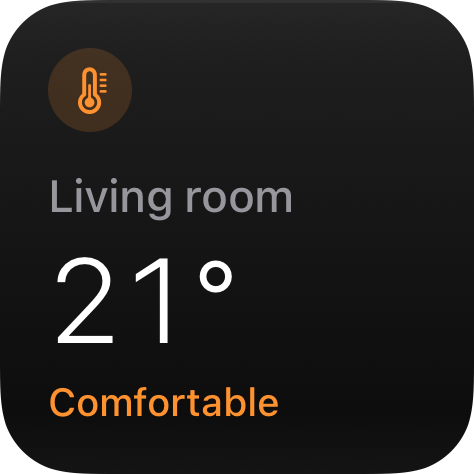

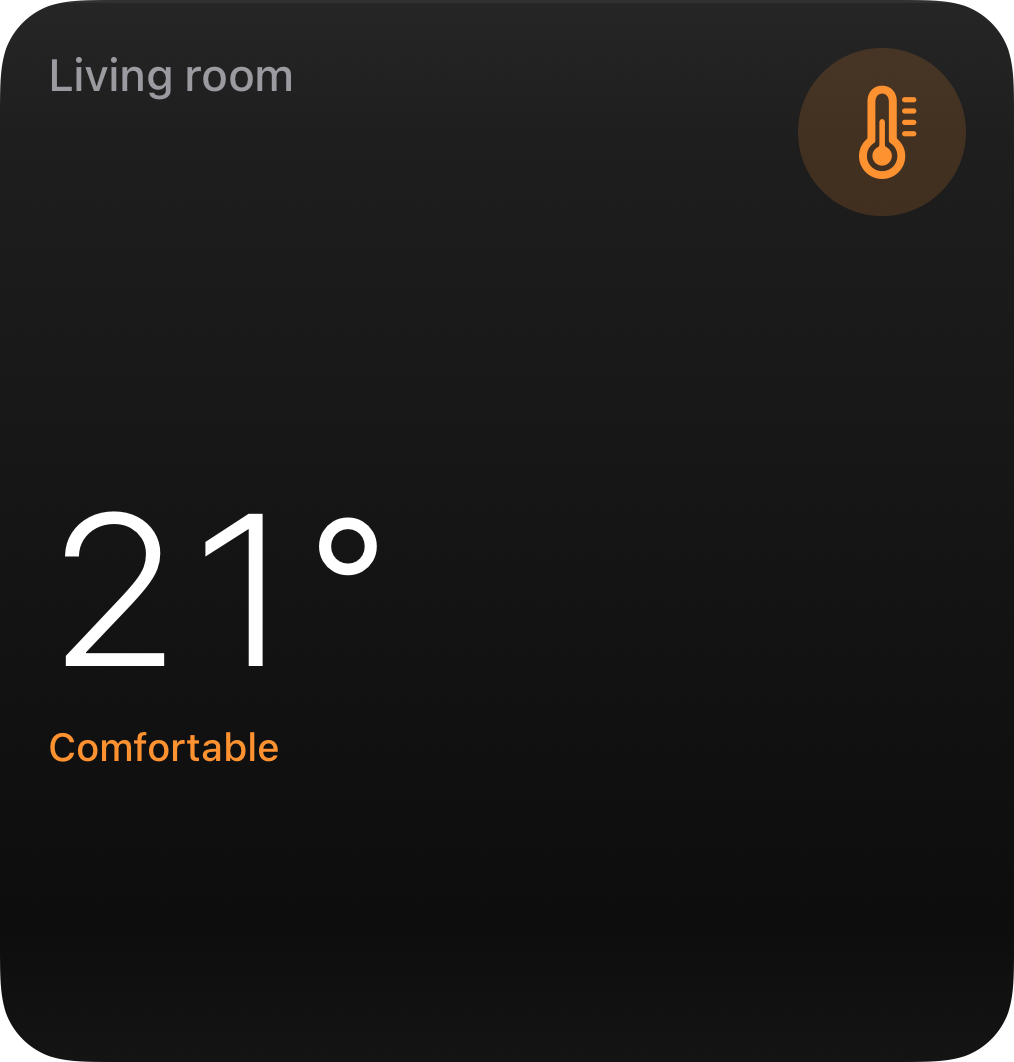
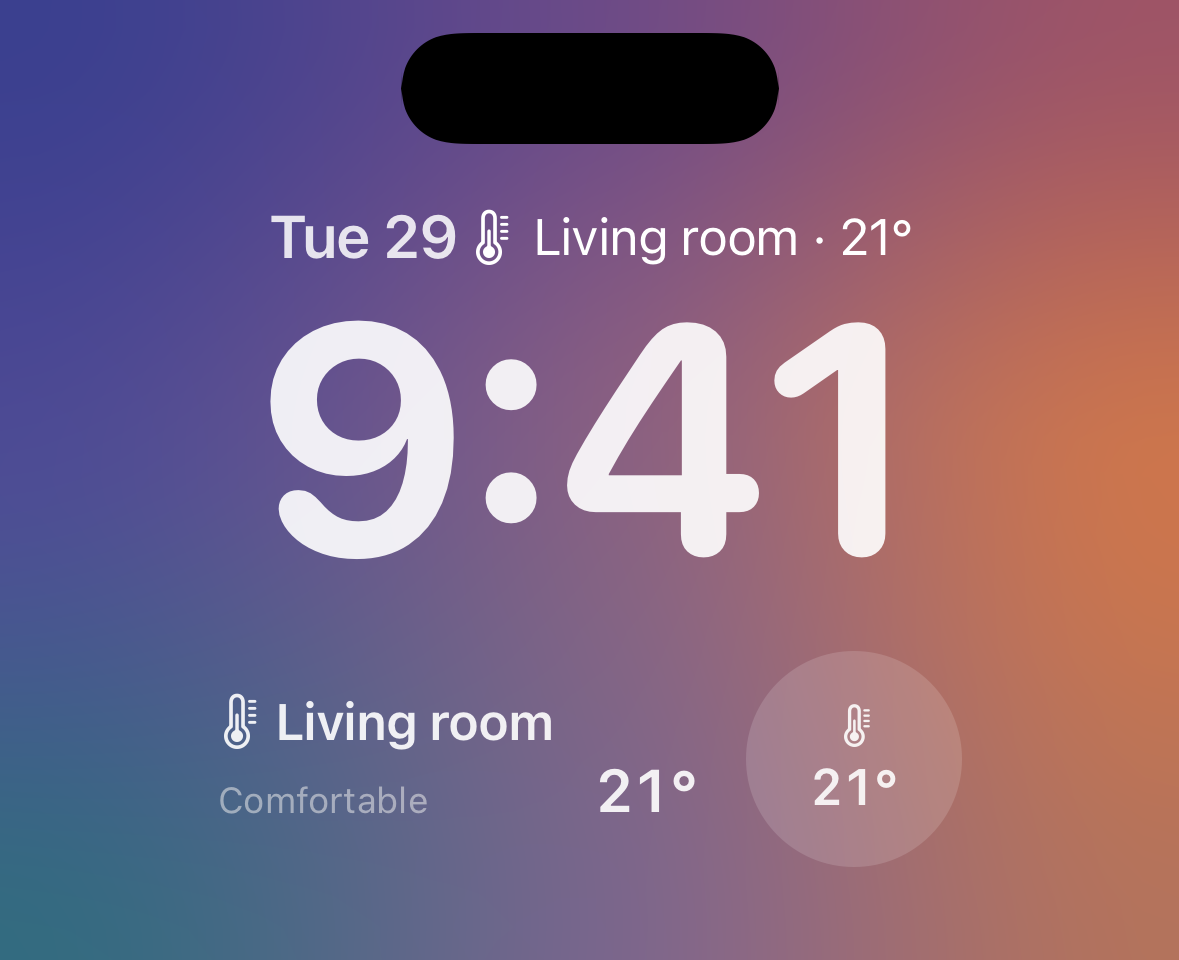
### Home Assistant
[Section titled “Home Assistant”](#home-assistant)
Use the Home Assistant blueprint to keep a Status widget in sync with your sensors.
[](https://my.home-assistant.io/redirect/blueprint_import/?blueprint_url=https%3A%2F%2Fha.getaivi.app%2Fblueprints%2Fwidget-status-v1.yaml)
### API schema
[Section titled “API schema”](#api-schema)
| Field | Type | Description | Required? |
| ---------- | ----------------------------------- | -------------------------------------------------------------------------------------------------------------------------------------------------------------------- | --------- |
| `template` | `"status"` | Identifies this template. | Yes |
| `value` | [`Value`](/templates/#value-object) | The hero reading. Supports text colors and the self-ticking `time_since` / `time_until` [formatters](/templates/#formatter). When absent, the state takes its place. | No |
| `state` | [`Value`](/templates/#value-object) | The supporting line under the hero. | No |
| `icon` | `string \| Icon` | An [SF Symbols](/templates/#finding-sf-symbols) icon name or an [`Icon`](/templates/#icon-object) with rendering options. | No |
| `accent` | [`Color`](/templates/#color) | Palette color that themes the whole widget. Falls back to the icon color. | No |
| `tap_url` | `string` | [Tap action URL](/templates/#tap-action-url) to open when the widget is tapped. | No |
### Example payload
[Section titled “Example payload”](#example-payload)
```json
{
"template": "status",
"value": { "value": "21°" },
"state": { "value": "Comfortable", "text_color": "green" },
"icon": { "name": "thermometer.medium", "primary_color": "orange" }
}
```
## Progress Template
[Section titled “Progress Template”](#progress-template)
ID: `progress`
A live progress bar or countdown. With an `end_date` set, a single push keeps the widget counting down and the bar advancing on its own.

All sizes
\[ ] Small \[x] Medium \[ ] Large \[ ] Lock Screen
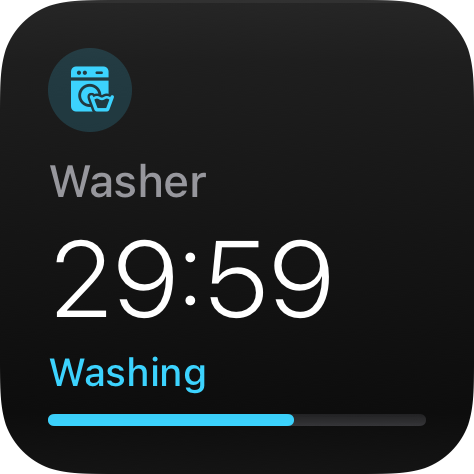

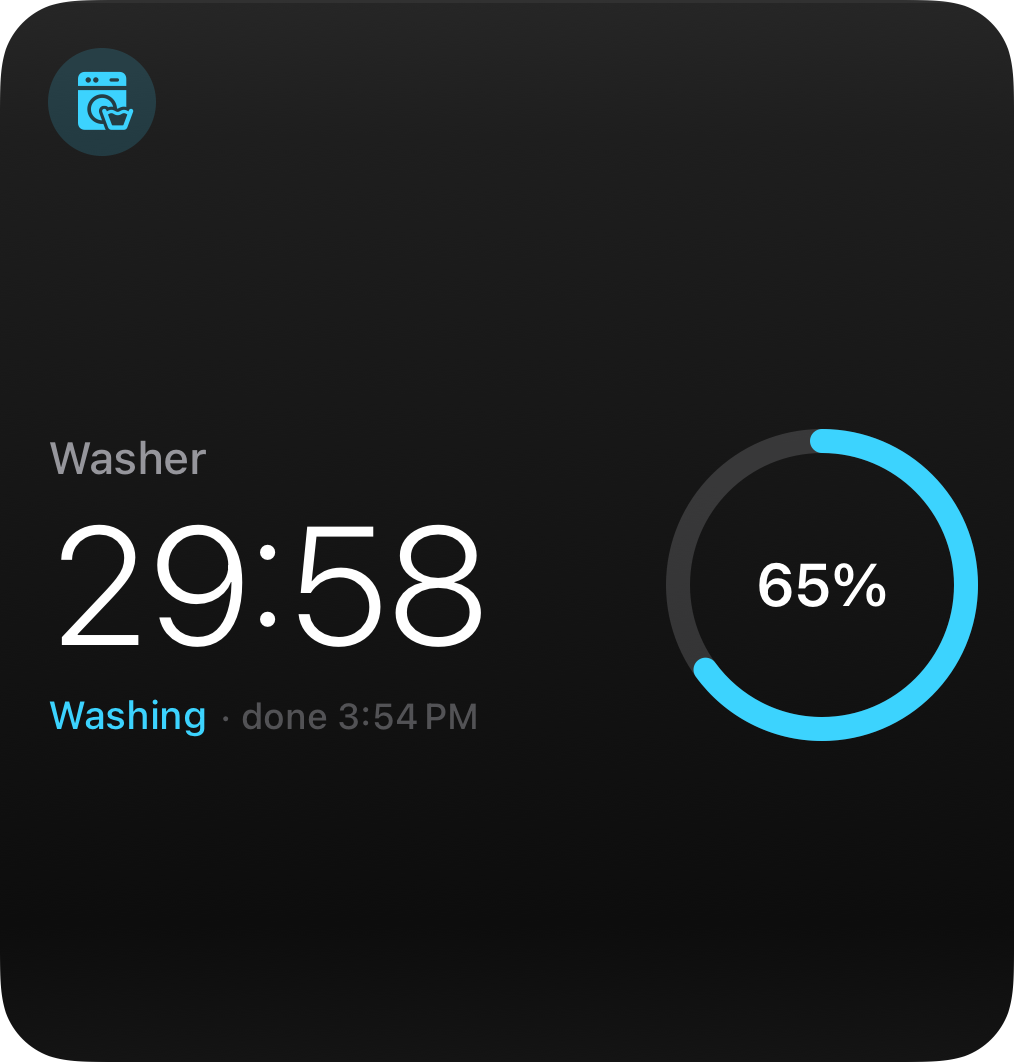
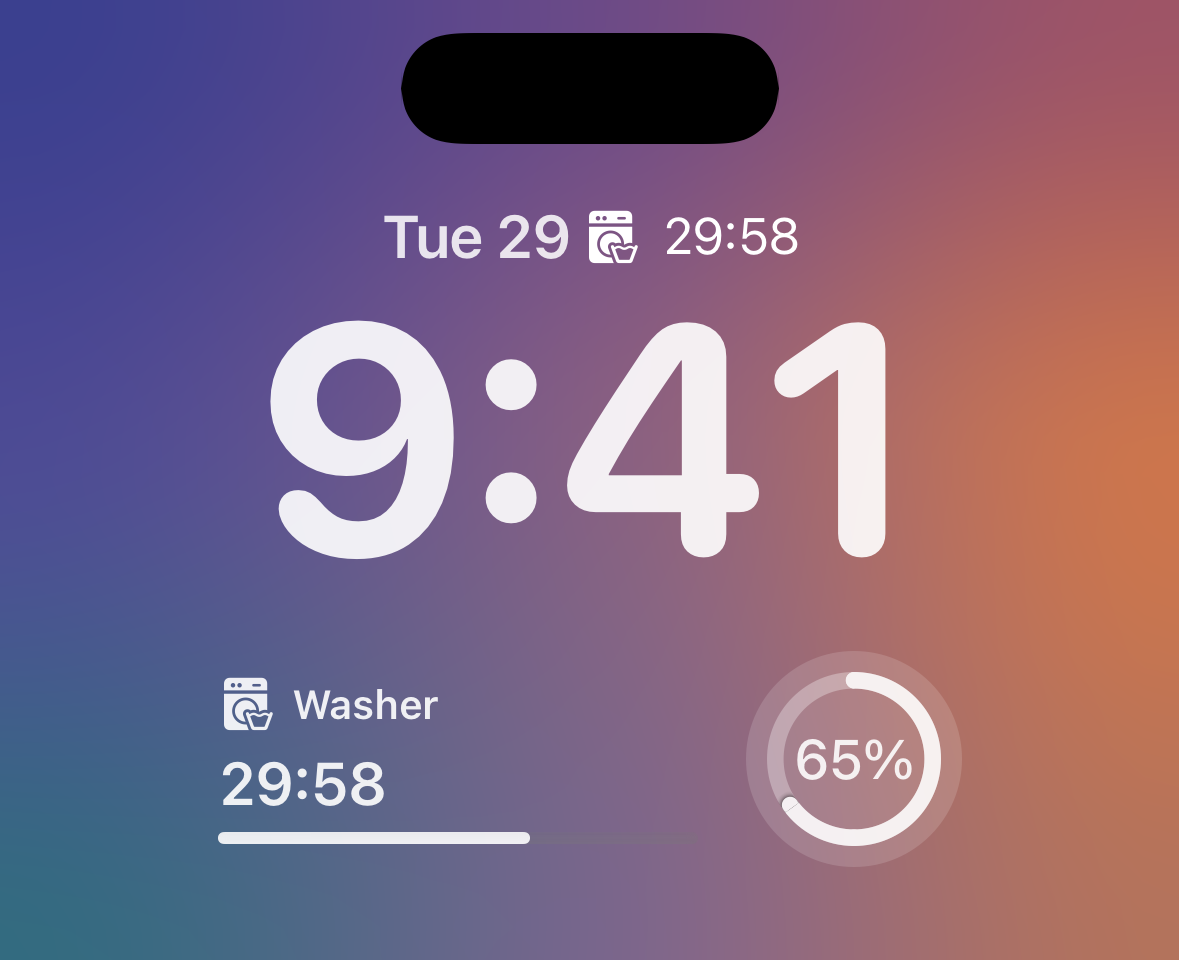
### Home Assistant
[Section titled “Home Assistant”](#home-assistant-1)
Use the Home Assistant blueprint to keep a Progress widget in sync with your sensors.
[](https://my.home-assistant.io/redirect/blueprint_import/?blueprint_url=https%3A%2F%2Fha.getaivi.app%2Fblueprints%2Fwidget-progress-v1.yaml)
### API schema
[Section titled “API schema”](#api-schema-1)
| Field | Type | Description | Required? |
| ---------- | ----------------------------------------- | ---------------------------------------------------------------------------------------------------------------------------------------------------------------------------------- | --------- |
| `template` | `"progress"` | Identifies this template. | Yes |
| `progress` | [`ProgressBar`](/templates/#progress-bar) | Progress bar configuration: a simple single-color bar or a segmented bar. | Yes |
| `state` | [`Value`](/templates/#value-object) | The state line (for example “Washing”). | No |
| `end_date` | `string` | ISO 8601 timestamp. When set in the future, the widget shows a live countdown and, for simple bars, a self-advancing bar, with no extra pushes needed. Segmented bars stay static. | No |
| `icon` | `string \| Icon` | An [SF Symbols](/templates/#finding-sf-symbols) icon name or an [`Icon`](/templates/#icon-object) with rendering options. | No |
| `accent` | [`Color`](/templates/#color) | Palette color that themes the whole widget. Falls back to the icon color. | No |
| `tap_url` | `string` | [Tap action URL](/templates/#tap-action-url) to open when the widget is tapped. | No |
### Example payload
[Section titled “Example payload”](#example-payload-1)
```json
{
"template": "progress",
"progress": { "style": "simple", "value": 0.65, "color": "cyan" },
"state": { "value": "Washing" },
"end_date": "2026-07-01T15:42:00Z",
"icon": { "name": "washer.fill", "primary_color": "cyan" }
}
```
## Gauge Template
[Section titled “Gauge Template”](#gauge-template)
ID: `gauge`
A numeric reading on an instrument dial.

All sizes
\[ ] Small \[x] Medium \[ ] Large \[ ] Lock Screen
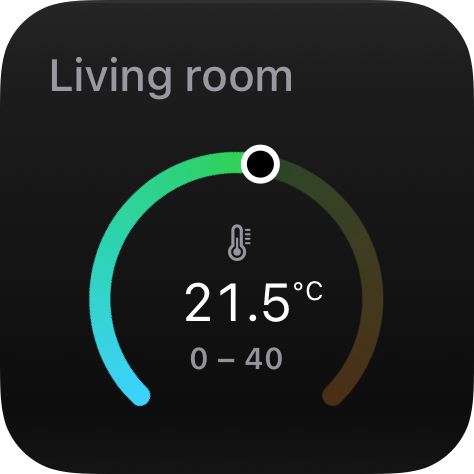

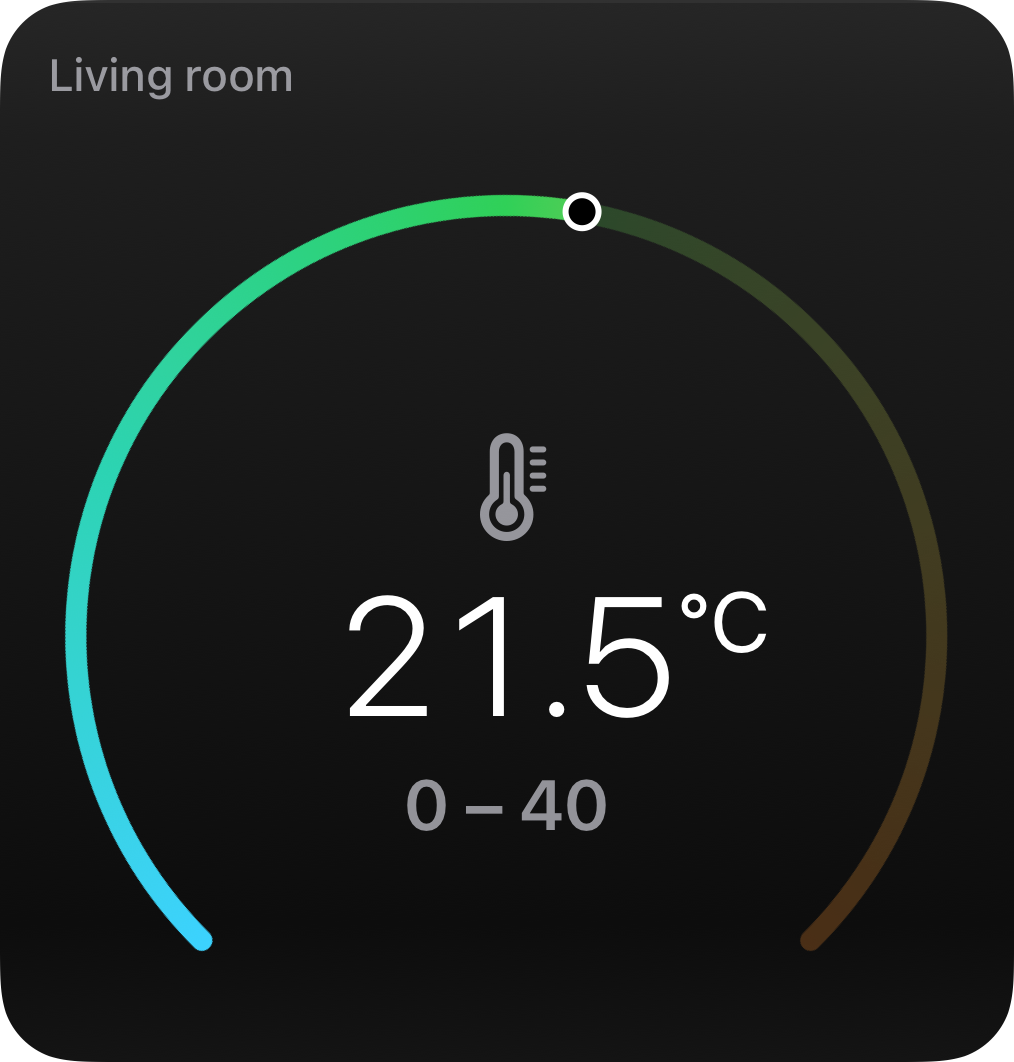
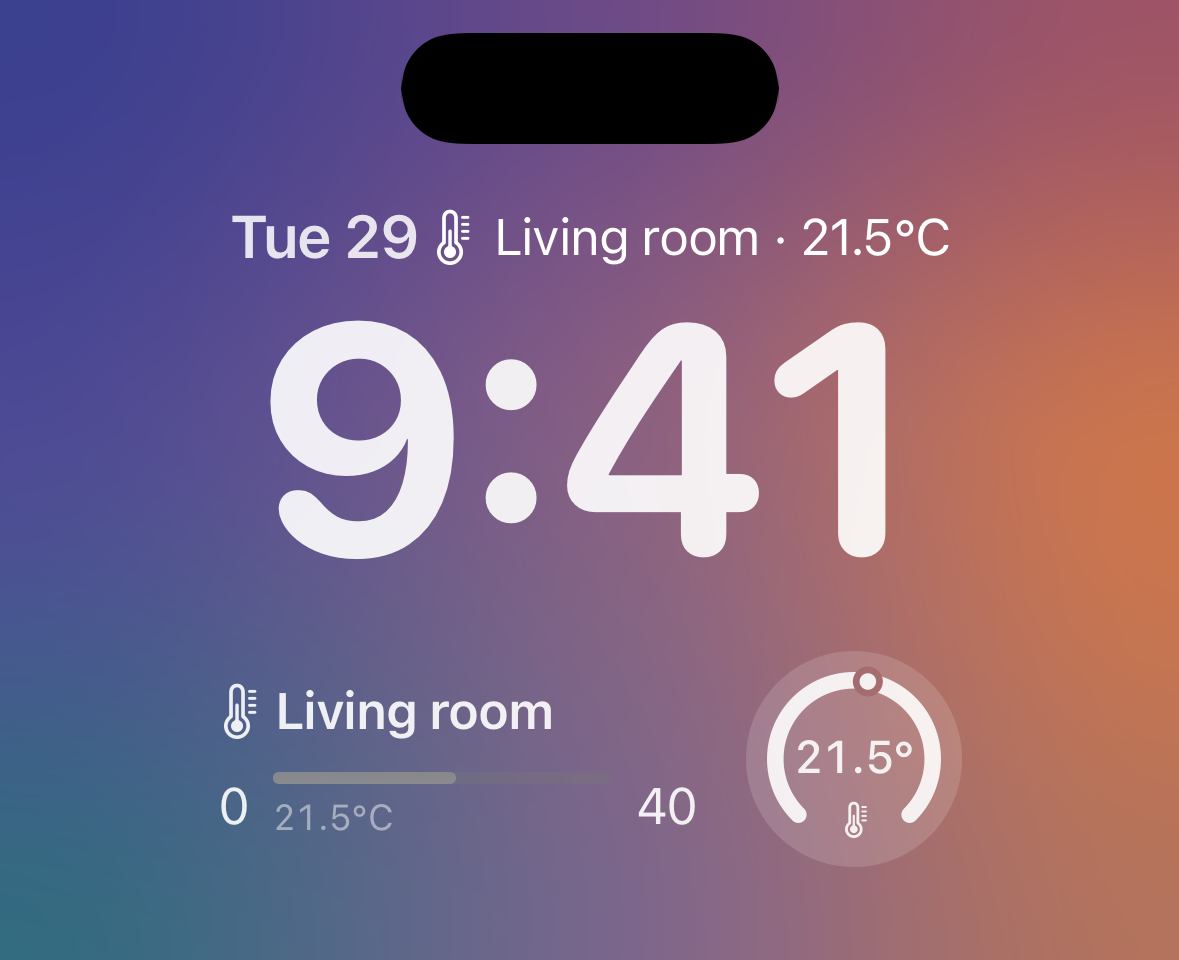
### Home Assistant
[Section titled “Home Assistant”](#home-assistant-2)
Use the Home Assistant blueprint to keep a Gauge widget in sync with your sensors.
[](https://my.home-assistant.io/redirect/blueprint_import/?blueprint_url=https%3A%2F%2Fha.getaivi.app%2Fblueprints%2Fwidget-gauge-v1.yaml)
### API schema
[Section titled “API schema”](#api-schema-2)
| Field | Type | Description | Required? |
| ----------- | ------------------------------ | ------------------------------------------------------------------------------------------------------------------------- | --------- |
| `template` | `"gauge"` | Identifies this template. | Yes |
| `value` | `float` | The reading. | Yes |
| `min_value` | `float` | Dial minimum. Default: `0`. | No |
| `max_value` | `float` | Dial maximum. Default: `1`. | No |
| `unit` | `string` | Unit shown with the reading (for example `"°C"`). | No |
| `label` | `string` | Label shown with the reading (for example `"Living room"`). | No |
| `color` | [`Color`](/templates/#color) | Solid dial color. | No |
| `gradient` | [`Color[]`](/templates/#color) | 2–4 gradient stops for the dial. | No |
| `icon` | `string \| Icon` | An [SF Symbols](/templates/#finding-sf-symbols) icon name or an [`Icon`](/templates/#icon-object) with rendering options. | No |
| `accent` | [`Color`](/templates/#color) | Palette color that themes the whole widget. Falls back to the icon color. | No |
| `tap_url` | `string` | [Tap action URL](/templates/#tap-action-url) to open when the widget is tapped. | No |
Note
Set at most one of `color` and `gradient`. With both unset, the dial uses the built-in cool-to-warm gradient.
### Example payload
[Section titled “Example payload”](#example-payload-2)
```json
{
"template": "gauge",
"value": 21.5,
"min_value": 0,
"max_value": 40,
"unit": "°C",
"label": "Living room",
"icon": { "name": "thermometer.medium" }
}
```
## Battery Template
[Section titled “Battery Template”](#battery-template)
ID: `battery`
Device battery levels in Apple’s Batteries idiom: level rings with device icons, and a device list at the large sizes. Made for home-automation devices (vacuums, locks, cameras, sensors) that Apple’s own widget cannot show.

All sizes
\[ ] Small \[x] Medium \[ ] Large \[ ] Lock Screen
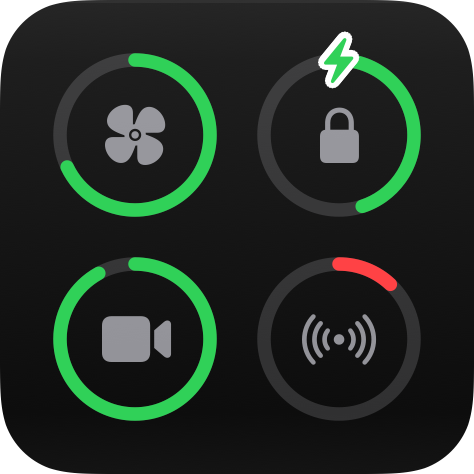

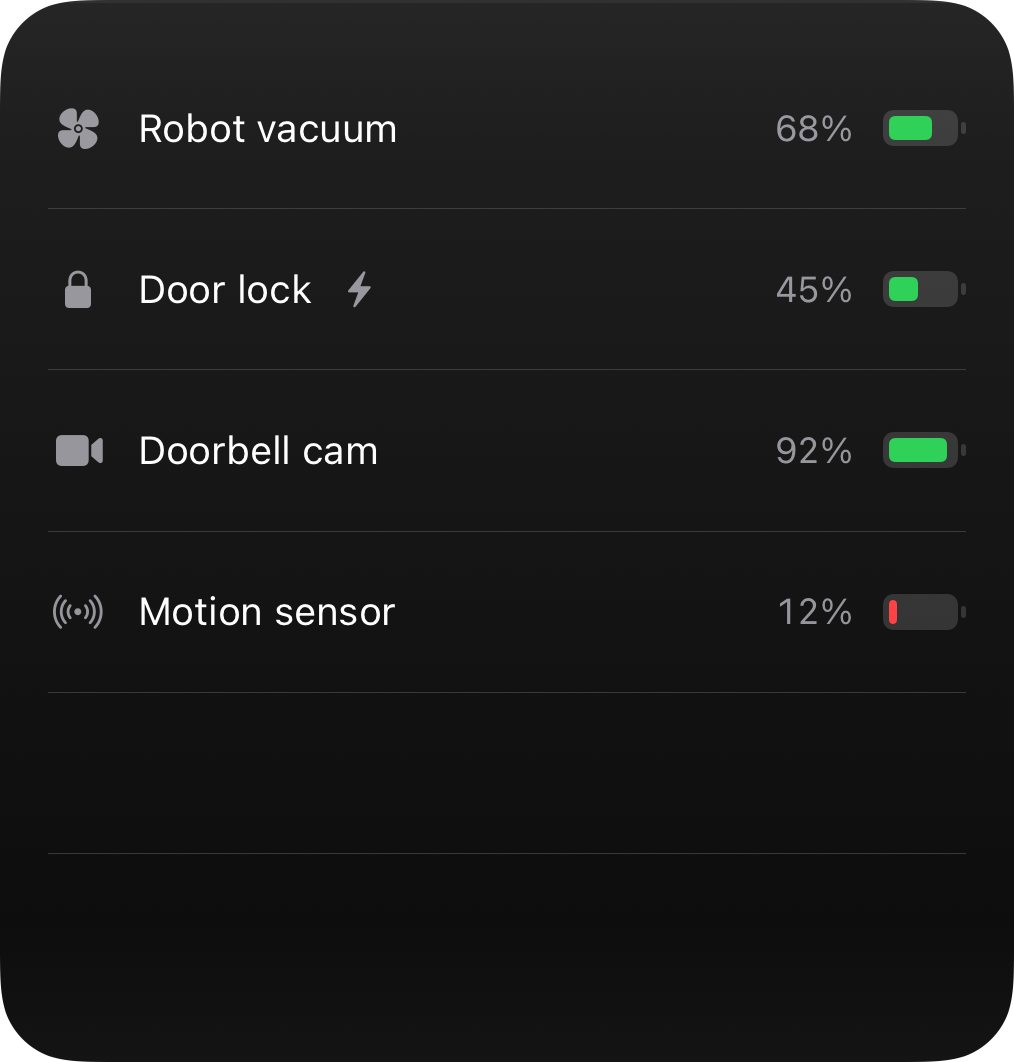
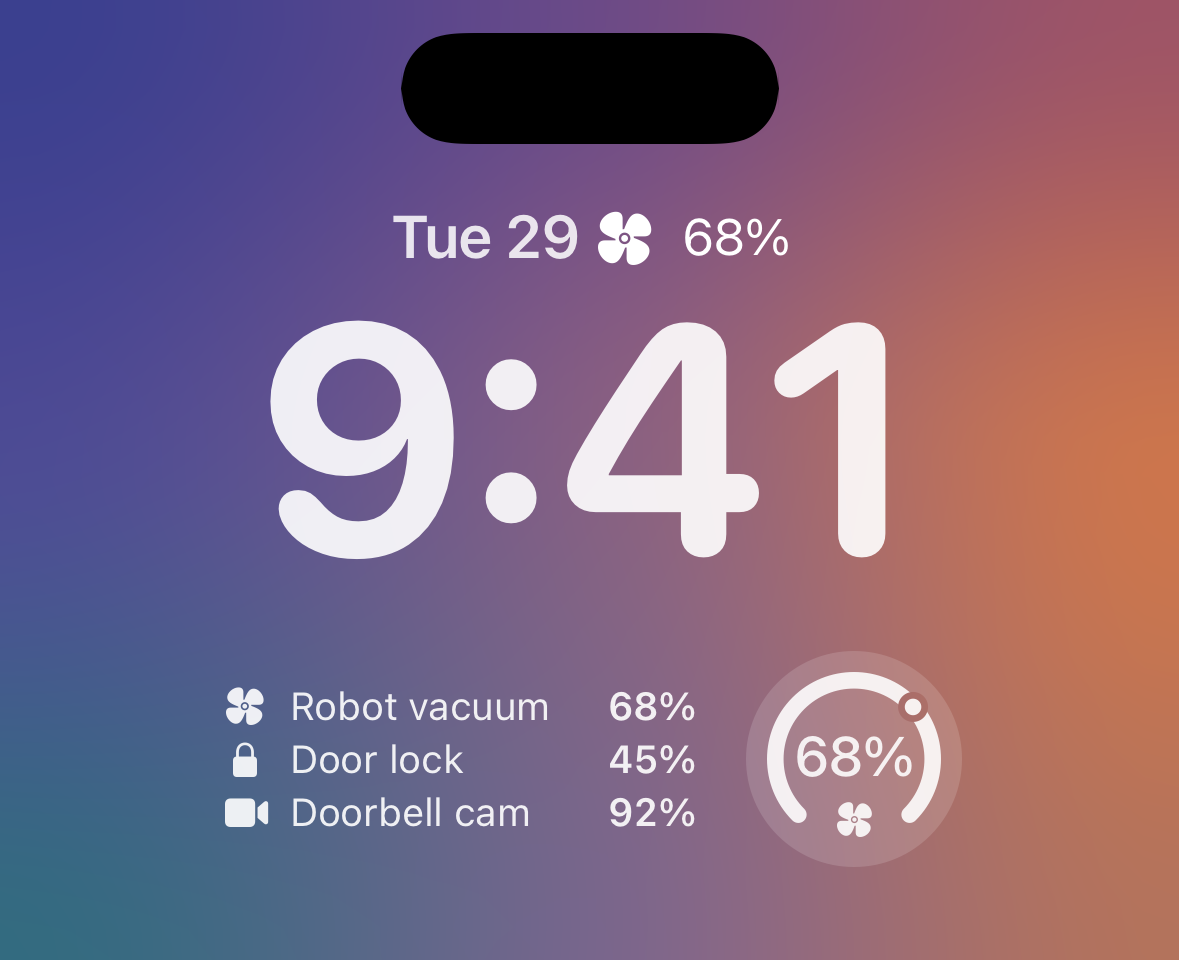
### Home Assistant
[Section titled “Home Assistant”](#home-assistant-3)
Use the Home Assistant blueprint to keep a Battery widget in sync with your sensors. Requires Home Assistant 2025.7 or newer.
[](https://my.home-assistant.io/redirect/blueprint_import/?blueprint_url=https%3A%2F%2Fha.getaivi.app%2Fblueprints%2Fwidget-battery-v1.yaml)
### API schema
[Section titled “API schema”](#api-schema-3)
| Field | Type | Description | Required? |
| ---------- | ---------------------------- | ------------------------------------------------------------------------------------------------------------------------- | --------- |
| `template` | `"battery"` | Identifies this template. | Yes |
| `devices` | [`Device[]`](#device-object) | 1–8 devices, shown in the order you send them. Small and medium show up to four rings; large lists up to eight devices. | Yes |
| `icon` | `string \| Icon` | An [SF Symbols](/templates/#finding-sf-symbols) icon name or an [`Icon`](/templates/#icon-object) with rendering options. | No |
| `accent` | [`Color`](/templates/#color) | Palette color that themes the whole widget. Falls back to the icon color. | No |
| `tap_url` | `string` | [Tap action URL](/templates/#tap-action-url) to open when the widget is tapped. | No |
#### Device object
[Section titled “Device object”](#device-object)
| Field | Type | Description | Required? |
| ---------- | ---------------------------- | -------------------------------------------------------------------------------- | --------- |
| `name` | `string` | Device name, shown in the large list. | Yes |
| `level` | `float` | Battery percentage, 0–100. | Yes |
| `charging` | `bool` | Adds the charging bolt. Default: `false`. | No |
| `icon` | `string \| Icon` | Symbol shown inside the ring. | No |
| `color` | [`Color`](/templates/#color) | Ring color override. By default rings are green, or red at 20 percent and below. | No |
### Example payload
[Section titled “Example payload”](#example-payload-3)
```json
{
"template": "battery",
"devices": [
{ "name": "Robot vacuum", "level": 68, "icon": "fan.fill" },
{ "name": "Door lock", "level": 45, "charging": true },
{ "name": "Doorbell cam", "level": 92, "icon": "video.fill" }
]
}
```
## Budget Template
[Section titled “Budget Template”](#budget-template)
ID: `budget`
A top-level budget plus up to six category breakdowns, made for finance and budgeting. Renders at the large widget sizes too.
Amounts are structured money, not preformatted strings: send numbers or decimal strings, and the device formats them for the user’s locale and the given currency (symbol placement, grouping, and fraction digits, so JPY gets 0 and USD gets 2). Prefer decimal strings: a JSON number cannot carry a trailing zero.

All sizes
\[ ] Small \[x] Medium \[ ] Large \[ ] Lock Screen
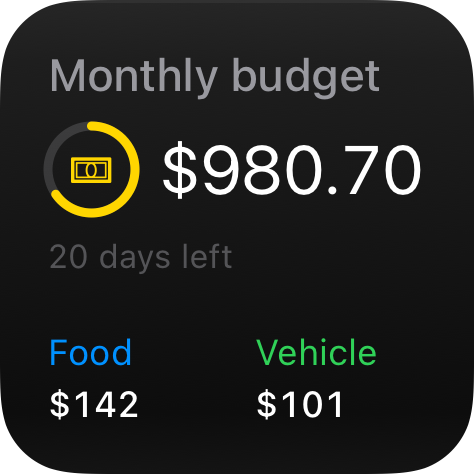

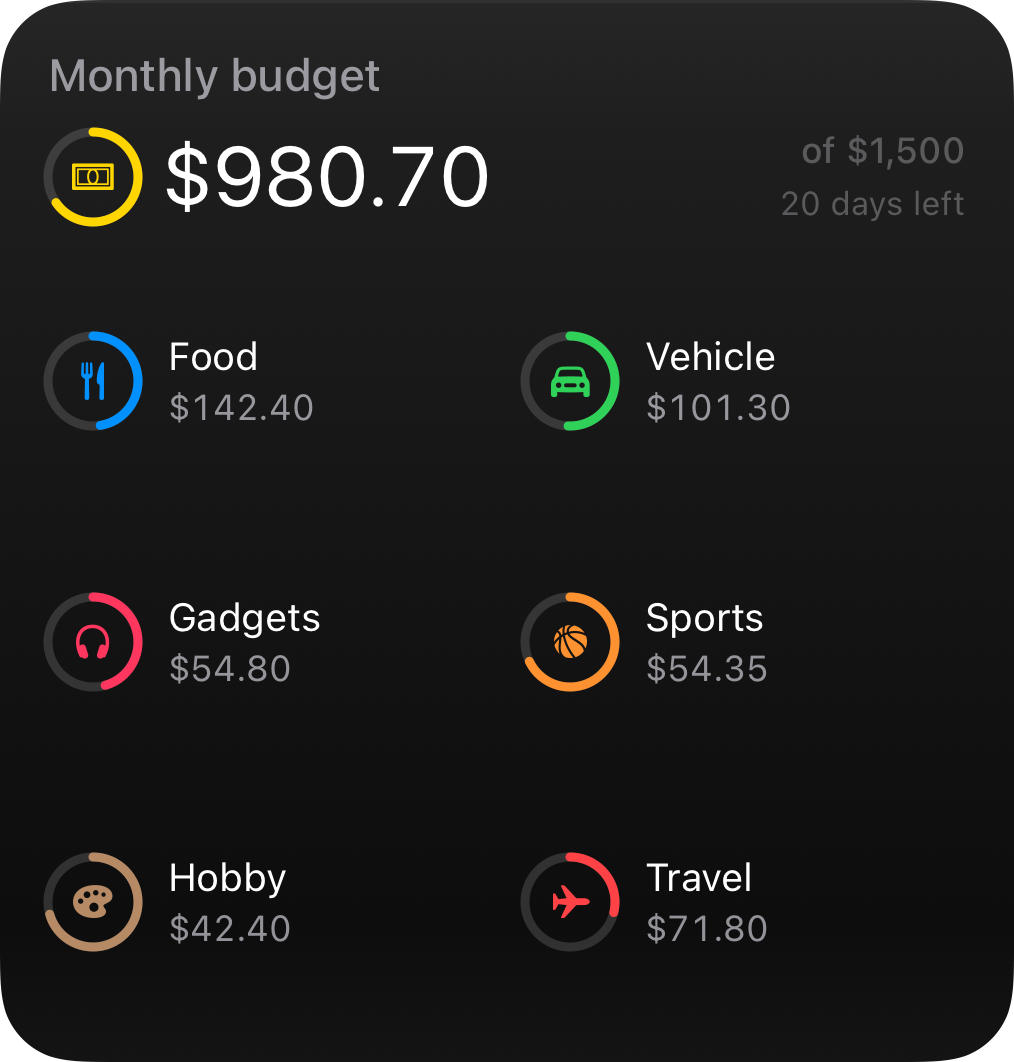
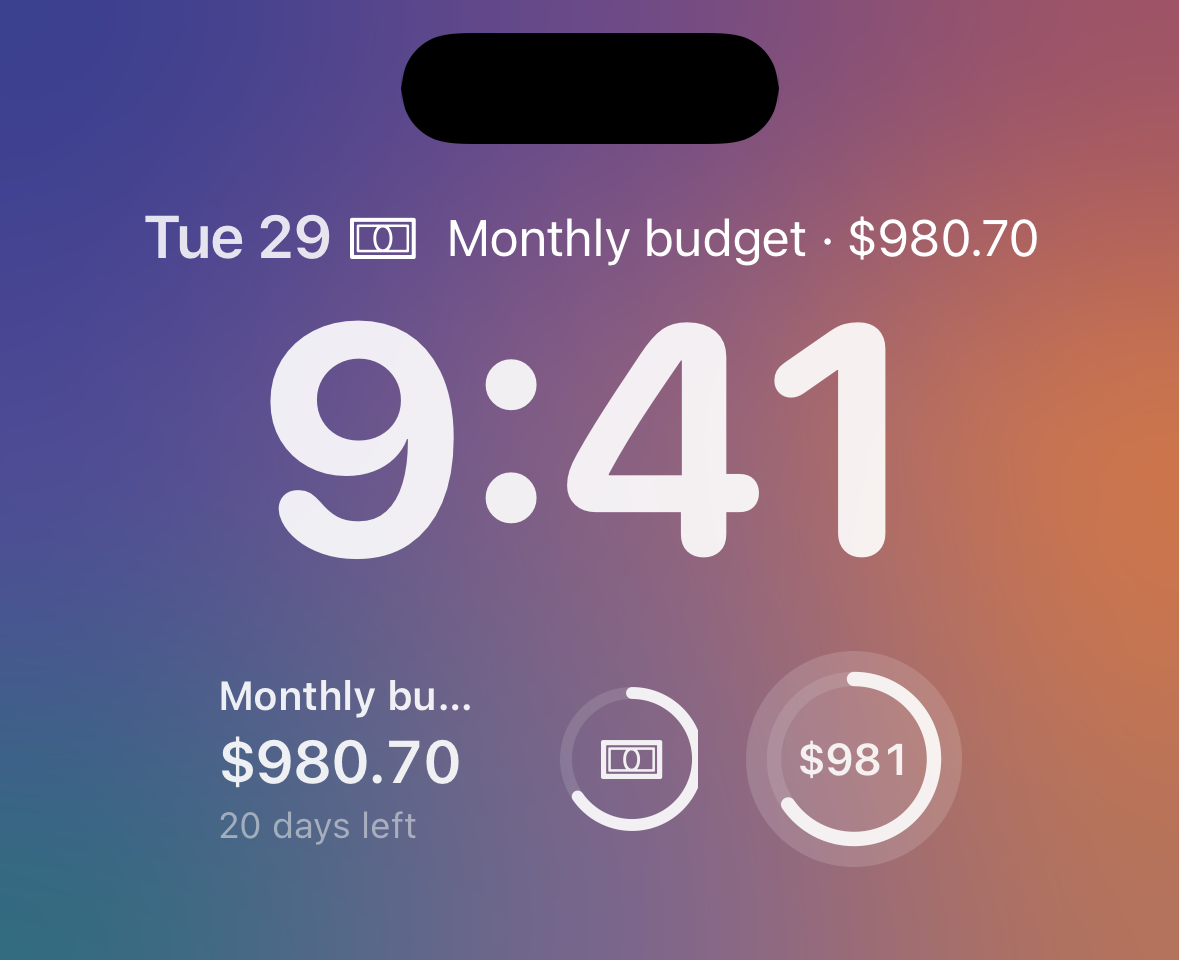
### Home Assistant
[Section titled “Home Assistant”](#home-assistant-4)
Use the Home Assistant blueprint to keep a Budget widget in sync with your sensors. Requires Home Assistant 2025.7 or newer.
[](https://my.home-assistant.io/redirect/blueprint_import/?blueprint_url=https%3A%2F%2Fha.getaivi.app%2Fblueprints%2Fwidget-budget-v1.yaml)
### API schema
[Section titled “API schema”](#api-schema-4)
| Field | Type | Description | Required? |
| ------------ | ----------------------------------- | ------------------------------------------------------------------------------------------------------------------------------------------------------------------------------------------------ | --------- |
| `template` | `"budget"` | Identifies this template. | Yes |
| `total` | [`Entry`](#budget-entry) | The top-level budget line. The widget name serves as its label. | Yes |
| `categories` | [`Entry[]`](#budget-entry) | Up to 6 category lines, shown in the order you send them. | No |
| `currency` | `string` | ISO 4217 code (3 uppercase letters); one currency per widget. | Yes |
| `display` | `"remaining" \| "spent"` | Which figure headlines everywhere; the ring follows it, so remaining mode drains toward empty while spent mode fills up. Overspending shows a negative remainder in red. Default: `"remaining"`. | No |
| `subtitle` | [`Value`](/templates/#value-object) | Shown with the total, for example “20 days left”. Supports the `time_until` [formatter](/templates/#formatter) for a self-updating line. | No |
| `icon` | `string \| Icon` | An [SF Symbols](/templates/#finding-sf-symbols) icon name or an [`Icon`](/templates/#icon-object) with rendering options. | No |
| `accent` | [`Color`](/templates/#color) | Palette color that themes the whole widget. | No |
| `tap_url` | `string` | [Tap action URL](/templates/#tap-action-url) to open when the widget is tapped. | No |
#### Budget entry
[Section titled “Budget entry”](#budget-entry)
| Field | Type | Description | Required? |
| -------- | ---------------------------- | ------------------------------------------------------------------------------------------------------------------------------------------------------------------------------------- | --------- |
| `spent` | `number \| string` | Amount spent. | Yes |
| `budget` | `number \| string` | Budgeted amount, greater than 0. When present the entry gets a progress ring and the total shows an “of $1,500” line. When absent the entry shows the spent amount with a plain icon. | No |
| `label` | `string` | The category name. | No |
| `icon` | `string \| Icon` | An [SF Symbols](/templates/#finding-sf-symbols) icon name or an [`Icon`](/templates/#icon-object) with rendering options. | No |
| `color` | [`Color`](/templates/#color) | The ring color. Falls back to the icon color, then the accent. | No |
### Example payload
[Section titled “Example payload”](#example-payload-4)
```json
{
"template": "budget",
"currency": "USD",
"display": "remaining",
"total": {
"spent": "519.30",
"budget": "1500",
"icon": { "name": "banknote", "primary_color": "yellow" },
"color": "yellow"
},
"subtitle": { "value": "20 days left" },
"categories": [
{
"spent": "157.60",
"budget": "300",
"label": "Food",
"icon": "fork.knife",
"color": "blue"
}
]
}
```
## Trend Template
[Section titled “Trend Template”](#trend-template)
ID: `trend`
A current reading with a compact history sparkline: temperature, humidity, power draw, or anything you already track as a series. You post the recent history; the device draws and scales the chart. Renders at the large widget sizes too.

All sizes
\[ ] Small \[x] Medium \[ ] Large \[ ] Lock Screen
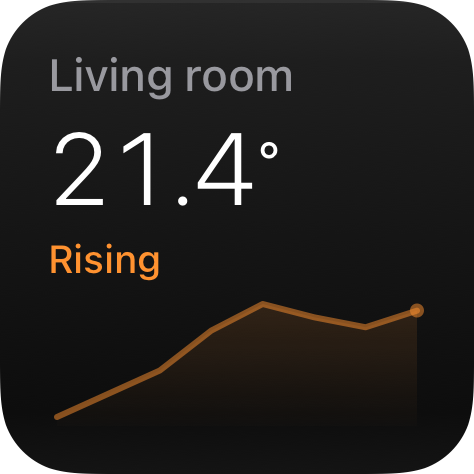

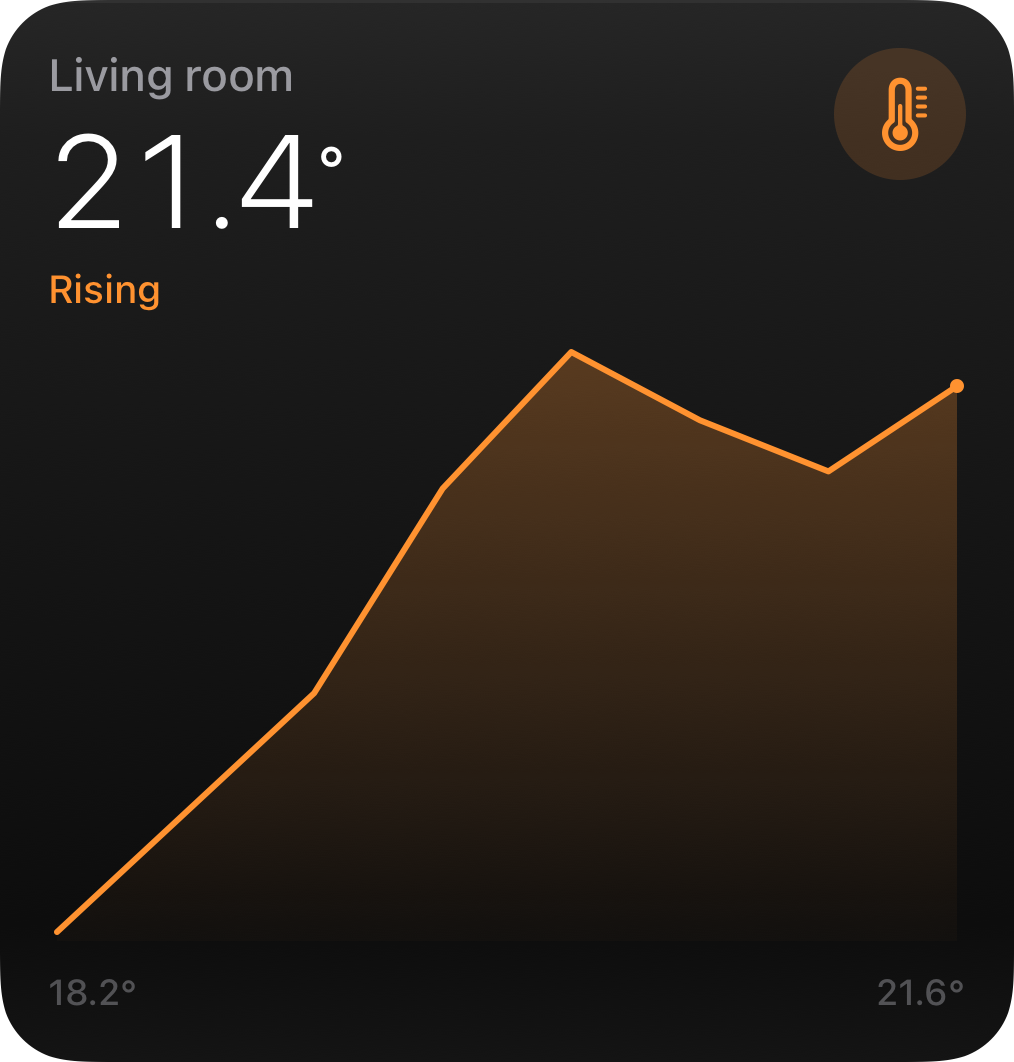
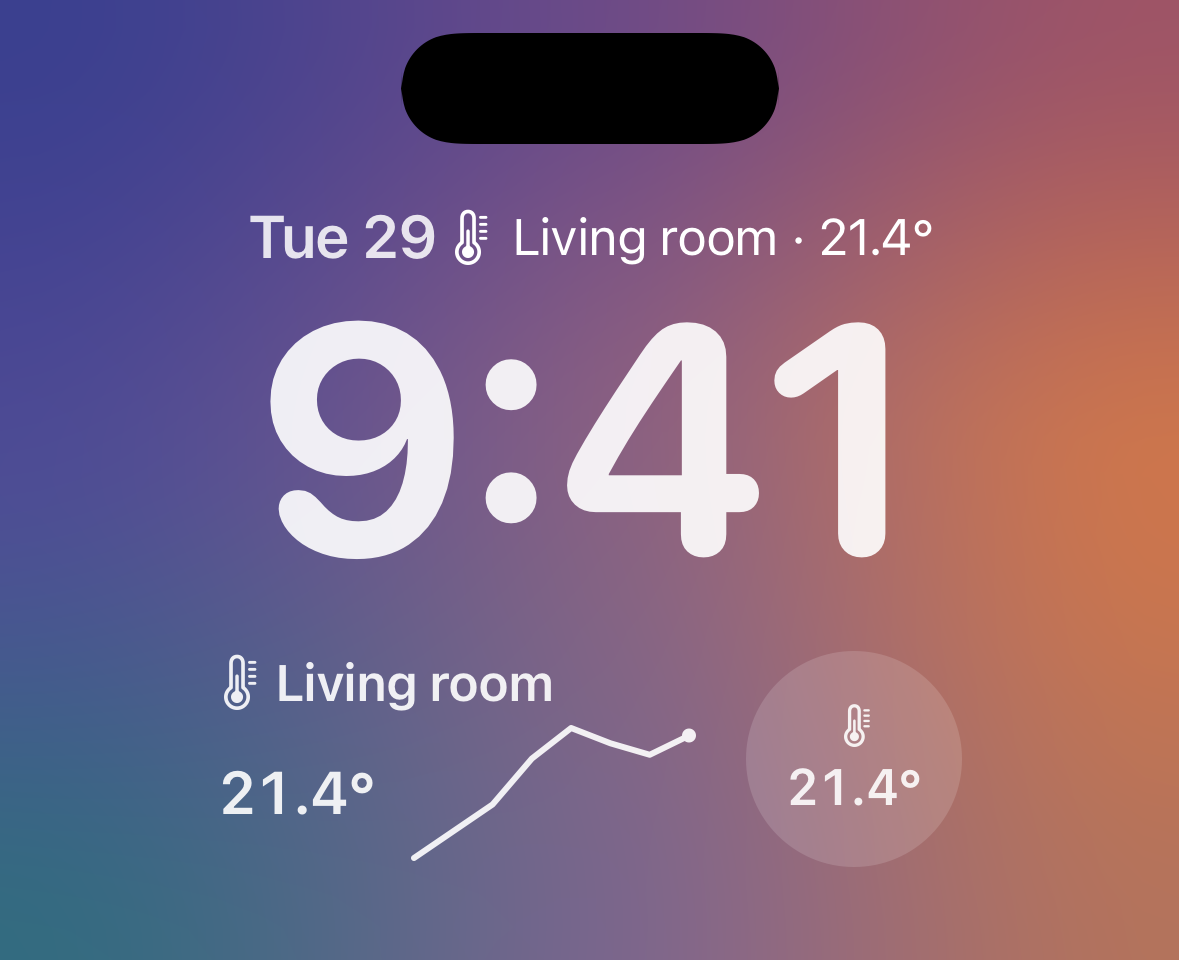
### Home Assistant
[Section titled “Home Assistant”](#home-assistant-5)
Use the Home Assistant blueprint to keep a Trend widget in sync with your sensors.
[](https://my.home-assistant.io/redirect/blueprint_import/?blueprint_url=https%3A%2F%2Fha.getaivi.app%2Fblueprints%2Fwidget-trend-v1.yaml)
### API schema
[Section titled “API schema”](#api-schema-5)
| Field | Type | Description | Required? |
| ----------- | ----------------------------------- | ------------------------------------------------------------------------------------------------------------------------- | --------- |
| `template` | `"trend"` | Identifies this template. | Yes |
| `value` | `float` | The current reading, shown as the hero. | Yes |
| `points` | `float[]` | Recent history, 2–48 points, oldest first. The device scales the sparkline to the data. | Yes |
| `unit` | `string` | Unit shown with the reading (for example `"°"`). | No |
| `min_value` | `float` | Fixed lower chart bound. Unset scales to the data. | No |
| `max_value` | `float` | Fixed upper chart bound. Unset scales to the data. | No |
| `state` | [`Value`](/templates/#value-object) | Supporting line under the hero (for example “Rising”). | No |
| `color` | [`Color`](/templates/#color) | Sparkline color. Falls back to the accent, then the icon color. | No |
| `icon` | `string \| Icon` | An [SF Symbols](/templates/#finding-sf-symbols) icon name or an [`Icon`](/templates/#icon-object) with rendering options. | No |
| `accent` | [`Color`](/templates/#color) | Palette color that themes the whole widget. Falls back to the icon color. | No |
| `tap_url` | `string` | [Tap action URL](/templates/#tap-action-url) to open when the widget is tapped. | No |
### Example payload
[Section titled “Example payload”](#example-payload-5)
```json
{
"template": "trend",
"value": 21.4,
"unit": "°",
"points": [18.2, 18.9, 19.6, 20.8, 21.6, 21.2, 20.9, 21.4],
"state": { "value": "Rising" },
"icon": { "name": "thermometer.medium", "primary_color": "orange" }
}
```
## Countdown Template
[Section titled “Countdown Template”](#countdown-template)
ID: `countdown`
A moment in time rendered as a self-updating countdown: garbage day, the next departure, an appliance finishing. One push sets the target; the device keeps the countdown current with no further pushes.

All sizes
\[ ] Small \[x] Medium \[ ] Large \[ ] Lock Screen

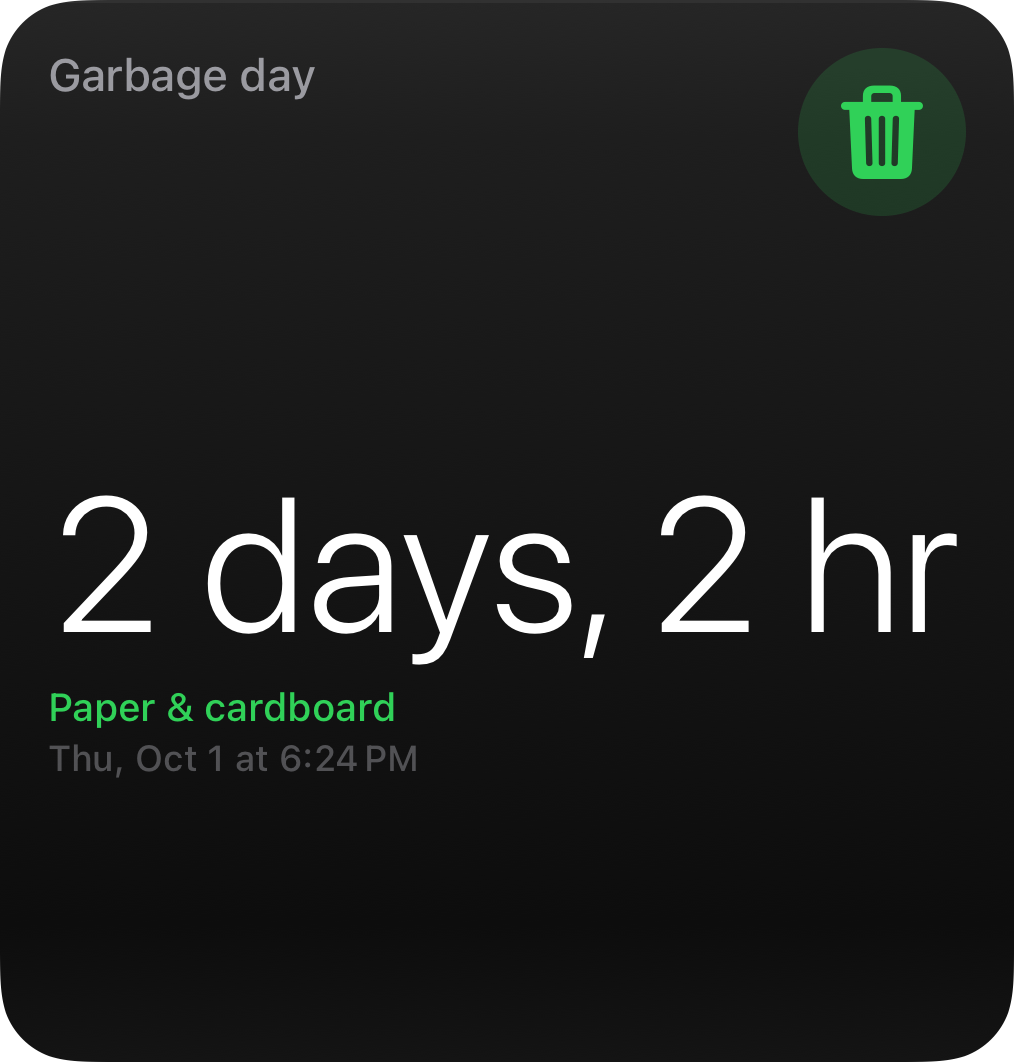
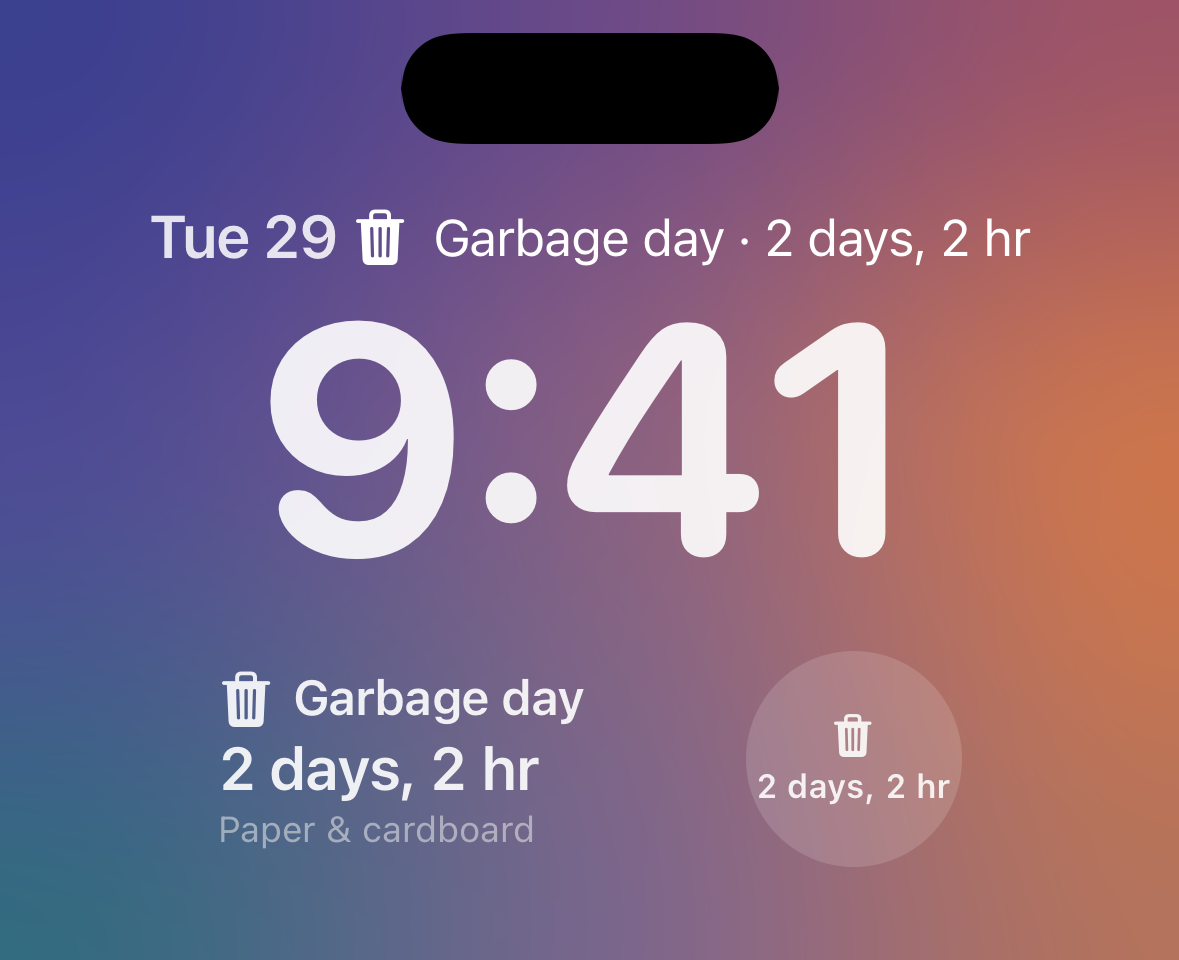
### Home Assistant
[Section titled “Home Assistant”](#home-assistant-6)
Use the Home Assistant blueprint to keep a Countdown widget in sync with your sensors.
[](https://my.home-assistant.io/redirect/blueprint_import/?blueprint_url=https%3A%2F%2Fha.getaivi.app%2Fblueprints%2Fwidget-countdown-v1.yaml)
### API schema
[Section titled “API schema”](#api-schema-6)
| Field | Type | Description | Required? |
| -------------- | ----------------------------------- | ------------------------------------------------------------------------------------------------------------------------- | --------- |
| `template` | `"countdown"` | Identifies this template. | Yes |
| `target` | `string` | ISO 8601 timestamp (with timezone) to count down to. | Yes |
| `subtitle` | [`Value`](/templates/#value-object) | Supporting line (for example “Paper & cardboard”). | No |
| `expired_text` | `string` | Shown once the target has passed. Without it, the widget shows the time elapsed since the target instead. | No |
| `icon` | `string \| Icon` | An [SF Symbols](/templates/#finding-sf-symbols) icon name or an [`Icon`](/templates/#icon-object) with rendering options. | No |
| `accent` | [`Color`](/templates/#color) | Palette color that themes the whole widget. Falls back to the icon color. | No |
| `tap_url` | `string` | [Tap action URL](/templates/#tap-action-url) to open when the widget is tapped. | No |
### Example payload
[Section titled “Example payload”](#example-payload-6)
```json
{
"template": "countdown",
"target": "2026-07-04T06:30:00Z",
"subtitle": { "value": "Paper & cardboard" },
"expired_text": "Out now",
"icon": { "name": "trash.fill", "primary_color": "green" }
}
```
## List Template
[Section titled “List Template”](#list-template)
ID: `list`
Rows of labeled values: the generic multi-entity readout for anything that does not fit a more specific template. Small and medium show up to four rows (small drops the labels to fit); large lists up to eight. Renders at the large widget sizes too.

All sizes
\[ ] Small \[x] Medium \[ ] Large \[ ] Lock Screen
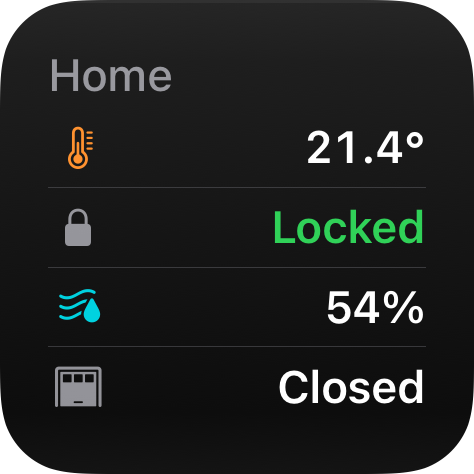

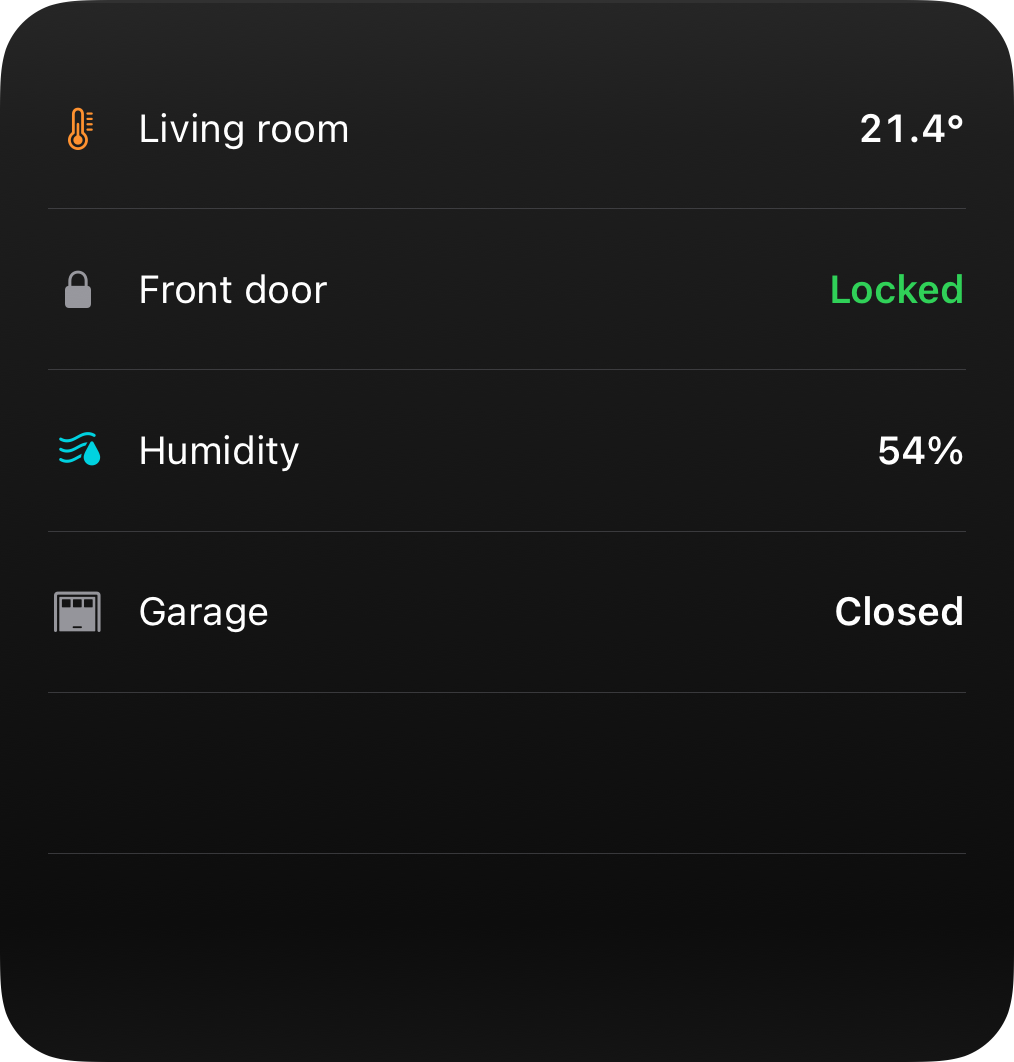
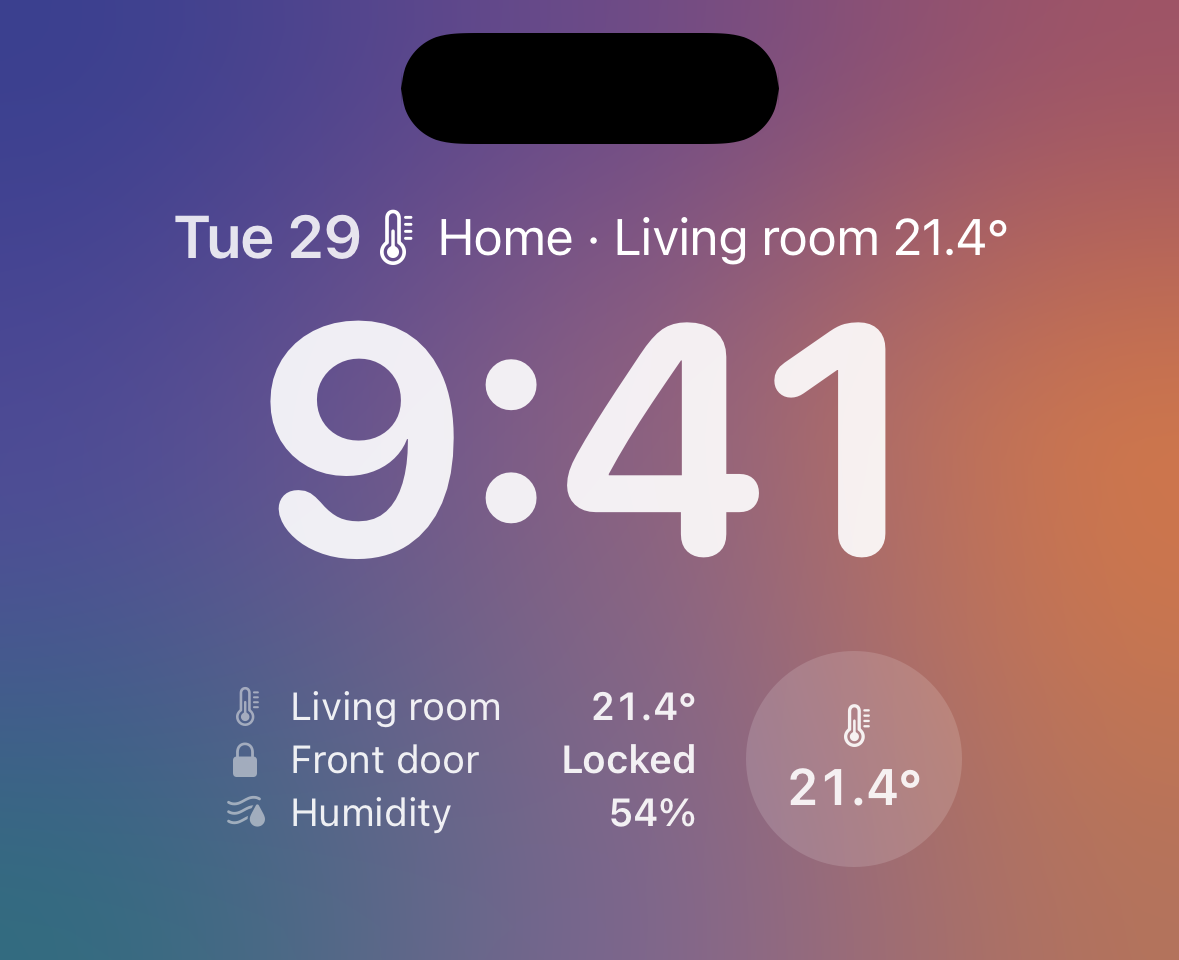
### Home Assistant
[Section titled “Home Assistant”](#home-assistant-7)
Use the Home Assistant blueprint to keep a List widget in sync with your sensors. Requires Home Assistant 2025.7 or newer.
[](https://my.home-assistant.io/redirect/blueprint_import/?blueprint_url=https%3A%2F%2Fha.getaivi.app%2Fblueprints%2Fwidget-list-v1.yaml)
### API schema
[Section titled “API schema”](#api-schema-7)
| Field | Type | Description | Required? |
| ---------- | ---------------------------- | ------------------------------------------------------------------------------------------------------------------------- | --------- |
| `template` | `"list"` | Identifies this template. | Yes |
| `rows` | [`Row[]`](#row-object) | 1–8 rows, shown in the order you send them. | Yes |
| `icon` | `string \| Icon` | An [SF Symbols](/templates/#finding-sf-symbols) icon name or an [`Icon`](/templates/#icon-object) with rendering options. | No |
| `accent` | [`Color`](/templates/#color) | Palette color that themes the whole widget. Falls back to the icon color. | No |
| `tap_url` | `string` | [Tap action URL](/templates/#tap-action-url) to open when the widget is tapped. | No |
#### Row object
[Section titled “Row object”](#row-object)
| Field | Type | Description | Required? |
| ------- | ----------------------------------- | --------------------------------------------------------------------------------- | --------- |
| `label` | `string` | The row label. | Yes |
| `value` | [`Value`](/templates/#value-object) | Trailing value, with optional text color and [formatters](/templates/#formatter). | No |
| `icon` | `string \| Icon` | Leading symbol. | No |
### Example payload
[Section titled “Example payload”](#example-payload-7)
```json
{
"template": "list",
"rows": [
{
"label": "Living room",
"value": { "value": "21.4°" },
"icon": { "name": "thermometer.medium", "primary_color": "orange" }
},
{
"label": "Front door",
"value": { "value": "Locked", "text_color": "green" },
"icon": "lock.fill"
},
{
"label": "Humidity",
"value": { "value": "54%" },
"icon": { "name": "humidity.fill", "primary_color": "teal" }
}
]
}
```
## Prices Template
[Section titled “Prices Template”](#prices-template)
ID: `prices`
A price timeline for dynamic tariffs: hourly electricity prices and the like. Post the periods you know (for example today plus tomorrow, hourly); the device charts them and highlights the current one, so a single nightly push stays correct all day. Renders at the large widget sizes too.

All sizes
\[ ] Small \[x] Medium \[ ] Large \[ ] Lock Screen
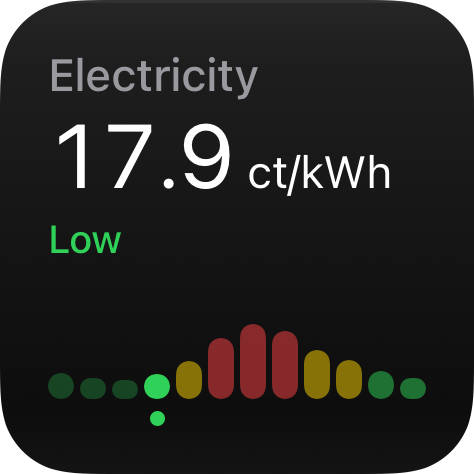

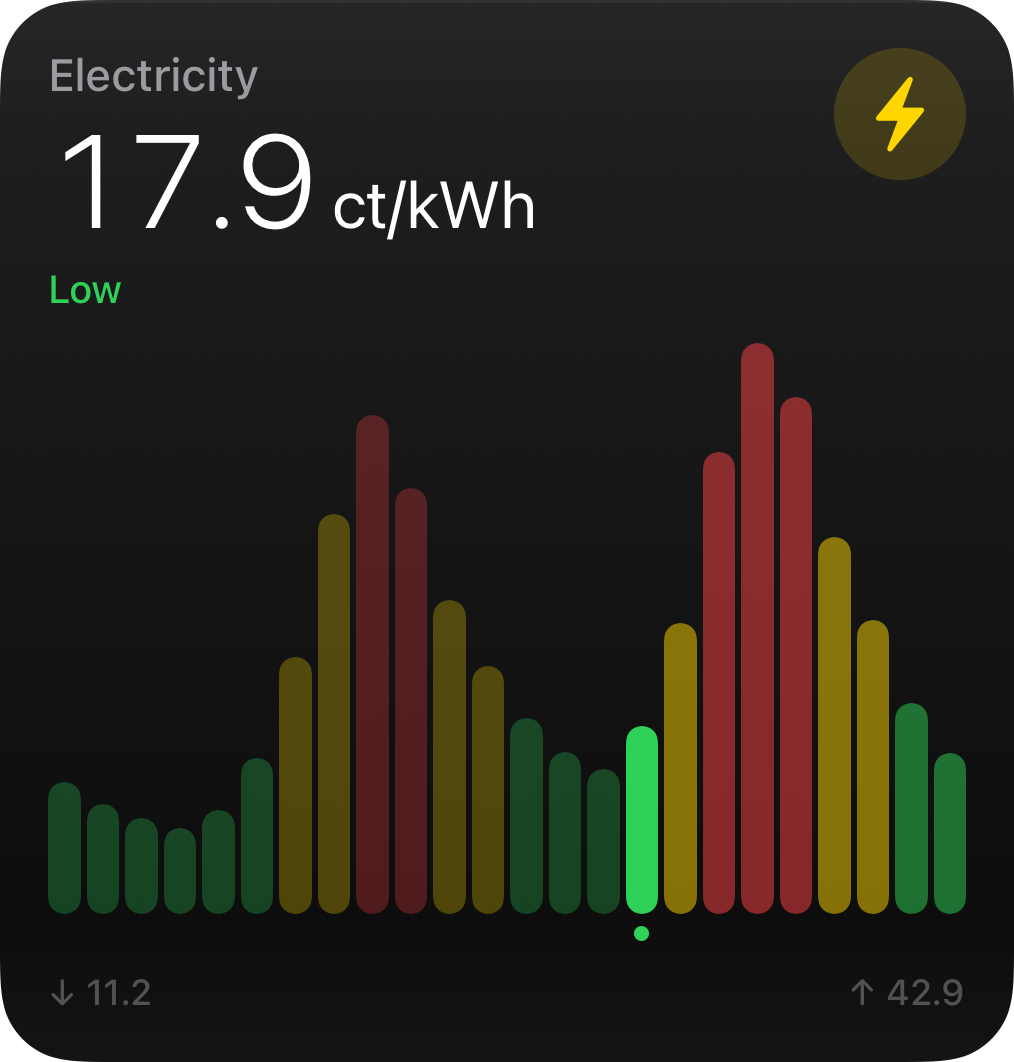
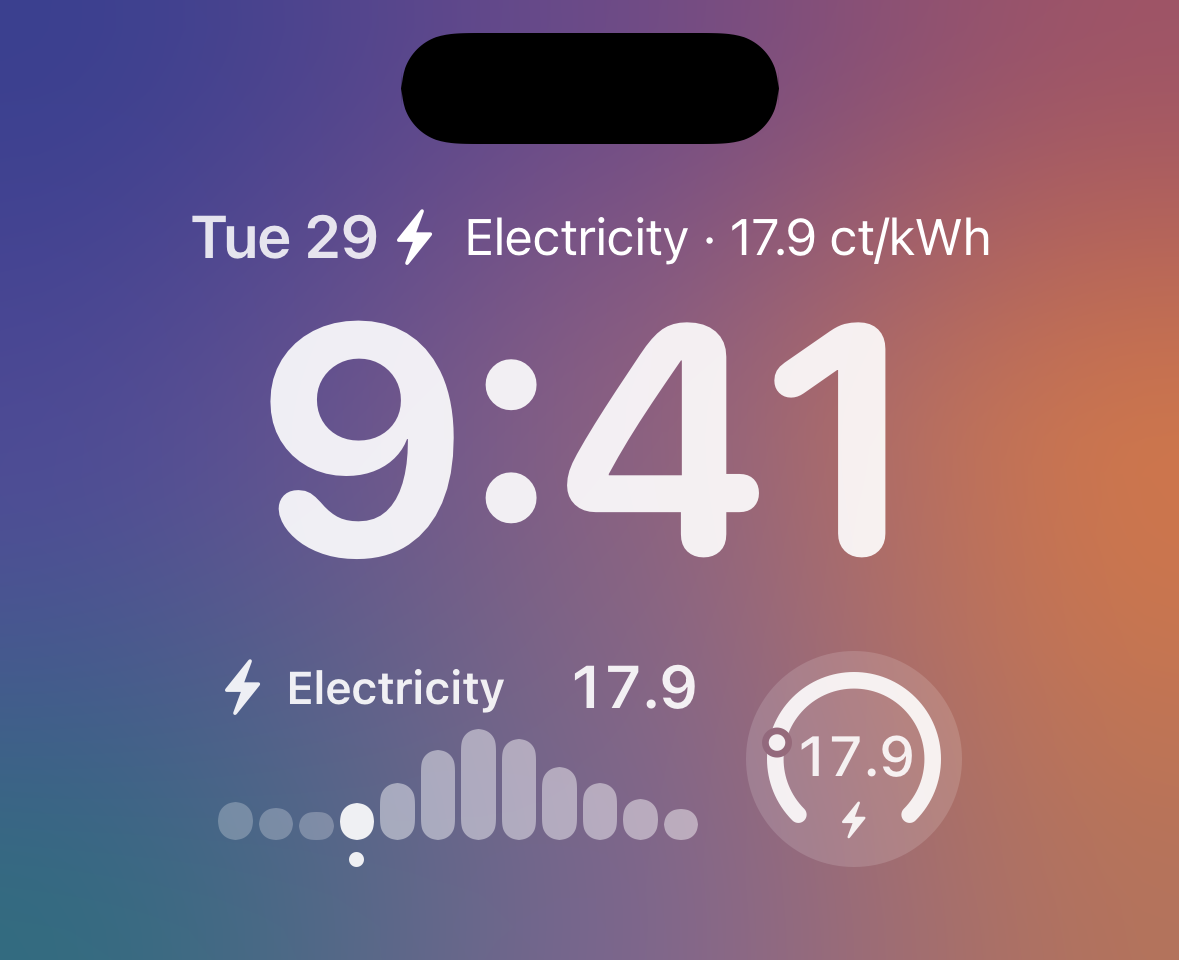
### Home Assistant
[Section titled “Home Assistant”](#home-assistant-8)
Use the Home Assistant blueprint to keep a Prices widget in sync with your sensors.
[](https://my.home-assistant.io/redirect/blueprint_import/?blueprint_url=https%3A%2F%2Fha.getaivi.app%2Fblueprints%2Fwidget-prices-v1.yaml)
### API schema
[Section titled “API schema”](#api-schema-8)
| Field | Type | Description | Required? |
| ---------- | ---------------------------- | ------------------------------------------------------------------------------------------------------------------------- | --------- |
| `template` | `"prices"` | Identifies this template. | Yes |
| `entries` | [`Entry[]`](#price-entry) | 1–48 pricing periods in strictly increasing `start` order. Each period lasts until the next one begins. | Yes |
| `unit` | `string` | Display unit (for example `"ct/kWh"`); prices are unit-agnostic numbers. | No |
| `icon` | `string \| Icon` | An [SF Symbols](/templates/#finding-sf-symbols) icon name or an [`Icon`](/templates/#icon-object) with rendering options. | No |
| `accent` | [`Color`](/templates/#color) | Palette color that themes the whole widget. Falls back to the icon color. | No |
| `tap_url` | `string` | [Tap action URL](/templates/#tap-action-url) to open when the widget is tapped. | No |
#### Price entry
[Section titled “Price entry”](#price-entry)
| Field | Type | Description | Required? |
| ------- | ----------------------------- | --------------------------------------------------------------------------------- | --------- |
| `start` | `string` | ISO 8601 timestamp the period starts at. | Yes |
| `price` | `float` | The price for the period. | Yes |
| `level` | `"low" \| "medium" \| "high"` | Explicit price banding. Unset lets the device derive bands from the posted range. | No |
### Example payload
[Section titled “Example payload”](#example-payload-8)
```json
{
"template": "prices",
"unit": "ct/kWh",
"entries": [
{ "start": "2026-07-02T00:00:00+02:00", "price": 14.2 },
{ "start": "2026-07-02T01:00:00+02:00", "price": 12.8 },
{ "start": "2026-07-02T02:00:00+02:00", "price": 11.9, "level": "low" },
{ "start": "2026-07-02T03:00:00+02:00", "price": 22.4 }
]
}
```
## Energy Template
[Section titled “Energy Template”](#energy-template)
ID: `energy`
Home energy at a glance: generation sources, grid, battery, and home consumption. Sources are generation of any kind (solar, wind, hydro, a generator) and default to the solar presentation when unnamed. Renders at the large widget sizes too.

All sizes
\[ ] Small \[x] Medium \[ ] Large \[ ] Lock Screen
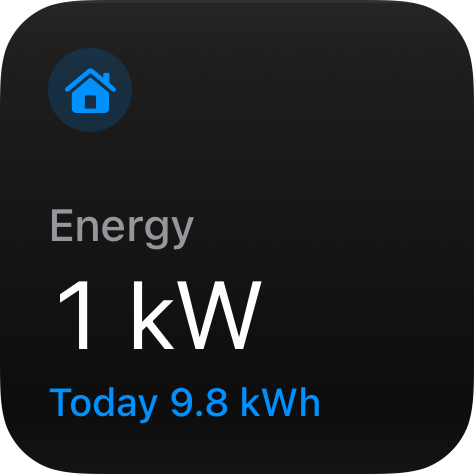

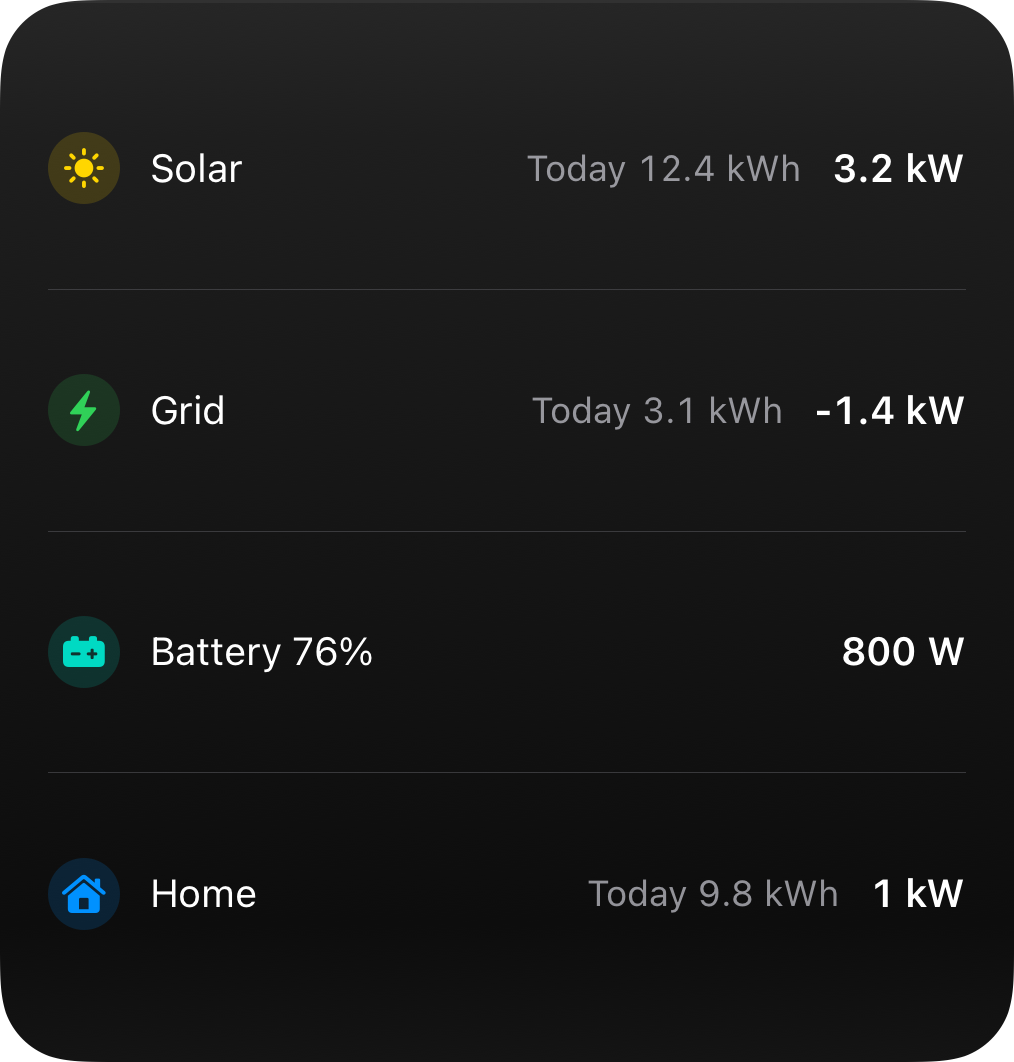
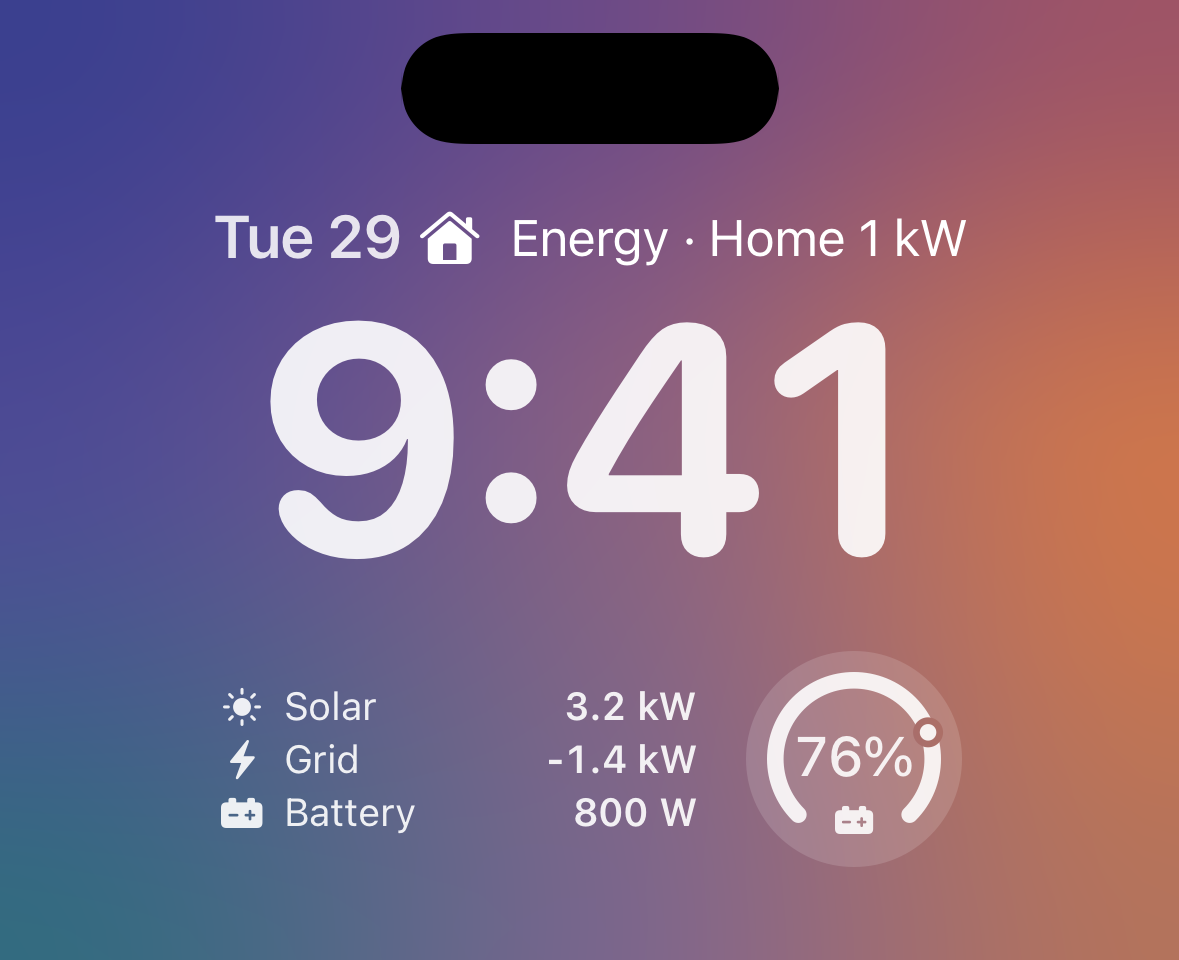
### Home Assistant
[Section titled “Home Assistant”](#home-assistant-9)
Use the Home Assistant blueprint to keep a Energy widget in sync with your sensors. Requires Home Assistant 2025.7 or newer.
[](https://my.home-assistant.io/redirect/blueprint_import/?blueprint_url=https%3A%2F%2Fha.getaivi.app%2Fblueprints%2Fwidget-energy-v1.yaml)
### API schema
[Section titled “API schema”](#api-schema-9)
| Field | Type | Description | Required? |
| ---------- | ---------------------------- | ------------------------------------------------------------------------------------------------------------------------- | --------- |
| `template` | `"energy"` | Identifies this template. | Yes |
| `sources` | [`Node[]`](#energy-node) | Up to 3 generation sources. | No |
| `grid` | [`Node`](#energy-node) | The grid connection. | No |
| `battery` | [`Node`](#energy-node) | The home battery. | No |
| `home` | [`Node`](#energy-node) | Home consumption. | No |
| `icon` | `string \| Icon` | An [SF Symbols](/templates/#finding-sf-symbols) icon name or an [`Icon`](/templates/#icon-object) with rendering options. | No |
| `accent` | [`Color`](/templates/#color) | Palette color that themes the whole widget. Falls back to the icon color. | No |
| `tap_url` | `string` | [Tap action URL](/templates/#tap-action-url) to open when the widget is tapped. | No |
Note
At least one of `sources`, `grid`, `battery`, `home` is required. Sign conventions: grid power is positive when importing and negative when exporting; battery power is positive when charging and negative when discharging. The device colors the flows accordingly.
#### Energy node
[Section titled “Energy node”](#energy-node)
All four slots share this one node shape; the slot a node sits in decides its defaults and how its `power` sign is read. In practice `level` belongs to the battery node and `name` chiefly renames generation sources; the remaining fields apply everywhere.
| Field | Type | Description | Required? |
| ------- | ---------------------------- | ------------------------------------------------------------------------------------------------------------------- | --------- |
| `name` | `string` | Display label overriding the slot’s default (“Solar”, “Grid”, …); chiefly for generation sources (“Wind”, “Hydro”). | No |
| `power` | `float` | Instantaneous power in watts. The sign follows the slot’s convention (see above). | Yes |
| `today` | `float` | Today’s cumulative energy in kWh. | No |
| `level` | `float` | Charge percent (0–100); battery node only. | No |
| `icon` | `string \| Icon` | Symbol for the node. | No |
| `color` | [`Color`](/templates/#color) | Color override for the node. | No |
### Example payload
[Section titled “Example payload”](#example-payload-9)
```jsonc
{
"template": "energy",
// Unnamed sources render as "Solar"; set "name" for "Wind", "Hydro", …
"sources": [{ "power": 3200, "today": 12.4 }],
// Negative grid power: exporting. Positive would be importing.
"grid": { "power": -1400, "today": 3.1 },
// Positive battery power: charging. Negative would be discharging.
"battery": { "power": 800, "level": 76 },
"home": { "power": 1000, "today": 9.8 }
}
```
## Switchboard Template
[Section titled “Switchboard Template”](#switchboard-template)
ID: `switchboard`
A grid of up to eight pressable tiles, each a button (a scene, a script) or a toggle (a light, a fan). Every tile leads with a round **mark** that previews what the press does: a picture, a gradient of the scene’s colors, or a symbol on a color. Under it sit the label and a second line with the state or a subtitle such as the room. A tile fills with its mark’s color while it is on or active. A press on the Home Screen reaches your own system; the [Interactive Widgets](/interactive-widgets/) guide covers how presses travel, what a tile shows while it waits, and how you confirm the result.

All sizes
\[ ] Small \[x] Medium \[ ] Large \[ ] Lock Screen
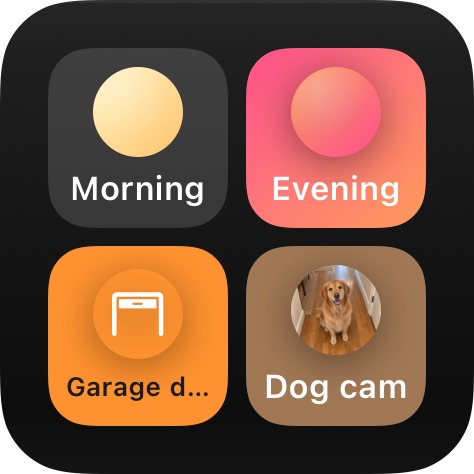

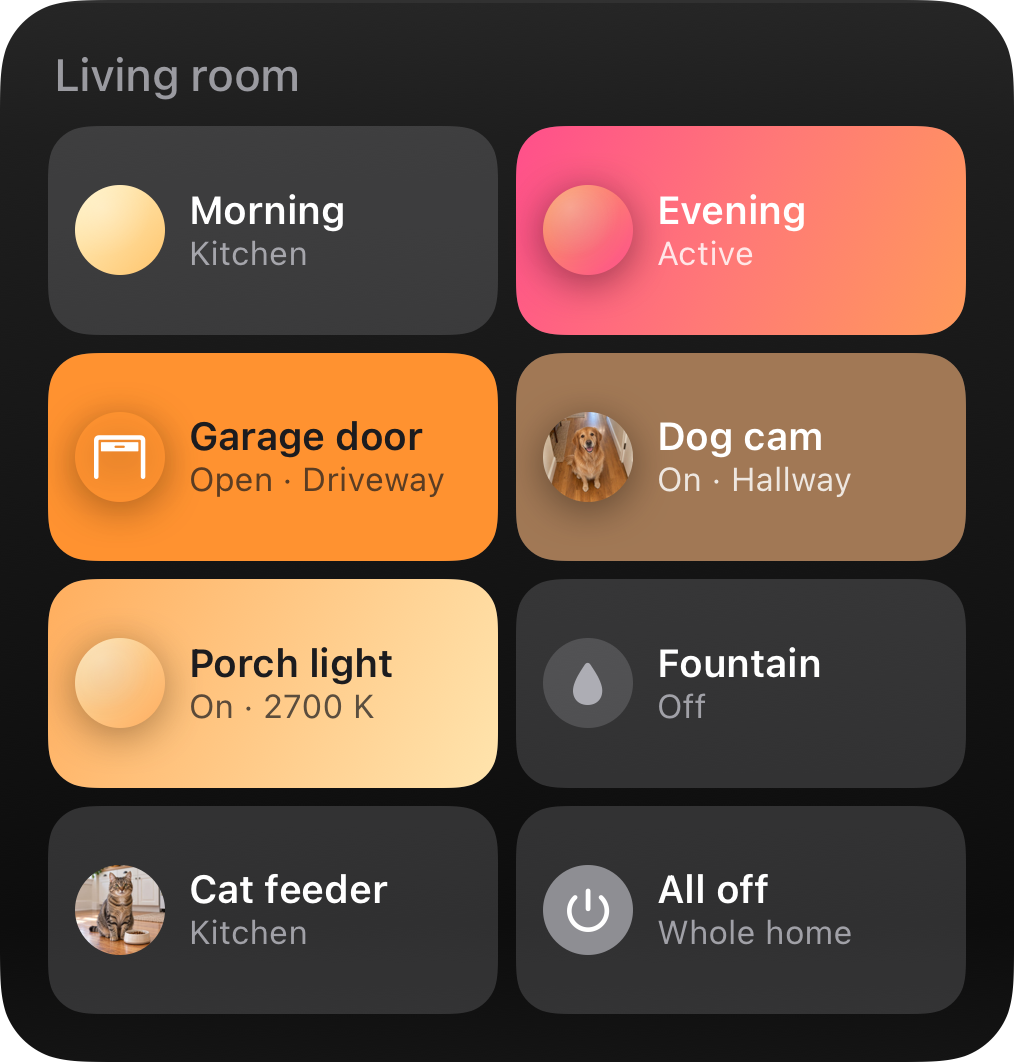
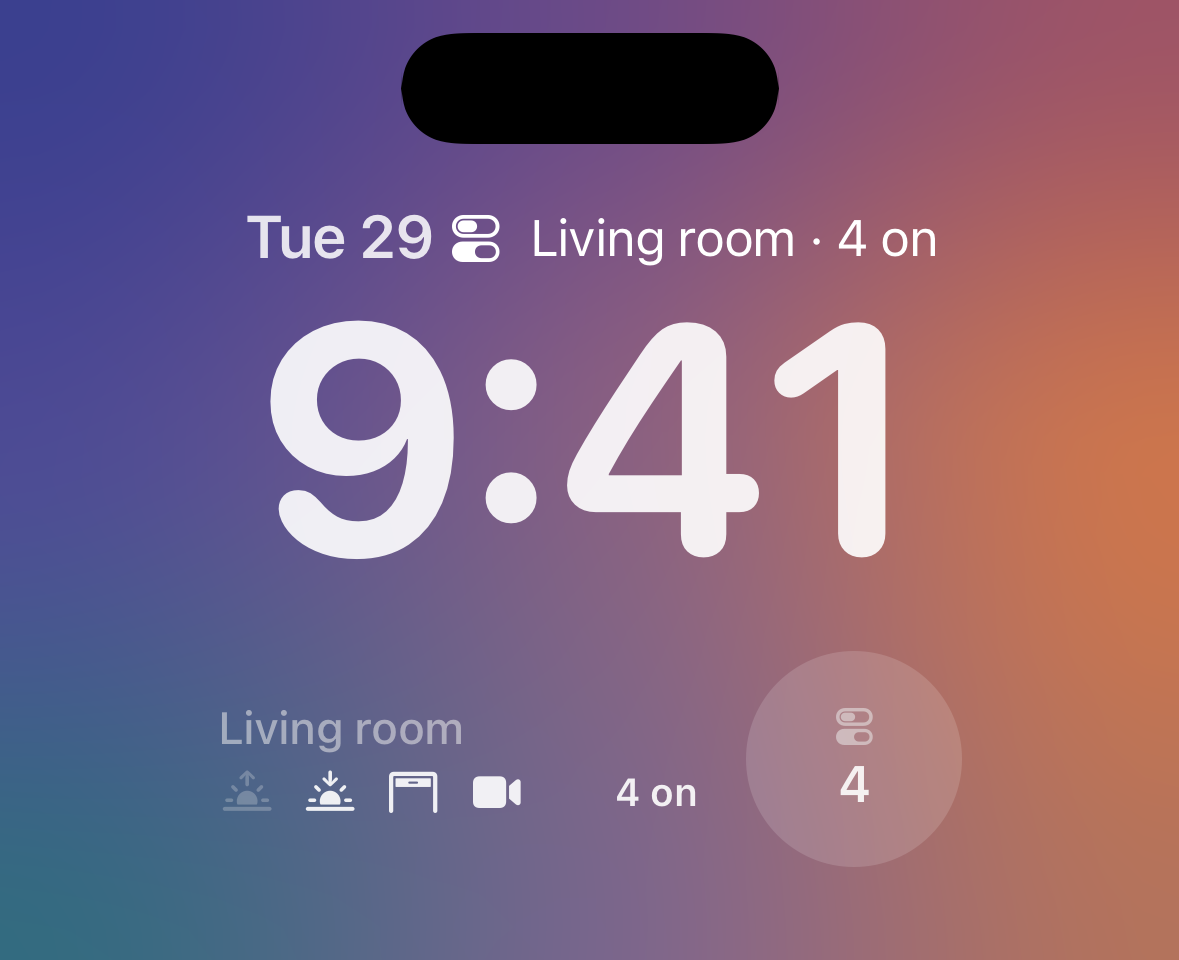
### Home Assistant
[Section titled “Home Assistant”](#home-assistant-10)
There is no blueprint for the Switchboard yet. The [Interactive Widgets](/interactive-widgets/#home-assistant) guide has a recipe that publishes a switchboard from your entities and turns presses into service calls, with a webhook and two automations.
### API schema
[Section titled “API schema”](#api-schema-10)
| Field | Type | Description | Required? |
| ---------- | ---------------------------- | ------------------------------------------------------------------------------------------------------------------------------------------------ | --------- |
| `template` | `"switchboard"` | Identifies this template. | Yes |
| `actions` | [`Action[]`](#action-object) | 1–8 actions, shown in the order you send them. Every `id` must be unique. | Yes |
| `icon` | `string \| Icon` | An [SF Symbols](/templates/#finding-sf-symbols) icon name or an [`Icon`](/templates/#icon-object). Shown on the Lock Screen and the Apple Watch. | No |
| `accent` | [`Color`](/templates/#color) | Palette color for tiles that set no `color` of their own. Falls back to the icon color. | No |
| `tap_url` | `string` | [Tap action URL](/templates/#tap-action-url) to open when the widget is tapped outside a tile. | No |
#### Action object
[Section titled “Action object”](#action-object)
| Field | Type | Description | Required? |
| ------------ | ----------------------------------- | ----------------------------------------------------------------------------------------------------------------------------------------------------------------------------------------------------------------------------------------------------------- | ----------- |
| `id` | `string` | What your system receives when the tile is pressed. Lowercase letters, digits, `_` and `-`, starting with a letter or digit, at most 32 characters (`^[a-z0-9][a-z0-9_-]{0,31}$`). | Yes |
| `label` | `string` | The tile’s label, 1–24 characters. | Yes |
| `subtitle` | [`Value`](/templates/#value-object) | A second line under the label, for example the room or “2700 K”. The same `Value` as the Budget and Countdown subtitles, so its `text_color` is a named [color](/templates/#color). | No |
| `icon` | `string` | An [SF Symbols](/templates/#finding-sf-symbols) name, 1–64 characters. A plain string: tiles draw their symbol in one color, so the `Icon` object’s options don’t apply. Always required, because some surfaces draw only the symbol (see [Marks](#marks)). | Yes |
| `color` | [Action color](#action-colors) | The mark’s color behind the symbol, and the tile’s fill while it is on or active when there is no gradient or picture. Falls back to the widget’s `accent`. | No |
| `gradient` | [Action color](#action-colors)`[]` | 2 or 3 stops, for example a scene’s light colors. Drawn as the mark in place of the symbol, and as the fill while the tile is on or active. | No |
| `image` | [`Image`](#image-object) | A picture drawn as the mark once the phone has it. See [Pictures](#pictures). | No |
| `kind` | `"button" \| "toggle"` | Default: `"button"`. | No |
| `active` | `bool` | Buttons only. Highlights the tile, for example the scene that is running now. Only you set it; pressing never does. Default: `false`. | No |
| `on` | `bool` | Toggles only. Whether the thing is on right now. A press asks for a change; your next update confirms it. | For toggles |
| `state_text` | [State words](#state-words) | Your own words for the tile’s states, such as “Open” and “Closed” for a garage door. Omit it for the app’s words. | No |
Any other field is rejected, including `active` on a toggle and `on` on a button.
#### State words
[Section titled “State words”](#state-words)
The second line under a tile’s label names its state: **On**, **Off**, **Turning on**, and so on. `state_text` replaces those words with yours, one key per state. The keys depend on the action’s kind:
| Kind | Key | Shown when | The app’s word |
| ------ | ------------- | -------------------------------------------------- | -------------- |
| toggle | `on` | The toggle is on. | On |
| toggle | `off` | The toggle is off. | Off |
| toggle | `turning_on` | A press to turn it on is waiting for your update. | Turning on |
| toggle | `turning_off` | A press to turn it off is waiting for your update. | Turning off |
| toggle | `no_response` | Your update didn’t arrive within 15 seconds. | No response |
| button | `idle` | The button is at rest. | (none) |
| button | `active` | You published the button with `"active": true`. | Active |
| button | `sent` | After a press, until your next update arrives. | Sent |
The words only rename the states: when each state shows is the same as without them, as described in [What a tile shows](/interactive-widgets/#what-a-tile-shows).
* **Leave a key out**, or send `null`, to keep the app’s word. A string is used as written, and `""` hides the word.
* **Each key stands alone.** Renaming `on` doesn’t change `turning_on`, so set every word you want changed.
* **One short line.** Surrounding whitespace is trimmed, and a word can be at most 24 characters after trimming, with no line breaks, tabs, or other control characters.
* **Keys match the kind.** A toggle’s keys on a button, a button’s keys on a toggle, and any other key are rejected with `422`.
* **A hidden word leaves the subtitle.** When the word is `""`, the second line shows the subtitle alone, in every state, or stays empty without one.
* **VoiceOver still names the state.** It reads your word, and the app’s word where you hid it, so on and off are always announced.
* **Words count toward the 4 KiB content limit.** Eight toggles with every word at its full 24 characters fit, but not together with rich marks on every tile.
A garage door that reads **Open · Driveway**, and **Opening** or **Closing** while a press waits:
```json
{
"id": "garage",
"label": "Garage door",
"subtitle": { "value": "Driveway" },
"icon": "door.garage.open",
"kind": "toggle",
"on": true,
"state_text": {
"on": "Open",
"off": "Closed",
"turning_on": "Opening",
"turning_off": "Closing"
}
}
```
A lock:
```json
{
"id": "front_door",
"label": "Front door",
"icon": "lock.fill",
"kind": "toggle",
"on": true,
"state_text": {
"on": "Locked",
"off": "Unlocked",
"turning_on": "Locking",
"turning_off": "Unlocking"
}
}
```
A scene button that reads **Starting** after a press and **Running** while you publish it as active:
```json
{
"id": "evening",
"label": "Evening",
"icon": "sunset.fill",
"active": true,
"state_text": { "active": "Running", "sent": "Starting" }
}
```
And the smallest change, renaming only `on` and `off`:
```json
{
"id": "vent",
"label": "Vent",
"icon": "wind",
"kind": "toggle",
"on": false,
"state_text": { "on": "Open", "off": "Shut" }
}
```
#### Image object
[Section titled “Image object”](#image-object)
| Field | Type | Description | Required? |
| ----- | -------- | ------------------------------------------------------------------------------------------------------------------------------------------------------ | --------- |
| `url` | `string` | An `https://` URL with a host and no whitespace (`^https://[^\s/?#]+[^\s]*$`), at most 2048 characters. The phone fetches it; Aivi never downloads it. | Yes |
| `alt` | `string` | What the picture shows, at most 64 characters. VoiceOver reads it after the label while the picture is drawn. | No |
Any other field in an `Image` is rejected.
#### Action colors
[Section titled “Action colors”](#action-colors)
An action’s `color` and `gradient` stops take either a named [color](/templates/#color) or a hex color, `#RRGGBB` (six digits, no alpha, no three-digit shorthand). Hex is stored and returned in upper case, so `#3d3dff` comes back as `#3D3DFF`. Everywhere else, including the widget’s `accent` and a subtitle’s `text_color`, colors are named only, and hex is rejected with a `422`.
Note
Widget content is capped at 4 KiB, measured as compact JSON. Eight plain actions take about 1 KiB, but subtitles, gradients, state words, and long image URLs add up: eight tiles with all of them can pass the cap. Content over it is rejected with `422` and `Content exceeds the 4 KiB limit`. Shorter image URLs are the easiest saving.
### Marks
[Section titled “Marks”](#marks)
A tile draws the richest mark it can:
1. The **picture** from `image`, once the phone has it.
2. Otherwise the **gradient**.
3. Otherwise the **symbol** from `icon`, on `color` (or the widget’s `accent`).
Send several, and the poorer ones stand in while a picture loads or when it can’t be shown. Surfaces that don’t show color always draw the symbol: the Lock Screen and Apple Watch families, the tinted and clear Home Screen styles, and the Always-On display. So does a locked phone that hides the widget’s content: it shows the symbol, never the picture.
The mark also says what the tile’s fill will be: a filled tile uses the gradient, else the picture’s average color, else the `color`. Text on a pale fill turns dark so it stays readable. A toggle that is off shows a neutral tile with a muted mark, and a picture turns grey. The [Interactive Widgets](/interactive-widgets/#what-a-tile-shows) guide shows every state.
### Pictures
[Section titled “Pictures”](#pictures)
Aivi never fetches or stores a picture: the phone downloads it, shrinks it to a thumbnail, and keeps it for the widget. The Aivi app fetches pictures ahead of time, and the widget fetches any that are still missing on its next update.
* **Send small thumbnails.** At most 512 pixels on a side and 256 KB, in PNG, JPEG, HEIC, WebP, or GIF (the first frame). Anything larger, or in another format such as TIFF, is refused, and the tile keeps its gradient or symbol. A URL that fails is not tried again for 30 minutes.
* **A new picture can take a while.** The widget fetches a missing picture on its next update, and the app fetches pictures when it opens, after it syncs your widgets, and in the background a few times a day, when iOS allows. Until a picture arrives, the tile shows its gradient or symbol.
* **Change the URL to change the picture.** The phone trusts a picture it has for 24 hours, and doesn’t check whether the file behind the same URL changed. To show a new picture at the next sync, give it a new URL, for example with a version in the query string: `https://example.com/aivi/dog-cam.jpg?v=2`.
* **Use a public, stable URL.** The phone fetches it without your credentials, and every phone showing the widget fetches it. The example pictures below are real, so you can try the payload as is. In Home Assistant, an entity’s `entity_picture` is usually a relative, authenticated, or tokenized address that changes over time, so don’t forward it as is. [Hosting Widget Pictures](/guides/hosting-pictures/) shows where to put your own: a free Cloudflare R2 bucket, or the Home Assistant `www` folder.
### Sizes
[Section titled “Sizes”](#sizes)
The actions fill a fixed grid in the order you send them. Slots you don’t use show as quiet empty tiles, so the grid keeps its shape. A size with fewer slots than actions shows the first ones.
| Size | Layout |
| ---------------------------------------------- | ------------------------------------------------------------------------------------------------------------ |
| Small | A 2 × 2 grid: the first four actions, each a mark over its label. |
| Medium | A 2 × 3 grid: the first six actions, each a mark beside its label and second line. |
| Large and extra large | The widget’s name on top, then a 2 × 4 grid of all eight: a mark beside the label and second line. |
| Extra large portrait (iOS 27) | The name, then a 2 × 4 grid of tall tiles: a large mark at the top, the label and second line at the bottom. |
| Rectangular (Lock Screen, Apple Watch) | The name, the symbols of the first four actions (lit when on or active), and how many are on. |
| Circular and inline (Lock Screen, Apple Watch) | The widget’s icon (a switch symbol by default) and how many are on. Inline adds the name. |
| Corner (Apple Watch) | How many are on, with the name along the edge. |
The second line shows the state (On, Off, Active, or your own [state words](#state-words)) and the subtitle together when they fit (“On · 2700 K”), and the state alone when they don’t. An idle button shows its subtitle. While a press is on its way, the line shows its progress instead; see [What a tile shows](/interactive-widgets/#what-a-tile-shows).
On the large sizes, the header shows the time of your last update next to the name once the content is [stale](#marking-content-as-stale), and otherwise only the name: the tiles already show what is on and what is on its way. The Lock Screen and Apple Watch summaries, a switchboard inside a Board, and VoiceOver count what is on instead: toggles that are on and buttons that are active. In the tinted and clear Home Screen styles, iOS draws the tiles in its own colors instead of yours.
Open **All sizes** on the preview above to see each size with the same content.
### Example payload
[Section titled “Example payload”](#example-payload-10)
The content the renders above show:
```json
{
"template": "switchboard",
"actions": [
{
"id": "morning",
"label": "Morning",
"subtitle": { "value": "Kitchen" },
"icon": "sunrise.fill",
"gradient": ["#FFF3C4", "#FFC46B"]
},
{
"id": "evening",
"label": "Evening",
"subtitle": { "value": "Living room" },
"icon": "sunset.fill",
"gradient": ["#FF9A5A", "#FF4F8B"],
"active": true
},
{
"id": "garage",
"label": "Garage door",
"subtitle": { "value": "Driveway" },
"icon": "door.garage.open",
"kind": "toggle",
"on": true,
"color": "orange",
"state_text": {
"on": "Open",
"off": "Closed",
"turning_on": "Opening",
"turning_off": "Closing"
}
},
{
"id": "dog_cam",
"label": "Dog cam",
"subtitle": { "value": "Hallway" },
"icon": "video.fill",
"kind": "toggle",
"on": true,
"gradient": ["#E8C07A", "#B98545"],
"image": {
"url": "https://getaivi.app/demo/switchboard/dog-cam.jpg",
"alt": "The dog in the hallway"
}
},
{
"id": "porch",
"label": "Porch light",
"subtitle": { "value": "2700 K" },
"icon": "lightbulb.fill",
"kind": "toggle",
"on": true,
"gradient": ["#FFE4AD", "#FFAE5E"]
},
{
"id": "fountain",
"label": "Fountain",
"subtitle": { "value": "Garden" },
"icon": "drop.fill",
"kind": "toggle",
"on": false,
"color": "#30B0C7"
},
{
"id": "cat_feeder",
"label": "Cat feeder",
"subtitle": { "value": "Kitchen" },
"icon": "pawprint.fill",
"color": "brown",
"image": {
"url": "https://getaivi.app/demo/switchboard/cat-feeder.jpg",
"alt": "The cat by its bowl"
}
},
{ "id": "all_off", "label": "All off", "subtitle": { "value": "Whole home" }, "icon": "power", "color": "gray" }
]
}
```
## Publishing from Home Assistant
[Section titled “Publishing from Home Assistant”](#publishing-from-home-assistant)
The quickest path is the ready-made [widget blueprints](/home-assistant/blueprints/#widget-blueprints): one per template, imported in a few clicks, with the payload plumbing handled for you. The [Home Assistant widgets guide](/guides/homeassistant-widgets/) walks through the whole setup, from creating the widget to placing it on screen.
For anything the blueprints don’t cover, widgets use the same [RESTful command](https://www.home-assistant.io/integrations/rest_command/) pattern as [Live Activities](/guides/homeassistant/). Add a command for the widget endpoint to `configuration.yaml`:
```yaml
rest_command:
update_widget:
url: "https://api.getaivi.app/widgets/{{ slug }}"
method: PATCH
headers:
content-type: application/json
authorization: Token [token]
payload: "{{ payload }}"
```
Note
Make sure to replace `[token]` with your API token from the Aivi app.
Then call it from an automation whenever the source data changes. This example keeps a [Gauge](#gauge-template) widget in sync with a temperature sensor:
```yaml
- triggers:
- trigger: state
entity_id: sensor.living_room_temperature
actions:
- action: rest_command.update_widget
data:
slug: living-room
payload: >-
{
"content": {
"template": "gauge",
"value": {{ states('sensor.living_room_temperature') | float(0) }},
"min_value": 10,
"max_value": 35,
"unit": "°C",
"label": "Living room",
"icon": "thermometer.medium"
}
}
```
There is no need to update on a timer: widgets show the latest known state, so updating only when the value actually changes is enough. For slow-moving data (battery levels, prices), a time-pattern trigger every hour or a single nightly update works just as well.
## Publishing from Shortcuts
[Section titled “Publishing from Shortcuts”](#publishing-from-shortcuts)
Shortcuts can update a widget when run manually, from the Action button, or on a schedule via a personal automation, no server required.
1. Add a **Text** action containing the request body:
```json
{
"content": {
"template": "progress",
"progress": { "style": "simple", "value": 0.6, "color": "cyan" },
"state": { "value": "1.5 of 2.5 L" },
"icon": { "name": "drop.fill", "primary_color": "cyan" }
}
}
```
Build the dynamic parts (numbers, dates) with earlier Shortcuts actions and insert them into the Text as variables.
2. Add a **Get Contents of URL** action pointing at `https://api.getaivi.app/widgets/water-intake` and expand **Show More**:
* **Method**: `PATCH`
* **Headers**: `Authorization` → `Token YOUR_API_TOKEN` and `Content-Type` → `application/json`
* **Request Body**: **File**, set to the **Text** from step 1
3. Run the shortcut. The widget updates on every device that shows it.
For the full endpoint reference (request body, `stale_after`, responses, and errors), see [Update a widget](/api-reference/#update-a-widget) in the API reference.